
Re- KYC 2.0
Document Versioning :
Ver. No | Authors | Changes in the Doc | Date of change | Reviewed by | Review Date |
1 | Riti Singh | New Process | N/A | 8-05-2026 | |
8-05-2026 | |||||
12-05-2026 |
Purpose of this Document:
This document provides updated instructions for support agents assisting the merchant with the RE-KYC 2.0.
The primary changes focus on streamlining KYC requirements and ensuring compliance with updated RBI regulations. Below mentioned are the stages and the definitions.
Owner KYC (Identity Verification): Agents must now use one of the following two paths.
Option 1: Use the Available Document and proceed with the verification. (PAN or Aadhaar)
Option 2: Aadhaar e-OTP + PAN + Video KYC.
Note: Voter ID and Driver’s Licenses are no longer accepted.
Business KYC (Entity Verification)
Mandatory Requirement: A valid Business Proof document is now required for all Current Accounts.
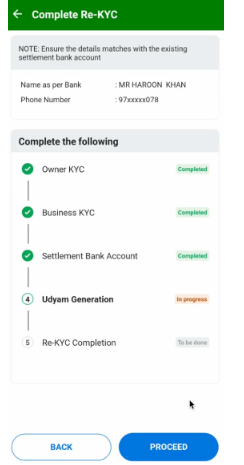
Bank KYC (Account Validation): To ensure successful verification, the names must match exactly as follows:
Merchants cannot add or change Bank accounts within this journey.
Udyam Aadhaar Generation: As RBI now requires Business Proof for all merchants, we have introduced a solution for Savings Account holders:
If a merchant uses a Savings Account, we will generate an Udyam Aadhaar Certificate on their behalf to serve as their official Business Proof.
Rollback execute - Means, the merchant has pressed the Back button. Just inform them to proceed with the process; it is not an error.
InScope :
The scope of this document covers the issues that Merchants may face during the Re-KYC journey via RE-KYC-2.0 procedure.
OutScope :
Any other scenarios apart from the ones mentioned in the “InScope” section.
1. Re-Kyc - L1 Process :
Steps | Process | Action | GTIS | Status | TAT | Owner |
1 | Merchant reach out to us regarding KYC concern | Check if the MID Blacklisted | - | - | MHD L1 |
1.1 | MID is Blacklisted | Agent Communication: Hello Merchant, Thank you for reaching out to us! Your account has been temporarily disabled for security reasons. We have forwarded this matter to our specialized support team, and a representative will contact you shortly to assist with the process. Ticket ID: Regards, PhonePe Merchant HelpDesk | Group: FRA Merchant Escalations Type: FRA-Complaint Issue: Account enquiry Sub Issue: Account Blocked Status: Assign to L2 L2 team: FRA | T+3 Days | MHD L1 |
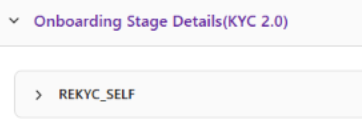
1.2 | MID is not Blacklisted | Agent Action: Check if the REKYC_Self is visible. - Login to merchant Console - Enter the MID - Click on the Merchant Profile - Click on “Other Profile Details” - Check under Onboarding stage Details (KYC 2.0) - ReKYC_Self = Completed or Started.
| - | - | MHD L1 |
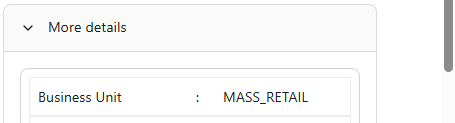
1.2 (a) | REKYC_Self is not visible on SCP | Agent Action: If MX TVP =< 60000 in one month and Merchant = P2ML Business Unit= Mass_Retail, SSRKAM & OMC Step to check TVP:
Step to check Business Unit:
The merchant meets the logic that means they are whitelisted to do the ReKYC. | - | - | MHD L1 |
1.2 (a1) | If MID is not eligible | Agent Action : Refer to KYC Servicing Flow & assist the Merchant accordingly. | - | - | MHD L1 |
1.2 (a2) | MID is eligible | Agent Action : Inform the Merchant that they are eligible for completing their Re-KYC & Guide the Merchant as mentioned below -
Agent Communication: Hello Merchant, Happy to inform you that you are eligible to complete your Re-KYC. Please follow the below shared step to start the ReKYC.
Please feel free to reach out to us for further assistance. Regards, PhonePe Merchant Helpdesk | Group: Merchant Profile Type: ReKYC Issue: MID Whitelisted Sub Issue: SelfServe Steps Shared Status: Resolved | IR | MHD L1 |
1.2 (a2.1) | If Mx claims they are unable to start the Journey & they are getting an error | Agent Action - Ask the Mx to perform the below mentioned T/S to Merchant
Communication : Hi, {Merchant name}. We would request you to please follow the below mentioned troubleshooting steps and retry again: -Make sure PB APP is in the latest updated version. -Clear cache and restart your Phone -Make sure you're in a well connected area. If in case the issue persists, please share with us the error screenshot, so we can get this checked for you and assist you accordingly. Awaiting your response. Please feel free to reach out to us for further assistance. Regards, PhonePe Merchant Helpdesk | Group: Merchant Profile Type: ReKYC Issue: Unable to Start Journey Sub Issue: T/S Steps Shared Status: Resolved | IR | MHD L1 |
1.2 (a2.1a) | If Mx claims they have performed the T/S yet they are facing the same issue | Agent Action: Ask the Mx to share the Error Screenshot over the Ticket. Agent Communication: Hello, We are sorry to hear that you are facing issues in starting your ReKyc journey. Please share the Error Screenshot on this ticket for us to validate and assist you. Regards, PhonePe Merchant Helpdesk | Group: Merchant Profile Type: ReKYC Attempted Issue: Unable to Start Journey Sub Issue: Requested Error Screenshot Status: Waiting on Merchant | T+3 Business Days | MHD L1 |
1.2 (a2.1a.1) | If Mx shares the Error Screenshot | Agent Action: Escalate the case to the MHD L2 Agent Communication: Hello, Please do not worry, we are escalating the case to the relevant team. And the updated information will be shared within 4 Business days. Regards, PhonePe Merchant Helpdesk | Group: Merchant Profile Type: ReKYC Attempted Issue: Unable to Start-Tech_Internal Server Sub Issue: Internal Action Needed Status: Assign to L2 L2 team: MHD L2 TAT: T+ 4 Business Day. | T+ 4 Business Day. | MHD L1 |
1.2 (b) | REKYC_Self is visible on SCP | Check the status mentioned against the “ReKYC Self” & Assist the merchant accordingly. | N/A | N/A | MHD L1 |
3.1 | If Re-KYC status is “Completed” | Agent Communication: Hello Merchant, Thank you for reaching us out. We are pleased to inform you that your Re-KYC verification has been successfully completed. You’re all set to continue with your transactions. If you need anything else, we’re here to help. Regards, PhonePe Merchant HelpDesk | Group: Merchant Profile Type: ReKYC Attempted Issue: ReKYC Completed Sub Issue: Info given Status: Resolved | MHD L1 | |
3.2 | If Re-KYC is Started | Agent check: Click on the “Onboarding Stage Details(KYC 2.0)” and check for the journey details
Follow- 4 | - | - | MHD L1 |
4 | VOM: Need help with the Re-KYC Stage = Owner KYC / Business KYC / Settlement Bank Account Status = InProgress
| Agent Action: Identify which Stage the Merchant is stuck with. Also, you can check the onboarding Status on SCP Steps to check:
| - | - | MHD L1 |
4.1 | Stage= Owner KYCStatus = InProgress | Agent Check- If the error is available or not | - | - | - |
4.1.1 | If Owner KYC is failed and failure error code available | Agent Action:
| Group: Merchant Profile Type: ReKYC Attempted Issue: Owner KYC-Gen-Error Sub Issue: Info given Status: Resolved | Resolved | MHD L1 |
4.1.2 | If there is no error code available. | Agent Action: Probe the merchant to understand the issue.
| MHD L1 | ||
4.1.2.a | If the failure reason shows: Please try again / Internal server issue / page shows loading only or Invalid document / Proceed | Agent Action: Guide the Merchant with Troubleshooting steps and ask them to restart the journey. Agent Communication: Hello, We understand that you are unable to proceed further. Please follow this steps: -You are in the correct store location. -Make sure you have a stable network. -Clear the cache & cookies. -Internet is connected. -Relaunch the app and try again. -Have all the required details of the merchant. Regards, PhonePe Merchant Helpdesk | Group: Merchant Profile Type: ReKYC Attempted Issue: Owner KYC-Failure issue Sub Issue: Info given Status: Resolved. | Resolved | MHD L1 |
4.1.2.a.i | If Mx claims they have performed the T/S yet they are facing the same issue | Agent Action: Ask the Mx to share the Error Screenshot over the Ticket. Agent Communication: Hello, We are sorry to hear that you are facing issues in starting your ReKyc journey. Please share the Error Screenshot on this ticket for us to validate and assist you. Regards, PhonePe Merchant Helpdesk | Group: Merchant Profile Type: ReKYC Attempted Issue: Owner KYC-Failure issue Sub Issue: Requested Error Screenshot Status: Waiting on Merchant | T+3 Business Days | MHD L1 |
4.1.2.a.1 | If the shared screenshot shows = Internal server issue or page shows loading only or Invalid document or Proceed option not working | Agent Action: Escalate the case to the MHD L2 Agent Communication: Hello, Please do not worry, we are escalating the case to the relevant team. And the updated information will be shared within 4 Business days. Regards, PhonePe Merchant Helpdesk | Group: Merchant Profile Type: ReKYC Attempted Issue: Owner KYC- Tech_Internal Server Sub Issue: Internal Action Needed Status: Assign to L2 L2 team: MHD L2 TAT: T+ 4 Business Day. | T+ 4 Business Day. | MHD L1 |
4.1.2.c | If the Error code show as= PAN is already in use VOM= Want to know to which account my PAN is added. | Agent Action: | |||
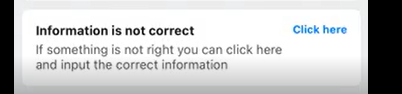
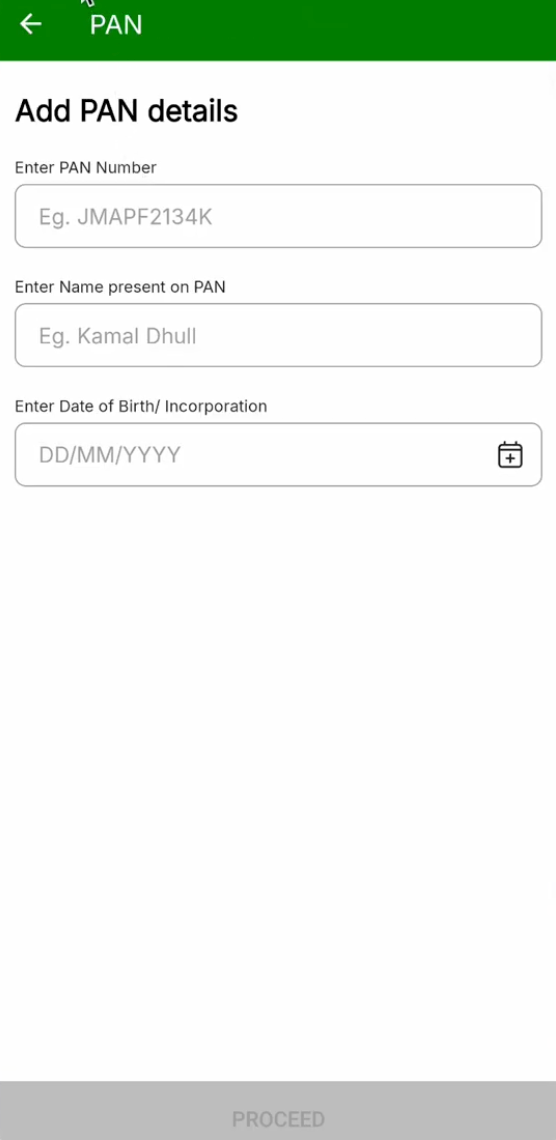
4.1.3 | VOM=Wants to make changes in Aadhaar or PAN | Agent Action: Inform the merchant. To change this information, you will need to manually upload your PAN, Aadhaar, and complete a Video KYC.
1. Add your PAN details
2. Enter Additional Details to upload in the Central KYC Registry. After entering the details you can process further. Agent Communication: Hello Merchant, Thank you for reaching out to us. To update your information, please follow these steps to complete the manual verification and Video KYC:
Video KYC – Complete a live video call to verify your documents and identity in real-time at the end of the Journey. (Merchants will have the option to do so.) Note: Ensure you have your original physical documents and a stable internet connection before starting the video call. Regards, PhonePe Merchant Helpdesk | Group: Merchant Profile Type: ReKYC Attempted Issue: Owner KYC- Change Sub Issue: Info given Status: Resolved | ||
4.2 | Stage= Business KYCStatus = InProgress | Agent Check- If the error is available or not | - | - | - |
4.2.1 | If Business KYC is failed and failure error code available | Agent Action:
| Group: Merchant Profile Type: ReKYC Attempted Issue: BKyc-Gen-Error Sub Issue: Info given Status: Resolved | Resolved | MHD L1 |
4.2.2 | If no error code is available. | Agent Action: Probe the merchant to understand the issue.
| - | - | MHD L1 |
4.2.2.a | If the failure reason shows: Please try again / Internal server issue / page shows loading only / Invalid document/ Skip option issue /Proceed | Agent Action: Guide the Mx with Troubleshooting steps and ask them to restart the journey. Agent Communication: Hello, We understand that you are currently unable to proceed further. To resolve this quickly, please ensure the following: -You are in the correct store location. -Have a stable network. -Clear the cache & cookies. -Internet is connected. -Relaunch the app and try again. -Have all the required details of the merchant. Regards, PhonePe Merchant Helpdesk | Group: Merchant Profile Type: ReKYC Attempted Issue: BKyc-Failure issue Sub Issue: Info given Status: Resolved. | Resolved | MHD L1 |
4.2.3 | If Mx claims they have performed the T/S yet they are facing the same issue | Agent Action: Ask the Mx to share the Error Screenshot over the Ticket. Agent Communication: Hello, We are sorry to hear that you are facing issues in starting your ReKyc journey. Please share the Error Screenshot on this ticket for us to validate and assist you. Regards, PhonePe Merchant Helpdesk | Group: Merchant Profile Type: ReKYC Attempted Issue: BKyc-Failure issue Sub Issue: Requested Error Screenshot Status: Waiting on Merchant | T+3 Business Days | MHD L1 |
4.2.3.a | VOM: If Merchant State: Skip option not working | Agent Action: Escalate the case to the MHD L2 Agent Communication: Hello, Please do not worry, we are escalating the case to the relevant team. And the updated information will be shared within 4 Business days. Regards, PhonePe Merchant Helpdesk | Group: Merchant Profile Type: ReKYC Attempted Issue: Bkyc-Skip issue Sub Issue: Internal Action Needed Status: Assign to L2 L2 team: MHD L2 TAT: T+ 4 Business Day. | TAT: T+ 4 Business Day. | MHD L1 |
4.2.3.b | If the shared screenshot shows = Internal server issue Or page shows loading only or Invalid document Or Proceed option not working | Agent Action: Escalate the case to the MHD L2 Agent Communication: Hello, Please do not worry, we are escalating the case to the relevant team. And the updated information will be shared within 4 Business days. Regards, PhonePe Merchant Helpdesk | Group: Merchant Profile Type: ReKYC Attempted Issue: BKyc- Tech_Internal Server Sub Issue: Internal Action Needed Status: Assign to L2 L2 team: MHD L2 TAT: T+ 4 Business Day. | T+ 4 Business Day. | MHD L1 |
4.3 | Stage= Settlement Bank AccountStatus = InProgress | Agent Action: -Want to change the Bank details. -Please try again / Internal server issue / page shows loading only or Invalid document. -Ask the Merchant if is getting any error like- something went wrong or please try again. | - | - | - |
4.3.1 | Settlement Bank Account VOM = I want to change the Bank details | Agent Action: Probe the Merchant if the help is required with the Bank account change process. Please note the following regarding your bank account updates during the Re-KYC process:
| - | - | MHD L1 |
4.3.1.a | If Merchant say “Yes” | Agent Action: Follow the standard Bank Account Change SOP to update your details. | GTIS as per SOP | MHD L1 | |
4.3.1.b | If Merchant say “No” | Agent Communication: Hello, Please note that you cannot change your bank details directly within the active Re-KYC journey. To proceed to the next stage, you’ll need to select your currently linked bank account. If you wish to update your bank account, please follow these steps: How to Update Your Bank Account
Note: Re-KYC can only be finalized after your bank account details are correctly updated in the main settings. Regards, PhonePe Merchant Helpdesk | Group: Merchant Profile Type: ReKYC Attempted Issue: Bank change stage Sub Issue: Info given Status: Resolved | MHD L1 | |
4.3.2 | If the failure reason shows: Please try again / Internal server issue / page shows loading only / Proceed | Agent Action: Guide the Mx with Troubleshooting steps and ask them to restart the journey. Agent Communication: Hello, We understand that you are currently unable to proceed further. To resolve this quickly, please ensure the following: -You are in the correct store location. -Have a stable network. -Clear the cache & cookies. -Internet is connected. -Relaunch the app and try again. -Have all the required details of the merchant. Regards, PhonePe Merchant Helpdesk | Group: Merchant Profile Type: ReKYC Attempted Issue: Bank change-Failure issue Sub Issue: Info given Status: Resolved. | Resolved | MHD L1 |
4.3.2.a | If Mx claims they have performed the T/S yet they are facing the same issue | Agent Action: Ask the Mx to share the Error Screenshot over the Ticket. Agent Communication: Hello, We are sorry to hear that you are facing issues in starting your ReKyc journey. Please share the Error Screenshot on this ticket for us to validate and assist you. Regards, PhonePe Merchant Helpdesk | Group: Merchant Profile Type: ReKYC Attempted Issue: Bank change-Failure issue Sub Issue: Requested Error Screenshot Status: Waiting on Merchant | T+3 Business Days | MHD L1 |
4.3.2.b | If the shared screenshot shows = Internal server issue or page shows loading only or Invalid document. Or Proceed option is not working | Agent Action: Escalate the case to the MHD L2 Agent Communication: Hello, Please do not worry, we are escalating the case to the relevant team. And the updated information will be shared within 4 Business days. Regards, PhonePe Merchant Helpdesk | Group: Merchant Profile Type: ReKYC Attempted Issue: Bank change Tech_Internal Server Sub Issue: Internal Action Needed Status: Assign to L2 L2 team: MHD L2 TAT: T+ 4 Business Day. | T+ 4 Business Day. | MHD L1 |
5 | In progress = Udyam Generation(if POB is not submitted) | Agent Action: Probe the merchant to understand the issue. - Unable to Generate the Udyam Aadhaar. - How long it will take to Generate and verify the Udyam Aadhaar | - | - | MHD L1 |
5.1 | VOM: Unable to Fetch the Udyam | Agent Action: -Agent action: Check the error code and share the communication -Do capture the Error code in the “Error code field” in FD property. | Group: Merchant Profile Type: ReKYC Attempted Issue: Udyam-unable to fetch Sub Issue: Info given Status: Resolved. | Resolved | MHD L1 |
5.2 | If the failure reason shows: Please try again / Internal server issue / page shows loading only / Proceed | Agent Action: Guide the Mx with Troubleshooting steps and ask them to restart the journey. Do capture the Error in the FD property. Agent Communication: Hello, We see you are having trouble proceeding. Please ensure the following before trying again:
Please reach out if you still need assistance. Regards, PhonePe Merchant Helpdesk | Group: Merchant Profile Type: Re-KYC Attempted Issue: Udyam-Failure issue Sub Issue: Info given Status: Resolved. | Resolved | MHD L1 |
5.2.1 | If Mx claims they have performed the T/S yet they are facing the same issue | Agent Action: Ask the Mx to share the Error Screenshot over the Ticket. Agent Communication: Hello, We are sorry to hear that you are facing issues in starting your ReKyc journey. Please share the Error Screenshot on this ticket for us to validate and assist you. Regards, PhonePe Merchant Helpdesk | Group: Merchant Profile Type: ReKYC Attempted Issue: Udyam-Failure issue Sub Issue: Requested Error Screenshot Status: Waiting on Merchant | T+3 Business Days | MHD L1 |
5.2.1.a | No error, still unable to generate Udyam | Note: If Udyam generation is attempted, merchants will be activated instantly. Udyam generation will happen in the back-ground without blocking the activation. Agent Action: Escalate the case to the L2 team. Agent Communication: Hello, You can generate your Udyam Aadhaar certificate from the Udyam Registration website. This will take about 8 to 10 minutes. Once it is ready, please go back to the PhonePe Business app to fetch the certificate, after which you can proceed to the next step. Meanwhile, we have raised this with the relevant team. We will update you within 4 business days. Thank you for your understanding. Regards, PhonePe Merchant Helpdesk | Group: Merchant Profile Type: ReKYC Attempted Issue: Udyam-Gen-Error Sub Issue: Internal Action Needed Status: Assign to L2. L2 team: MHD L2 TAT: T+ 4 Business Day. | TAT: T+ 4 Business Day. | MHD L1 |
5.4 | If the message show= Udyam generation is in progress. | Note: If Udyam generation is attempted, merchants will be activated instantly. Udyam generation will happen in the back-ground without blocking the activation. Agents can check in the console when the Udyam generation starts. Agent communication: Hello, We see that your Re-KYC is currently in progress. Please allow up to 24 hours for us to complete the verification process. Once all checks are done, your Re-KYC will be fully updated. If for any reason the verification fails, you can simply restart the process in your app. Regards, PhonePe Merchant Helpdesk | Group: Merchant Profile Type: ReKYC Attempted Issue: Udyam-Verification Progress Sub Issue: Internal Action Needed Status: Resolved | MHD L1 | |
6 | If the message show: Merchant to complete Video KYC via PhonePe Business App. | Agent Action: Guide the merchant with the V-KYC steps. Note: Video KYC- window is Monday to Sunday (10:00 AM to 7:00 PM). Agent communication: Hello, We see that your Video KYC is currently pending. Please complete your Video KYC through the PhonePe Business app within the next 72 hours. To ensure a smooth verification, please check the following before starting the process:
Note: Our Video KYC window is open Monday to Sunday, from 10:00 AM to 7:00 PM. Regards, PhonePe Merchant Helpdesk | Group: Merchant Profile Type: ReKYC Attempted Issue: VKYC Stage Sub Issue: Info given Status: Resolved. | Resolved | MHD L1 |
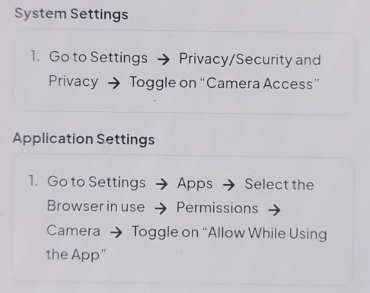
7 | If the Screenshot - Is of ACE App | Agent action: Check if the screenshot shared by the merchant is of ACE app- and in the console it is visible as V1 to V2 upgrade. Inform the merchant to ask the FOS to help with the Onboarding. Agent Communication: Hello Merchant, Your Re-KYC process has already been initiated. We kindly ask you to coordinate with the assigned agent who visited your location to complete the remaining steps of your journey. Regards, PhonePe Merchant Helpdesk | Group: Merchant Profile Type: ReKYC Attempted Issue: ReKYC on ACE Sub Issue: Info given Status: Resolved |


Service Management- SOP/ MHD L2
Steps | Process | Action | GTIS | Status | TAT | Owner |
1 | For All- Status: Assign to L2. L2 team: MHD L2 | Agent Action: Validate if the shared screenshot is correct. | GTIS- Keep it same Status- Resolved | ||
1.a | If the Screenshot is Valid | Agent Action: Fill the Tracker and follow up with the MSR team, and educate the Merchant as per the updated comments of MSR within 48 hours. | GTI- Keep it same Sub Issue: Info given Status- Resolved | ||
1.b | If the Screenshot is not valid or correct | Agent Action: Follow the L1 SOP. | |||
1.2 | After 48 hours if the MSR & Business compliance No comment is updated. | Agent Action: Please initiate an email Vidyalakshmi Anand& Prateek Mathur asking to address the issue. CC- Amar Narayana Chari K Saadhvi Bhukya Riti Singh& Angela Sharlet And follow-up within 24 hours and take action on the tickets. | Same GTIS TAT= T+1 Day | ||
Owner KYC Error code:
Section | Error Code | Message/Title | Detailed Reason | Communication | Response |
|---|---|---|---|---|---|
PAN Verification | TEXT_COMPARISON_FAILED | PAN Type Mismatch / Business type change not allowed / Too much edit in PAN | You can edit only 3 out of 10 characters in the PAN | Your verification has failed as there is a name mismatch. | Hello, Thank you for reaching out. Regarding your request, your verification failed due to a name mismatch. To resolve this, please ensure the name matches your records within this limit, or provide a document that correctly aligns with your registered details. If you require any further assistance or have additional questions, please feel free to contact us. Regards, PhonePe Merchant Helpdesk |
INVALID_PAN | Essential to provide Individual PAN | Provide Individual PAN with 4th letter 'P' | We can see that your verification has failed. Kindly provide the correct PAN number for individual KYC please enter the PAN with 4th letter 'P'. | Hello, Thank you for reaching out to us. Your verification failed because the PAN provided is incorrect. For an individual KYC, the 4th letter of your PAN must be 'P'. To resolve this, please simply re-enter your correct PAN details in the app. If you require any further assistance, please feel free to contact us. Regards, | |
FRA_DOCUMENT_RETRIES_EXHAUSTED | Number of attempts exceeded | Please try after 24 hours | Your previous KYC document has been rejected following multiple failed verification attempts. Please submit a completely new, valid, and authentic KYC document, as the system will no longer accept the previous submission. ...... Please feel free to connect with us, in case of any further help. | Hello, Thank you for reaching out to us. We noticed that your previous KYC document could not be processed. Don’t worry, you will need to upload an alternate document to complete your setup. To resolve this, please simply submit a new and different valid KYC document through your app. If you require any further assistance, please feel free to contact us. Regards, PhonePe Merchant Helpdesk | |
SOURCE_VERIFICATION_FAILED | PAN Verification is not working | Please try after sometime | We are unable to verify your KYC details, requesting you to retry after sometime. If you still face the issue, try a different document. ........ Wait for 24 hours and try again. ...... Please feel free to connect with us, in case of any further help. | Hello, Thank you for reaching out to us. We are currently unable to verify your KYC details. Please wait for 24 hours and try again. If the issue persists after that time, please submit a different KYC document to proceed. If you require any further assistance or have additional questions, please feel free to contact us. Regards, PhonePe Merchant Helpdesk | |
SOURCE_VERIFICATION_ID_NOT_FOUND | PAN number is invalid | Please provide valid PAN Number | Please submit the correct, valid KYC document. Verification failed because you have entered incorrect details. Ensure the document is current and all entered details exactly match Bank account holder Name. ...... Please feel free to connect with us, in case of any further help. | Hello, Thank you for reaching out to us. We were unable to complete your verification because the details provided do not match your bank records. To proceed, please submit a valid, current KYC document where the name exactly matches the Bank Account Holder's Name. If you require any further assistance or have additional questions, please feel free to contact us. Regards, | |
FRAUD_BLOCKED | PAN is already in use | PAN already in use by another merchant. This PAN cannot be accepted. | The document you are trying to link is already linked with another PhonePe business account. Kindly try linking the different KYC document matching with your Bank account holder Name. ...... Please feel free to connect with us, in case of any further help. | Hello, Thank you for reaching out to us. We found that the KYC document you provided is already linked to another PhonePe Business account. To proceed, please submit a completely different KYC document where the details exactly match your Bank Account Holder Name. If you require any further assistance or have additional questions, please feel free to contact us. Regards, | |
PAN_VERIFICATION_NAME_MISMATCH | Name mismatch between given Name and PAN Name | PAN Name entered is not the valid PAN Name. | Please submit the correct PAN for verification. We need the Name and Date of Birth you enter to be exactly the same as what is on your PAN card and your bank account. The last submission failed because the name and/or date of birth did not match our official records. ...... Please feel free to connect with us, in case of any further help. | Hello, Thank you for reaching out to us. We were unable to complete your verification because the Name or Date of Birth provided does not match your records. To proceed, please re-enter your PAN details, ensuring both details exactly match your PAN card and your bank account. If you require any further assistance or have additional questions, please feel free to contact us. Regards, | |
PAN_VERIFICATION_DOB_MISMATCH | Date Of Birth/Incorporation mismatch | DOB entered is not the valid DOB | |||
OTP_GENERATION_BANNED | User is banned from generating OTP | User cannot generate OTP | |||
OTP_ATTEMPTS_EXHAUSTED | OTP Attempts exhausted | Please try after 24 hours | Please note that your access is temporarily restricted due to excessive attempts. You have exhausted the limits for both requesting and entering the OTP code. Please wait 24 hours before attempting the verification process again, and ensure the correct OTP is entered on the first attempt when you restart. ...... Please feel free to connect with us, in case of any further help. | Hello, Thank you for reaching out to us. We noticed that your OTP attempts have reached the maximum limit, and a temporary hold has been placed on your access for your security. To resolve this, please wait 24 hours before trying again. When you request a new code tomorrow, please ensure it is entered carefully on your first attempt. If you require any further assistance or have additional questions, please feel free to contact us. Regards, | |
AGE_NOT_ABOVE_18 | Merchant is under age | Mx not allowed as per compliance | Please submit the correct KYC document for an applicant 18 years of age or older. The previous document failed verification as the individual's age was under the minimum requirement. ...... Please feel free to connect with us, in case of any further help. | Hello, Thank you for reaching out to us. We were unable to complete your verification because the applicant listed is under our minimum age requirement. To proceed, please submit a valid KYC document for an applicant who is 18 years of age or older. If you require any further assistance, please feel free to contact us. Regards, PhonePe Merchant Helpdesk | |
Aadhaar Face Auth | FACE_CAPTURE_FAILED | Face Capture Failed | Kindly do this Troubleshooting step: 1. Remove any glasses, cap or other face coverings 2. Ensure you are scanning the correct Aadhaar holder 3. Ensure good lighting on the face, take a clear photo, and try again 4. Ensure your aadhaar biometric is unlocked from mAadhaar App. 5. Re-launch the app and re-try after sometime. | Hello, Thank you for reaching out to us. To successfully complete your verification, please try the following troubleshooting steps: Clear Face: Please remove any glasses, caps, masks, or face coverings before scanning. Correct Person: Ensure the person being scanned is the actual Aadhaar holder. Good Lighting: Take the photo in a bright, well-lit area so the face is clearly visible. Unlock Biometrics: Open your mAadhaar app and double-check that your Aadhaar biometrics are currently unlocked. Restart: Close the PhonePe Business app completely, wait a few moments, and try again. If you require any further assistance, please feel free to contact us. Regards, PhonePe Merchant Helpdesk | |
FACE_AUTHENTICATION_FAILED | Face Match Authentication Failed | Kindly do this Troubleshooting step: 1. Remove any glasses, cap or other face coverings 2. Ensure you are scanning the correct Aadhaar holder 3. Ensure good lighting on the face, take a clear photo, and try again 4. Ensure your aadhaar biometric is unlocked from mAadhaar App. 5. Re-launch the app and re-try after sometime. | Hello, Thank you for reaching out to us. To successfully complete your verification, please try the following troubleshooting steps: Clear Face: Please remove any glasses, caps, masks, or face coverings before scanning. Correct Person: Ensure the person being scanned is the actual Aadhaar holder. Good Lighting: Take the photo in a bright, well-lit area so the face is clearly visible. Unlock Biometrics: Open your mAadhaar app and double-check that your Aadhaar biometrics are currently unlocked. Restart: Close the PhonePe Business app completely, wait a few moments, and try again. If you require any further assistance, please feel free to contact us. Regards, PhonePe Merchant Helpdesk | ||
FRAUD_BLOCKED | Aadhaar is already in use | The document you are trying to link is already linked with another PhonePe business account. Kindly try linking the different KYC document matching with your Bank account holder Name. ...... Please feel free to connect with us, in case of any further help. | Hello, Thank you for reaching out to us. We found that the document you provided is already linked to another PhonePe Business account. To proceed, please simply use a different KYC document where the name exactly matches your Bank Account Holder Name. If you require any further assistance or have additional questions, please feel free to contact us. Regards, PhonePe Merchant Helpdesk | ||
CAPTURE_FAILED_IMPROVE_LIGHTING | Low Quality Photo Captured | Kindly do this Troubleshooting step: 1. Try with front camera 2. Ensure good lighting on the face 3. Capture clear photo of the complete face and try again 4. Ensure your aadhaar biometric is unlocked from mAadhaar App. 5. Re-launch the app and re-try after sometime. | Hello, Thank you for reaching out to us. To successfully complete your verification, please try the following troubleshooting steps: Clear Face: Please remove any glasses, caps, masks, or face coverings before scanning. Correct Person: Ensure the person being scanned is the actual Aadhaar holder. Good Lighting: Take the photo in a bright, well-lit area so the face is clearly visible. Unlock Biometrics: Open your mAadhaar app and double-check that your Aadhaar biometrics are currently unlocked. Restart: Close the PhonePe Business app completely, wait a few moments, and try again. If you require any further assistance, please feel free to contact us. Regards, PhonePe Merchant Helpdesk | ||
CAPTURE_FAILED_FOCUS_AWAY_FROM_CAMERA | Eye Contact Missing | 1. Ask the merchant to look directly into the camera lens. 2. If the issue still persists, try with a front camera with good lighting. And retry. | Hello, Thank you for reaching out to us. Please follow these steps for a successful scan: Look Directly: Look straight into the camera lens. Lighting: Ensure you are using the front camera in a well-lit area. Retry: Restart the process and try again. If you require any further assistance, please feel free to contact us. Regards, PhonePe Merchant Helpdesk | ||
INVALID_OTP | Face Match Failed | Kindly do this Troubleshooting step: 1. Remove any glasses, cap or other face coverings 2. Ensure you are scanning the correct Aadhaar holder 3. Ensure good lighting on the face, take a clear photo, and try again 4. Ensure your aadhaar biometric is unlocked from mAadhaar App. 5. Re-launch the app and re-try after sometime. | Hello, Thank you for reaching out to us. To successfully complete your verification, please try the following troubleshooting steps: Clear Face: Please remove any glasses, caps, masks, or face coverings before scanning. Correct Person: Ensure the person being scanned is the actual Aadhaar holder. Good Lighting: Take the photo in a bright, well-lit area so the face is clearly visible. Unlock Biometrics: Open your mAadhaar app and double-check that your Aadhaar biometrics are currently unlocked. Restart: Close the PhonePe Business app completely, wait a few moments, and try again. If you require any further assistance, please feel free to contact us. Regards, PhonePe Merchant Helpdesk | ||
FACE_DID_NOT_MATCH_WITH_AADHAAR_IMAGE | Face Match Failed | Kindly do this Troubleshooting step: 1. Remove any glasses, cap or other face coverings 2. Ensure you are scanning the correct Aadhaar holder 3. Ensure good lighting on the face, take a clear photo, and try again 4. Ensure your aadhaar biometric is unlocked from mAadhaar App. 5. Re-launch the app and retry after sometime. | Hello, Thank you for reaching out to us. To successfully complete your verification, please try the following troubleshooting steps: Clear Face: Please remove any glasses, caps, masks, or face coverings before scanning. Correct Person: Ensure the person being scanned is the actual Aadhaar holder. Good Lighting: Take the photo in a bright, well-lit area so the face is clearly visible. Unlock Biometrics: Open your mAadhaar app and double-check that your Aadhaar biometrics are currently unlocked. Restart: Close the PhonePe Business app completely, wait a few moments, and try again. If you require any further assistance, please feel free to contact us. Regards, PhonePe Merchant Helpdesk | ||
USER_ABORTED | Flow aborted. Please try again. | You have aborted the flow inbetween, please retry again. | Hello, Thank you for reaching out to us. It appears your verification process was interrupted before completion. To finish your verification, please restart the process again from the beginning. If you require any further assistance, please feel free to contact us. Regards, PhonePe Merchant Helpdesk | ||
QILA_INTERNAL_SERVER_ERROR | Something went wrong (Technical issue) | Please try again after sometime | Re-launch the app and retry after sometime. | Hello, Thank you for reaching out to us. It looks like you might be experiencing a temporary technical glitch. Please try closing the app completely and relaunching it after a few minutes, as this usually resolves the issue. If you are still facing trouble after doing this, please reply to this message and we will look into it right away. Regards, PhonePe Merchant Helpdesk | |
NETWORK_ISSUE | Weak Network Connection | Ensure stable internet connection | Ensure a stable internet connection and try again | Hello, Thank you for reaching out to us. For the verification process to complete successfully, a strong and uninterrupted internet connection is required. Please check your network connection, or try switching between Wi-Fi and mobile data, and attempt the process again. If you are still unable to complete the verification after doing this, please reply to this message and we will assist you further. Regards, PhonePe Merchant Helpdesk | |
AADHAAR_DETAILS_VALIDATION_FAILED | Invalid Aadhaar Number | Enter valid correct aadhaar number | Please re-enter correct aadhaar number, and try again | Hello, Thank you for reaching out to us. It appears there may have been a mismatch with the verification details provided. Please double-check your Aadhaar number and carefully re-enter the digits exactly as they appear on your document to complete your verification. If you continue to face issues after verifying the details, please reply to this message and we will assist you further. Regards, PhonePe Merchant Helpdesk | |
UNSUPPORTED_APP_VERSION | Application Version not supported | Update Face RD App | Please update the RD application and retry after sometime. | Hello, Thank you for reaching out to the PhonePe Merchant Helpdesk. To complete your verification successfully, your RD (Registered Device) service application needs to be on the latest version. Please update your specific RD service app via your device's app store, restart the application, and attempt the process again. If you are still facing trouble after updating, please reply to this message and we will assist you further. Regards, PhonePe Merchant Helpdesk | |
SERVER_TIMEOUT | Server Timeout | Please wait for sometime and try again. | Re-launch the app and retry after 5 seconds. | Hello, Thank you for reaching out to us. It appears you may have encountered a minor loading error. To resolve this, please close the app completely, wait for about 5 seconds to let the connection reset, and then relaunch it to try again. If the issue persists after doing this, please reply to this message and we will assist you further. Regards, PhonePe Merchant Helpdesk | |
QILA_COMMUNICATION_ERROR | UIDAI is not reachable | UIDAI is not reachable. | Please wait for sometime and try again later. | Hello, Thank you for reaching out to us. We are currently seeing some temporary technical delays. To allow our system enough time to fully refresh, please wait for 15 to 30 minutes before attempting the process again. If you are still experiencing the same issue after this timeframe, please reply to this message and we will investigate further. Regards, PhonePe Merchant Helpdesk | |
EKYC Verification | AADHAAR_VERIFICATION_NOT_WORKING | Aadhaar verification is not working | Please wait for sometime and try again. | Please wait for sometime and try again later. | Hello, Thank you for reaching out to us. We are currently seeing some temporary technical delays. To allow our system enough time to fully refresh, please wait for 15 to 30 minutes before attempting the process again. If you are still experiencing the same issue after this timeframe, please reply to this message and we will investigate further. Regards, PhonePe Merchant Helpdesk |
INVALID_MOBILE_NUMBER | Aadhaar not linked to mobile number | Try with a different aadhaar or link your ph number in aadhaar or do Face Auth | We can see your verification has failed, try with a different Aadhaar card with your phone number or link your registered number with your Aadhaar or you can do Face Authentication to complete the step. ...... Please feel free to connect with us, in case of any further help. | Hello, Thank you for contacting us. Your account verification did not go through. To fix this, please choose one of these simple steps: Do a Face Scan: Complete the quick face check inside the PhonePe app. Use a Linked Aadhaar: Use an Aadhaar card that is already connected to your PhonePe mobile number. Update your Aadhaar: Visit an Aadhaar center to link your current phone number to your Aadhaar card. If you need any help with this, please reply to this message. Regards, PhonePe Merchant Helpdesk | |
AADHAAR_DETAILS_ARE_LOCKED | Aadhaar details are locked | Use mAadhaar App to unlock | You need to use mAadhaar App to unlock the Aadhaar, as currently your Aadhaar is locked. This was the reason that your verification failed. | Hello, Thank you for contacting us. Your verification did not go through because your Aadhaar biometrics (fingerprint/face scan) are locked. To resolve this and complete your setup, please unlock your biometrics using the mAadhaar app:
(Important: The unlock only lasts for 10 minutes, so please complete your PhonePe verification immediately!) Regards, PhonePe Merchant Helpdesk | |
INVALID_AADHAAR_VID_DETAILS | Invalid Aadhaar VID Details | Enter the correct details | Please re-submit your Aadhaar details, ensuring the provided Virtual ID (VID) is correct and currently active. Your verification failed due to an issue with the VID being invalid or expired, or because the submitted details did not match the official Aadhaar records. ...... Please feel free to connect with us, in case of any further help. | Hello, Thank you for reaching out to us. Your recent verification attempt could not be completed because the Aadhaar Virtual ID (VID) entered appears to be invalid or expired. Because VIDs are temporary, they must be newly generated and active at the time of submission. To successfully complete your setup, please follow these steps: Generate a new 16-digit VID via the mAadhaar app or the official UIDAI portal. Re-open the PhonePe app and restart the verification process. Carefully enter the new VID, ensuring your details match your Aadhaar profile exactly. If you continue to face issues after submitting a new VID, please reply to this email and our team will be happy to assist you further. Regards, PhonePe Merchant Helpdesk | |
EXPIRED_AADHAAR_VID_DETAILS | Expired Aadhaar VID details | Enter the correct details | |||
AADHAAR_SUSPENDED | Aadhaar suspended | Try with a different aadhaar | Your Aadhaar verification has failed. The Aadhaar document submitted for verification is currently suspended, locked, or deactivated within the official UIDAI records and cannot be used for identity verification. Try submitting different Aadhaar matching with your Bank account holder Name. ...... Please feel free to connect with us, in case of any further help. | Hello, Thank you for contacting us. Your verification did not go through because the Aadhaar used is currently locked or inactive in the UIDAI system. To fix this, please try one of the following:
Please let us know if you need any more help. Regards, PhonePe Merchant Helpdesk | |
AADHAAR_CANCELLED | Aadhaar cancelled | Try with a different aadhaar | |||
OTP_GENERATION_LIMIT_EXHAUSTED | OTP Generation Limit Exhausted | Try again after 24 hours | Your OTP generation is exceeded, try again after 24 hours. | Hello, Thank you for reaching out to us. Your daily limit for OTP (One Time Password) generation has been exceeded. This is an automated security measure designed to protect your account. To successfully complete your verification, please follow these guidelines:
If the system still does not allow you to generate an OTP after you have waited the full 24 hours, please reply to this email and our technical team will step in. Regards, PhonePe Merchant Helpdesk | |
OTP_VERIFICATION_LIMIT_EXHAUSTED | OTP Verification Limit Exhausted | Try again after 24 hours | |||
OTP_GENERATION_FLOODING_AADHAAR | OTP Generation Flooding | Try again after 1 hour | Retry generating the OTP after 1 hour. | Hello, Thank you for contacting us. You have reached the maximum number of OTP requests allowed at this time. To securely reset this limit, please wait for exactly one hour before requesting a new OTP. Please ensure you wait the full hour so the system can reset properly. If you need further assistance after this time, please feel free to reach out. Regards, PhonePe Merchant Helpdesk | |
FRA_DOCUMENT_BLACKLISTED | Aadhaar Already in Use | Try with a different aadhaar | The document you are trying to link is already linked with another PhonePe business account. Kindly try linking the different Aadhaar matching with your Bank account holder Name. ...... Please feel free to connect with us, in case of any further help. | Hello, Thank you for contacting us. We are unable to complete your verification because the Aadhaar provided is already linked to an existing PhonePe Business account. To proceed with your setup, please submit a different Aadhaar. Please ensure that the name on this new Aadhaar exactly matches the Bank Account Holder Name registered with us. If you need further assistance, please let us know. Regards, PhonePe Merchant Helpdesk | |
AADHAAR_SUSPENDED_DUE_TO_PENDING_MBU | Aadhaar Suspended (Mandatory Biometric Update) | Use mAadhaar App to unlock | You need to use mAadhaar App to unlock the mandatory biometric. | Hello, Thank you for contacting us. Your verification could not be completed because your Aadhaar biometrics are currently locked. To allow our system to verify your identity, please unlock them using the mAadhaar app by following these steps: Open the mAadhaar app and tap on My Aadhaar. Enter your 4-digit app PIN. Select the Biometric Lock option and turn the toggle off to unlock it. Once unlocked, immediately open the PhonePe Business app and retry your verification. Note: If you use the temporary unlock feature, your biometrics will automatically lock again after 10 minutes. Please ensure you complete your verification right away. If you need further assistance, please let us know. Regards, PhonePe Merchant Helpdesk | |
AADHAAR_DEACTIVATED_DUE_TO_DECEASED_STATUS | Aadhaar Deactivated (Holder marked as deceased) | We can see your verification has failed, as your Aadhaar is not working, kindly try using different Aadhaar. ...... Please feel free to connect with us, in case of any further help. | Hello, Thank you for contacting us. We are unable to complete your verification because there is an issue with the Aadhaar details provided. To proceed with your setup, please submit a different Aadhaar. Please ensure that the name on this new Aadhaar exactly matches the Bank Account Holder Name registered with us. If you need further assistance, please let us know. Regards, PhonePe Merchant Helpdesk | ||
DATE_OF_BIRTH_NOT_FOUND | DOB not found on Aadhaar | Try with a different aadhaar | We need the Date of Birth to be mentioned on the Aadhaar card. The last submission failed because the date of birth was not mentioned on the shared Aadhaar card. Try submitting a different Aadhaar card. ...... Please feel free to connect with us, in case of any further help. | Hello, Thank you for contacting us. We are unable to complete your verification because the submitted Aadhaar card does not display a full Date of Birth. For official verification, the complete date (Day/Month/Year) must be visible. To proceed, please provide an updated Aadhaar card that includes your full Date of Birth. Alternatively, you may submit a different Aadhaar, provided that the name exactly matches the Bank Account Holder Name registered with us. If you need further assistance, please let us know. Regards, PhonePe Merchant Helpdesk | |
Entity Document | CIN_SOURCE_VERIFICATION_FAILED | CIN verification is not working right now | Try again after 24 hours | The source verification is not working now, kindly try after 24 hours. | Hello, Thank you for contacting us. We are currently experiencing a temporary technical issue with our verification system. Because of this downtime, your account verification could not be completed at this time. To allow the system time to resolve this, please wait for 24 hours before trying the process again. If you need further assistance after this time, please let us know. Regards, PhonePe Merchant Helpdesk |
DIRECTOR_NAME_EMPTY_OR_NULL | Invalid CIN number (Director name not present) | Try with a different CIN | |||
TEXT_COMPARISON_FAILED | Name Mismatch (Incorporation name vs PAN name) | Try with a different CIN or get the CIN updated | |||
CKYC Pull | CKYC_PULL_FAILED | We’re facing a temporary issue | Proceed without CKYC | There is a temporary issue, you can proceed to the next step, without the CKYC. | Hello, Thank you for contacting the PhonePe Merchant Helpdesk. We are currently experiencing a temporary technical issue with the CKYC verification system. To avoid any delays in your setup, you may skip the CKYC step for now and proceed directly to the next step of the process. If you need further assistance, please let us know. Regards, PhonePe Merchant Helpdesk |
CKYC_DATA_UNAVAILABLE_IN_CLIENT_CALLBACK | Sorry, this rarely happens | Proceed without CKYC | This rarely happens, you can proceed to the next step, without the CKYC. | Hello, Thank you for contacting us. We have noted a system exception regarding your CKYC verification. To ensure your account setup is not delayed, you are permitted to skip the CKYC requirement at this time. Please proceed directly to the next step of the onboarding process. If you need further assistance, please let us know. Regards, PhonePe Merchant Helpdesk | |
OTP_GENERATION_FAILED | Details Mismatch | Try again after 1 hour | OTP generation has failed, request you to try after 1 hour. | Hello, Thank you for contacting us. Your recent attempt to generate an OTP was unsuccessful. To resolve this issue, please wait for one hour before requesting a new code. This short pause allows our system to reset and will help ensure you receive your OTP successfully on your next attempt. If you need further assistance, please let us know. Regards, PhonePe Merchant Helpdesk | |
OTP_EXPIRED | Invalid OTP | Enter the correct OTP / Try again | We can see your verification has failed, as you have entered the invalid OTP, request you try again and enter the correct OTP. | Hello, Thank you for contacting us. We were unable to complete your verification because the OTP entered was incorrect. To proceed with your setup, please restart the process and ensure you enter the exact OTP sent to your registered mobile number. If you need further assistance, please let us know. Regards, PhonePe Merchant Helpdesk | |
CKYCR_PHONE_NUMBER_MISMATCH | Mobile number mismatch | Try with your linked Phone number in CKYC | You need to try with the Phone number which is linked with your KYC Document, as there is mis-match. | Hello, Thank you for contacting us. We were unable to complete your verification because the mobile number you are using does not match the one linked to your KYC document. To successfully complete your setup, please restart the process using the exact phone number that is officially registered with your submitted KYC document. If you need further assistance, please let us know. Regards, PhonePe Merchant Helpdesk | |
PHONE_NUMBER_NOT_LINKED | No records found (CKYCR not linked to mobile) | Proceed without CKYC | No record has been deducted, you can proceed to the next step, without the CKYC. | Hello, Thank you for contacting us. We were unable to find a CKYC record associated with your details. However, this will not delay your account setup. Please skip the CKYC requirement for now and proceed directly to the next step of the verification process. If you need further assistance, please let us know. Regards, PhonePe Merchant Helpdesk |
Business KYC error code:
Section | Error Code | Message/Title | Detailed Reason | Communication | Response |
GST Details | FRA_DOCUMENT_RETRIES_EXHAUSTED | Number of attempts exceeded | Try again after 24 hrs | Your previous KYC document has been rejected following multiple failed verification attempts. Please try after 24 hours with correct details. ...... Please feel free to connect with us, in case of any further help. | Hello, Thank you for contacting the PhonePe Merchant Helpdesk. Your KYC verification has been temporarily paused due to multiple unsuccessful attempts. To securely resolve this, please wait for a full 24 hours before trying again. When you retry, please ensure that the details you enter perfectly match your official documents to ensure a successful setup. If you need further assistance after waiting, please let us know. Regards, PhonePe Merchant Helpdesk |
SOURCE_VERIFICATION_FAILED | GST Verification is not working | Wait for sometime | We are unable to verify your GST details, requesting you to retry after sometime. If you still face the issue, try a different document. ........ Wait for 24 hours and try again. ...... Please feel free to connect with us, in case of any further help. | Hello, Thank you for contacting us. We are currently unable to verify your GST details. To resolve this, please wait for 24 hours before trying the verification process again. If the system is still unable to verify your GST after this time, we recommend using an alternative official document to complete your setup. Please ensure that all the details entered exactly match your official records. If you need further assistance, please let us know. Regards, PhonePe Merchant Helpdesk | |
SOURCE_VERIFICATION_ID_NOT_FOUND | GST number is invalid | Try with a correct GST | Please submit the correct, valid GST document. Verification failed because you have entered incorrect details. Ensure the document is current and all entered details exactly match Bank account holder Name. ...... Please feel free to connect with us, in case of any further help. | Hello, Thank you for contacting the PhonePe Merchant Helpdesk. We were unable to complete your verification because the GST details provided do not match official records. To resolve this, please re-submit a valid and active GST document. Please ensure that the business name on your GST document exactly matches the Bank Account Holder Name registered with us. If you need further assistance, please let us know. Regards, PhonePe Merchant Helpdesk | |
FRAUD_BLOCKED | GST is already in use | Try with a different GST | The document you are trying to link is already linked with another PhonePe business account. Kindly try linking the different GST. ...... Please feel free to connect with us, in case of any further help. | Hello, Thank you for contacting us. We are unable to complete your verification because the GST document provided is already linked to an existing PhonePe Business account. To proceed with your setup, please submit a different valid GST document. Please ensure that the details on the new document exactly match your registered business information. If you need further assistance, please let us know. Regards, PhonePe Merchant Helpdesk | |
PAN_NOT_PRESENT | PAN not submitted | It is mandatory to submit PAN if you are giving GST | We can see your verification has failed, as you have not given the PAN details. It is mandatory to share the PAN details to proceed further. ...... Please feel free to connect with us, in case of any further help. | Hello, Thank you for contacting us. We are unable to complete your verification because your PAN details are missing. To proceed with your application, please submit your PAN, as this is a mandatory requirement. Please ensure that the name and details on your PAN exactly match your other submitted documents and your linked bank account. If you need further assistance, please let us know. Regards, PhonePe Merchant Helpdesk | |
PAN_NOT_EMBEDDED_IN_GST | GST is Incorrect | Please provide correct GST | Please submit the correct, valid GST document. Verification failed because you have entered incorrect details. Ensure the document is current and all entered details exactly match Bank account holder Name. ...... Please feel free to connect with us, in case of any further help. | Hello, Thank you for contacting us. We were unable to complete your verification because the GST details provided could not be validated. To proceed with your setup, please re-submit a valid and active GST document. Please ensure that the business name on your GST document exactly matches the Bank Account Holder Name registered with us. If you need further assistance, please let us know. Regards, PhonePe Merchant Helpdesk | |
TEXT_COMPARISON_FAILED | Address Mismatch | Please ensure State in GST matches with State in Store Address | We can see your verification has failed, make sure the GST state should match with the state provided in your Store Address. ...... Please feel free to connect with us, in case of any further help. | Hello, Thank you for contacting us. We were unable to complete your verification because the state registered on your GST document does not match the state listed in your Store Address. For a successful setup, your GST registration and your physical business location must be in the same state. To resolve this, please update your Store Address to match your GST document, or provide a GST document that matches your current store location. If you need further assistance, please let us know. Regards, PhonePe Merchant Helpdesk | |
Alternate Business/Address Proof | PAN_NOT_PRESENT | PAN not submitted | It is mandatory to submit PAN if you are giving the mentioned business proof | We can see your verification has failed, as you have not given the PAN details. It is mandatory to share the PAN details to proceed further. ...... Please feel free to connect with us, in case of any further help. | Hello, Thank you for contacting us. We were unable to complete your verification because your PAN details are missing. To proceed with your account setup, please submit your PAN, as this is a mandatory requirement. Please ensure that the PAN provided belongs to the primary business owner or the officially registered business entity. If you need further assistance, please let us know. Regards, PhonePe Merchant Helpdesk |
Udyam Aadhaar Fetch | MULTIPLE_UDYAM_AADHAAR_FETCHED | Udyam Aadhaar Verification Failed | Multiple Udyam Aadhaar fetched on this Phone Number, currently it is not supported | We see that your verification has failed, as there were multiple attempts to fetch the Udyam aadhaar, kindly re-try after 24 hours. ...... Please feel free to connect with us, in case of any further help. | Hello, Thank you for contacting us. We are unable to complete your verification because the system has recorded too many attempts to fetch your Udyam details. To resolve this, please wait for 24 hours before trying the verification process again. This waiting period is necessary to securely reset the system limits on your account. If you need further assistance after waiting, please let us know. Regards, PhonePe Merchant Helpdesk |
UDYAM_AADHAAR_DETAILS_FETCH_FAILED | Udyam Aadhaar not found on given Phone Number | Please generate Udyam Aadhaar on the given Onboarding Phone Number | Make sure to generate the Udyam Aadhaar with the Phonepe registered number. ...... Please feel free to connect with us, in case of any further help. | Hello, Thank you for contacting us. We were unable to complete your verification due to a mobile number mismatch. To resolve this and proceed with your setup, please ensure that the mobile number linked to your Udyam registration is the exact same number you are using for your PhonePe Business account. If you need further assistance, please let us know. Regards, PhonePe Merchant Helpdesk | |
TEXT_COMPARISON_FAILED | Udyam Aadhaar Verification Failed (Pincode) | Please ensure City in Udyam matches with City in Store Address | We can see your verification has failed, make sure the city mentioned on Udyam should match with the city provided in your Store Address. ...... Please feel free to connect with us, in case of any further help. | Hello, Thank you for contacting us. We were unable to complete your verification because the city listed on your Udyam document does not match the city provided in your Store Address. To proceed with your setup, your Udyam registration and your physical business location must reflect the same city. Please update your Store Address in the app to match your Udyam certificate, or provide an updated document that matches your current location. If you need further assistance, please let us know. Regards, PhonePe Merchant Helpdesk | |
TEXT_COMPARISON_FAILED | Name Mismatch (Owner vs Udyam) | Ensure Names on Udyam Aadhaar and Bank are the same | We can see your verification has failed, make sure the Name mentioned on Udyam should match with the Bank account holder name. ...... Please feel free to connect with us, in case of any further help. | Hello, Thank you for contacting us. We were unable to complete your verification because the name listed on your Udyam certificate does not match your registered bank account holder name. To proceed with your setup, the names across both of these records must be exactly the same. Please update your details so that your Udyam registration perfectly matches your bank account, and try the process again. If you need further assistance, please let us know. Regards, PhonePe Merchant Helpdesk |
FAQ-
Steps | Process | Action | GTIS | Status | TAT | Owner |
1 | Merchant want to know why Re-KYC is required | Agent Communication: Hello Merchant, To ensure your business continues to grow without interruption. Completing this is a quick, one-time process that unlocks several critical benefits for your account: Why complete your KYC now?
How to complete it: Simply log in to your app, tap on the Complete Re- KYC banner, and follow the on-screen instructions. It only takes a few minutes of your time. Need help? If you have any questions or run into any issues while uploading your details, please reply to this email or contact our support team directly. Let’s get your business fully verified today! Regards, PhonePe Merchant Helpdesk | Group: Merchant Profile Type: Re-KYC Attempted Issue: Re-KYC Information Sub Issue: Info given Status: Resolved | MHD L1 | |
2 | Need to help with the Document details | Agent Action: Share the valid document list with the Merchant and share the steps to complete the Re-KYC. Agent Communication: Hello Merchant, Thank you for reaching out to us. This guide will help you understand which documents are required and the steps to complete your verification. 1. Required Documents & Information Before you begin, please ensure you have the following details or physical documents ready:
2. The KYC Process: Step-by-Step We prioritize a "Check-and-Confirm" flow to save you time. Follow these steps to complete your verification: Step A: KYC Record Verification The system will first attempt to fetch your records from the Central KYC (CKYC) registry using your PAN and DOB.
Step B: Manual Verification (If Records are Incorrect/Unavailable) If you do not see your records, or if the information displayed is incorrect, you can opt for manual verification:
Regards, PhonePe Merchant Helpdesk | Group: Merchant Profile Type: Re-KYC Attempted Issue: Owner KYC Stage Sub Issue: Info given Status: Resolved | MHD L1 | |
3 | Why do I need to share the POB? | Agent Action: It is highly recommended that you submit one business proof. This is especially important if you intend to add a Current Account to your profile. Your Options for Submitting Proof of Business (POB): To complete your business verification, you can submit GST in case you do not have GST, you can submit any one of the following valid documents:
Note:
Agent Communication: Hello Merchant, Thank you for reaching us out. To ensure full access to all features, especially if you intend to use a Current Account, we highly recommend completing this step. How to provide your Business Proof:
Important Note: Please ensure the name on your business proof exactly matches the name provided in your Owner KYC. Completing this step will help us verify your business quickly and prevent any potential interruptions to your services. Regards, PhonePe Merchant Helpdesk | Group: Merchant Profile Type: Re-KYC Attempted Issue: BKyc Stage Sub Issue: POB- Info given Status: Resolved | Resolved | |
4 | Need Help with GST. | Agent Action: Please complete your Re-KYC by providing your Proof of Business (POB). Follow these steps:
Agent Communication: Hello Merchant, Thank you for reaching us out. To proceed with your onboarding, please provide your GST details by following these steps:
Once uploaded, click proceed to continue with your verification. Note: The name(s) mentioned in your selected proof must exactly match the name(s) provided during your Owner KYC. Regards, PhonePe Merchant Helpdesk | Group: Merchant Profile Type: Re-KYC Attempted Issue: BKyc Stage Sub Issue: GST- Info given Status: Resolved | Resolved | |
5 | Need help to understand the List of documents. | Agent Action: Please complete your Re-KYC by providing your Proof of Business (POB). Follow these steps:
NOTE: Udyam Aadhaar Generation – If you do not possess any of the listed documents, the system will assist you in generating a Udyam Aadhaar to serve as your valid business proof. Agent Communication: Hello Merchant, Thank you for reaching us out. Do not worry, here is the list of valid documents a merchant can submit as Business Proof- if you do not have GST.
Note: The name(s) mentioned in your selected proof must exactly match the name(s) provided during your Owner KYC. Regards, PhonePe Merchant Helpdesk | Group: Merchant Profile Type: Re-KYC Attempted Issue: BKyc Stage Sub Issue: Document- Info given Status: Resolved |