
MHD Support Standard Operating Procedure 
Process for handling tickets related to bank account change
Contents:
Sl no. | Topic | Page no. |
1 | 2 | |
1.1 | 2 | |
1.2 | 2 | |
1.3 | 2 | |
1.4 | 2 | |
1.5 | 2 | |
1.6 | 2 | |
2.0 | 3 | |
3.0 | 3 | |
3.1 | 3 | |
3.2 | 27 | |
3.2 | 46 | |
3.3 | 46 | |
4.0 | 47 | |
5.0 | 47 |
|
1.1 Purpose of the document: |
This document serves as an agent's guide for handling questions and problems pertaining to bank account changes for active merchants. |
1.2 Inscope scenarios: |
This SOP describes the procedures for handling inquiries of Offline merchants at the MHD regarding the bank account change merchant journey, the MHD process for handling inquiries on the status of bank account changes, error actions, and the manual bank account change process. |
1.3 Outscope scenarios: |
Scenarios involving onboarding, payments, settlements, app related issues, issues related to online merchants, and any other scenarios not covered by Inscope. |
1.4 Merchant Journey: |
The bank account change journey for a merchant depends on the type of merchant, KYC status and type of bank account. For comprehensive details, click the link. |
1.5 Tools/Systems: |
Tools/ System | Teams |
Support Control Panel (SCP) | MHD, MX Design, MX TnQ |
Freshdesk (FD) | MHD, MX Design, MX TnQ, BI, Automation |
Valhalla (Link) | MHD - Onboarding, MX Design, MX TnQ, Finance |
Salesforce lightings (Link) | MHD - Onboarding, MX Design, MX TnQ, Finance |
Salesforce classic (Link) | MHD - Onboarding, MX Design, MX TnQ, Finance |
Online GST validator (Link) | MHD - Onboarding, MX Design, MX TnQ |
1.6 Glossary:
|
|
|
|
|
|
|
|
|
2.0 Flowchart |
3.0 Process flow |
3.1 L1 process
3.1.1 How to change the bank account
Steps | Process step | Action | Owner | TAT |
1.0 | If Mx contacts to know the steps to change the bank account. | MHD agents’ action: Check the Mx type in SCP. | MHD -L1 | T |
1.1 | If it is P2P/P2PH merchant | Communicate to Merchant: Inform Mx to clear all cache and update to the latest app version. Ask mx to follow the below steps:
It will take 24 hrs for the new Bank account to become active if the verification is successful. MHD agents’ action: capture the MID and merchant type in the ticket properties. Tagging: Group - Merchant Profile Type - Bank Ac Issue - How to change the bank ac Sub Issue - Self serve-steps shared Status: resolved | MHD -L1 | T |
1.2 | If it is P2ML/P2M | Communicate to Merchant: Inform Mx to clear all cache and update to the latest app version. Ask mx to follow the below steps:
It will take 24 hrs for the new Bank account to become active if the verification is successful. MHD agents’ action: capture the MID and merchant type in the ticket properties. Tagging: Group - Merchant Profile Type - Bank Ac Issue - How to change the bank ac Sub Issue - Self serve-steps shared Status: resolved | MHD -L1 | T |
3.1.2 Unable to change the bank account
Steps | Process step | Action | Owner | TAT |
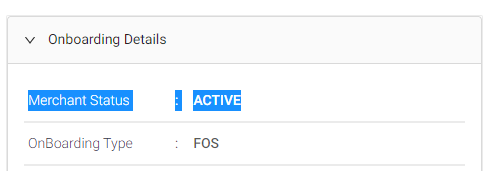
1.0 | If Mx claim that he/she is unable to change the bank details | MHD agents’ action: check if the merchant status is “ active”. How to check:
| MHD -L1 | T |
1.1 | If the Merchant status is not “active” | Communicate to Merchant: Inform Mx that the onboarding is still in progress, hence you are unable to change the bank account. Inform mx that he/she will be able to change it once the onboarding is successfully updated. MHD agents’ action: capture the MID and merchant type in the ticket properties. Tagging: Group - Merchant Profile Type - Bank Ac Issue - Unable to add/change Sub Issue - Onboarding-in-progress Status: resolved | ||
1.1.1 | If Mx asks questions related to onboarding | Follow onboarding process | ||
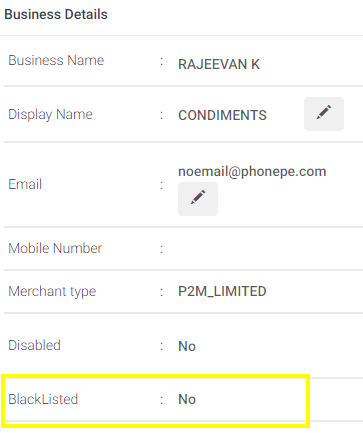
1.2 | If the Merchant status is active” | MHD agents’ action: Check if the given MID profile is blacklisted. How to check:
| MHD -L1 | T |
1.2.1 | If the MID is blacklisted | Communicate to Merchant: inform that his/her account is suspended due to security reason, hence Merchant is unable to change the bank account MHD agents’ action: capture the MID, merchant type and error code in the ticket properties. Tagging: Group - Merchant Profile Type - Bank Ac Issue - Unable to add/change Sub Issue -Account blacklisted Error Code - Account Blacklisted Status: resolved | MHD -L1 | T |
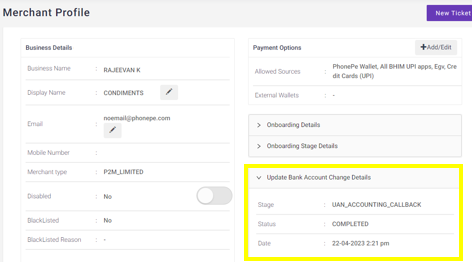
1.2.2 | If the MID is not blacklisted | MHD agents’ action: Check if there is any bank account change event recorded in SCP with last 15days. How to do:
Note:
| MHD -L1 | T |
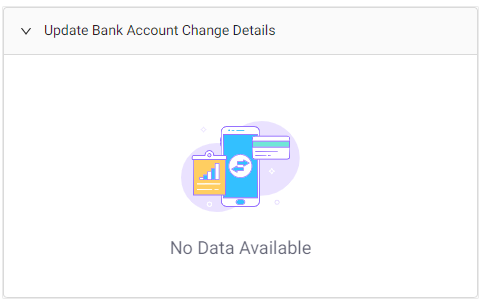
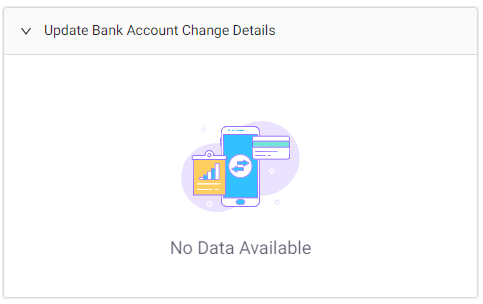
2.0 | For the given MID, if no event captured in SCP in last 15days Reference image:
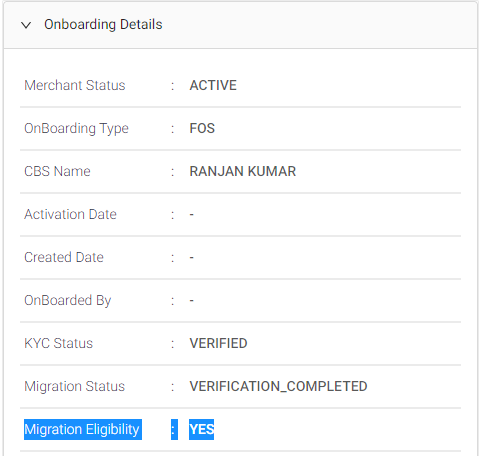
| MHD agents’ action: Check the migration eligibility. How to do:
| MHD -L1 | T |
2.1 | If the “migration eligibility” = Yes | Communicate to Merchant: Inform Mx that there is no recent bank account change requested if found. Inform mx that it would be due to a technical issue. Ask mx to clear all cache and update to the latest app version and retry again with good network connectivity. Share the self-serve steps to Mx based on the mx type (check the merchant type in SCP in “merchant profile” tab). P2P and P2PH merchant:
It will take 24 hrs for the new Bank account to become active if the verification is successful. P2ML and P2M merchant:
It will take 24 hrs for the new Bank account to become active if the verification is successful. MHD agents’ action: capture the MID and merchant type in the ticket properties. Tagging: Group - Merchant Profile Type - Bank Ac Issue - Unable to add/change Sub Issue - Event not captured-to be retried Status: resolved | MHD -L1 | T |
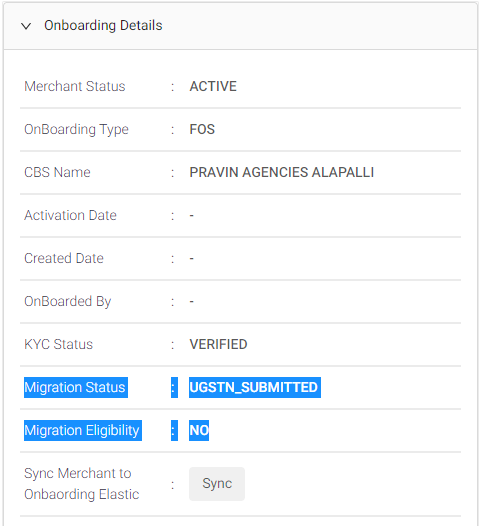
2.1 | If the “migartion eligibility” = “No” | MHD agents’ action: check the migration status and update mx based on status. How to check:
Communicate to Merchant: inform Mx that he/she is unable to change the bank account due to {refer to the reason based on error code} Reference table. capture the MID, merchant type and error code in the ticket properties. Tagging: Group - Merchant Profile Type - Bank Ac Issue - Unable to add/change Sub Issue - based on migration status Error code: {capture migration status} Status: based on migration status Resolution due by: based on migration status | MHD -L1 | |
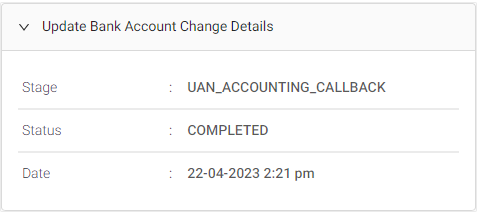
3.0 | For the given MID, if there is an event captured in SCP in last 15days Reference image:
| MHD agents’ action: Check the merchant type. | MHD -L1 | T |
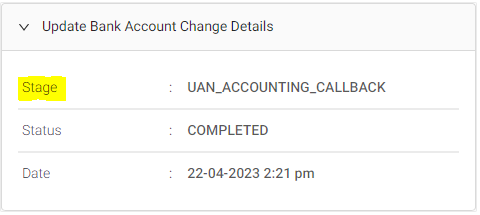
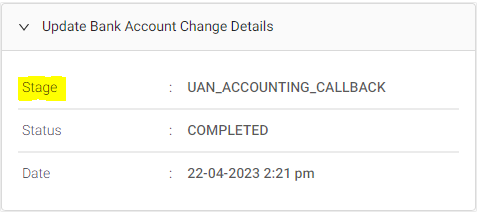
3.1 | If it is P2P merchant | MHD agents’ action: Check the “stage” of the bank account change event. How to do:
| MHD -L1 | T |
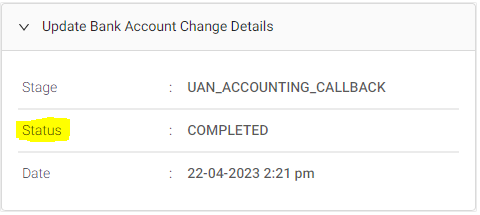
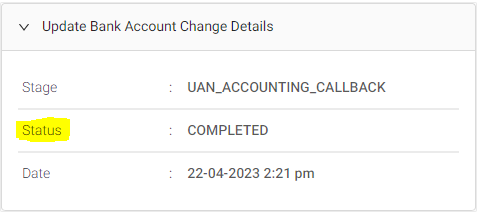
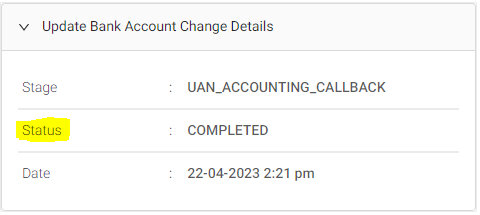
3.1.1 | If the stage is “Initiate_P2P_UAN” | MHD agents’ action: Check the status of the stage. How to do:
| MHD -L1 | T |
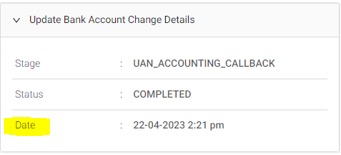
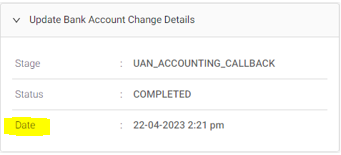
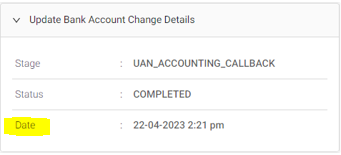
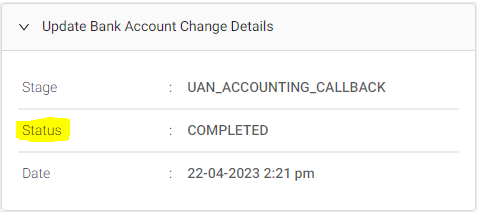
3.1.1.a | If the status is completed | Communicate to Merchant: Inform mx that the bank account change was successfully completed on {date and time}. MHD agents’ action: capture the MID, and merchant type in the ticket properties. Tagging: Group - Merchant Profile Type - Bank Ac Issue - Unable to add/change Sub Issue - Already changed Status: resolved | MHD -L1 | T |
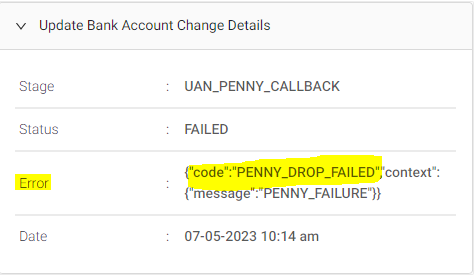
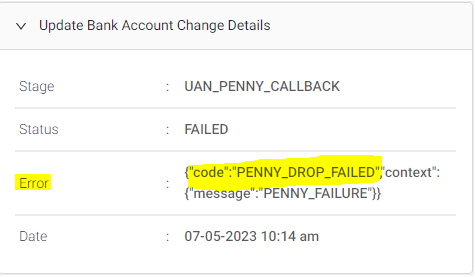
3.1.1.b | If the status is failed | Communicate to Merchant: inform Mx that the bank account failed due to {refer to the reason based on error code}. Reference table. How to do:
MHD agents’ action: capture the MID, merchant type and error code in the ticket properties. Tagging: Group - Merchant Profile Type - Bank Ac Issue - Unable to add/change Sub Issue - based on error code Status: based on the error code | MHD -L1 | T |
3.2 | If it is P2PH / P2ML / P2M merchant | MHD agents’ action: Check the “stage” of the bank account change event. How to do:
| MHD -L1 | T |
3.2.1 | If the stage is “Initiate_P2P_UAN”, “Initiate_UAN” or “UAN_penny_init” | MHD agents’ action: Check the status of the stage. How to do:
| MHD -L1 | T |
3.2.1.a | If the status is completed | MHD agents’ action: Check if Mx has contacted within 26hr from the time of stage creation. How to do:
| MHD -L1 | T |
3.2.1.a.1 | Mx contacted within 26hr from the time of stage creation | Communicate to Merchant: inform the Merchant that we're in the process of verifying your bank account details and bank account will be updated by <stage date & time+26 hrs>. Ask mx to check manage bank accounts in phonepe business app after <stage date& time+26 hrs> for confirmation. MHD agents’ action: capture the MID, merchant type and stage in the ticket properties. Tagging: Group - Merchant Profile Type - Bank Ac Issue - Unable to add/change Sub Issue - Penny drop initiated-asked to wait Stage: UAN_PENNY_INIT Status: Pending Resolution due by: 26hr from time of stage | MHD -L1 | stage+26hr |
3.2.1.a.2 | Mx contacted after 26hr from the time of event creation | Communicate to Merchant: Inform the Merchant that it could be a technical issue and ask the Merchant to perform the basic T/S as mentioned below -
MHD agents’ action: capture the MID, merchant type and stage in the ticket properties. Tagging: Group - Merchant Profile Type - Bank Ac Issue - Unable to add/change Sub Issue - Penny drop initiated - Asked to T/S Stage: UAN_PENNY_INIT Status: Pending Resolution due by: T+1 day from time of contact | MHD-L1 | T+1 Day |
3.2.1.a.2 (a) | If Mx reverts saying they have performed all the T/S steps, yet they are facing issue | Communicate to Merchant: Inform Mx that the bank account change is taking longer than expected and ask mx to share any / either of the below mentioned documents on the ticket and also brief that the Bank Account Name should match the CBS name. Once shared it would take T+5 Days for us to validate and get back - - A canceled cheque on which the name and account number are visible - A copy of your bank statement that is self-attested - A copy of your bank passbook with the bank's seal. - A signed and sealed letter from your bank with the bank account details (account holder name, account number, account type, and IFSC). Note: If you're the proprietor, the canceled cheque must have your name or the company's name. If you have partners, the canceled cheque must be issued in the company's registered name
MHD agents’ action: capture the MID, merchant type and stage in the ticket properties. Tagging: Group - Merchant Profile Type - Bank Ac Issue - Unable to add/change Sub Issue- Penny drop initiated- Document requested Stage: UAN_PENNY_INIT Status: Waiting on Merchant Resolution due by: T+3 days from time of contact | MHD -L1 | T+3 days |
3.2.1.a.2 (b) | Once the Documents are shared | Communicate to Merchant: It would take T+5 Days for us to validate and get back. MHD agents’ action: capture the MID, merchant type and stage in the ticket properties. Tagging: Group - Merchant Profile Type - Bank Ac Issue - Unable to add/change Sub Issue - Penny drop initiated-internal action needed Stage: UAN_PENNY_INIT Status: Assign to L2 L2 Team: MHD-L2 Resolution due by: T+5 days from time of contact (L1 will not evaluate the documents) | MHD-L1 | T+5 Day |
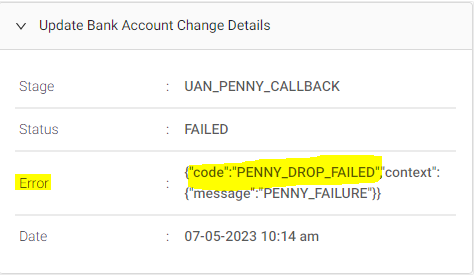
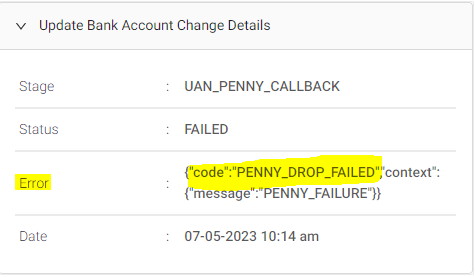
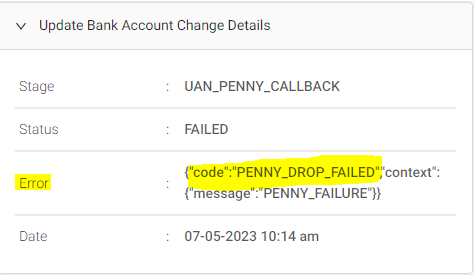
3.2.1.b | If the status is failed | Communicate to Merchant: inform Mx that the bank account is failed due to {refer to the reason based on error code} and ask mx to {refer based on error code}. Reference table. How to do:
MHD agents’ action: capture the MID, merchant type,stage and error code in the ticket properties. Tagging: Group - Merchant Profile Type - Bank Ac Issue - Unable to add/change Sub Issue - based on error code Stage: UAN_PENNY_INIT Error code: based on the error code Status: based on the error code | MHD -L1 | T |
3.2.2 | If the stage is “UAN_Penny_callback” | MHD agents’ action: Check the status of the stage. How to do:
| MHD -L1 | T |
3.2.2.a | If the status is completed | MHD agents’ action: Check if Mx has contacted within 4hr from the time of the stage. How to do:
| MHD -L1 | T |
3.2.2.a.1 | Mx contacted within 4hr from the time of stage creation | Communicate to Merchant: inform the Merchant that we're in the process of verifying your bank account details and bank account will be updated by <stage created time+4hr>. Ask mx to check manage bank accounts in phonepe business app after <stage date& time + 4 hr> for confirmation. MHD agents’ action: capture the MID, merchant type and stage in the ticket properties. Tagging: Group - Merchant Profile Type - Bank Ac Issue - Unable to add/change Sub Issue - UAN accounting initiated-ask to wait Stage: UAN_Penny_callback Status: Pending Resolution due by: 4hr from time of stage | MHD -L1 | stage+4hr |
3.2.2.a.2 | Mx contacted after 4hr from the time of event creation | Communicate to Merchant: Inform Mx that the bank account change is taking longer than expected and ask the Merchant to perform the basic T/S as mentioned below -
MHD agents’ action: capture the MID, merchant type and stage in the ticket properties. Tagging: Group - Merchant Profile Type - Bank Ac Issue - Unable to add/change Sub Issue- UAN accounting initiated- Asked to T/S Stage: UAN_Penny_callback Status: Pending Resolution due by: T+1 day from time of contact | MHD L1 | T+1 day |
3.2.2.a.2 (a) | If Mx reverts saying they have performed all the T/S steps, yet they are facing issue | Communicate to Merchant: Inform Mx that the bank account change is taking longer than expected and ask mx to share any / either of the below mentioned documents on the ticket and also brief that the Bank Account Name should match the CBS name. Once shared it would take T+5 Days for us to validate and get back - - A canceled cheque on which the name and account number are visible - A copy of your bank statement that is self-attested - A copy of your bank passbook with the bank's seal. - A signed and sealed letter from your bank with the bank account details (account holder name, account number, account type, and IFSC). Note: If you're the proprietor, the canceled cheque must have your name or the company's name. If you have partners, the canceled cheque must be issued in the company's registered name
MHD agents’ action: capture the MID, merchant type and stage in the ticket properties. Tagging: Group - Merchant Profile Type - Bank Ac Issue - Unable to add/change Sub Issue- UAN accounting initiated- Document requested Stage: UAN_Penny_callback Status: Waiting on Merchant Resolution due by: T+3 days from time of contact | MHD L1 | T+3 Days |
3.2.2.a.2 (b) | Once the Documents are shared | Communicate to Merchant: It would take T+5 Days for us to validate and get back. MHD agents’ action: capture the MID, merchant type and stage in the ticket properties. Tagging: Group - Merchant Profile Type - Bank Ac Issue - Unable to add/change Sub Issue -UAN accounting initiated-internal action needed Stage: UAN_Penny_callback Status: Assign to L2 L2 Team: MHD-L2 Resolution due by: T+5 days from time of contact | MHD -L1 | T+5 Day |
3.2.2.b | If the status is failed | Communicate to Merchant: inform Mx that the bank account failed due to {refer to the reason based on error code}. Reference table. How to do:
MHD agents’ action: capture the MID, merchant type, stage and error code in the ticket properties. Tagging: Group - Merchant Profile Type - Bank Ac Issue - Unable to add/change Sub Issue - based on error code Stage: UAN_Penny_callback Error code: based on the error code Status: based on the error code | MHD -L1 | T |
3.2.3 | If the stage is UAN_Bene_Reg | MHD agents’ action: Check the status of the stage. How to do:
| MHD -L1 | T |
3.2.3.a | If the status is completed | MHD agents’ action: Check if Mx has contacted within 2hr from the time of the stage. How to do:
| MHD -L1 | T |
3.2.3.a.1 | Mx contacted within 2hr from the time of stage creation | Communicate to Merchant: inform the Merchant that we're in the last step of verifying your bank account details and bank account will be updated by <stage created time+2hr>. Ask mx to check manage bank accounts in phonepe business app after <stage date& time + 2 hr> for confirmation. MHD agents’ action: capture the MID, merchant type and stage in the ticket properties. Tagging: Group - Merchant Profile Type - Bank Ac Issue - Unable to add/change Sub Issue - UAN accounting initiated-ask to wait Stage: UAN_Bene_Reg Status: Pending Resolution due by: 2hr from time of stage | MHD -L1 | stage+2hr |
3.2.3.a.2 | Mx contacted after 2hr from the time of event creation | Communicate to Merchant: Inform Mx that the bank account change is taking longer than expected and ask the Merchant to perform the basic T/S as mentioned below -
MHD agents’ action: capture the MID, merchant type and stage in the ticket properties. Tagging: Group - Merchant Profile Type - Bank Ac Issue - Unable to add/change Sub Issue- UAN accounting initiated- Asked to T/S Status: Pending Resolution due by: T+1 day from time of contact. | MHD -L1 | T+1 day |
3.2.3.a.2 (a) | If Mx reverts saying they have performed all the T/S steps, yet they are facing issue | Communicate to Merchant: Inform Mx that the bank account change is taking longer than expected and ask mx to share any / either of the below mentioned documents on the ticket and also brief that the Bank Account Name should match the CBS name. Once shared it would take T+5 Days for us to validate and get back - - A canceled cheque on which the name and account number are visible - A copy of your bank statement that is self-attested - A copy of your bank passbook with the bank's seal. - A signed and sealed letter from your bank with the bank account details (account holder name, account number, account type, and IFSC). Note: If you're the proprietor, the canceled cheque must have your name or the company's name. If you have partners, the canceled cheque must be issued in the company's registered name
MHD agents’ action: capture the MID, merchant type and stage in the ticket properties. Tagging: Group - Merchant Profile Type - Bank Ac Issue - Unable to add/change Sub Issue- UAN accounting initiated- Document requested Stage: UAN_Bene_Reg Status: Waiting on Merchant Resolution due by: T+3 days from time of contact | MHD -L1 | T+3 days |
3.2.2.a.2 (b) | Once the Documents are shared | Communicate to Merchant: It would take T+5 Days for us to validate and get back. MHD agents’ action: capture the MID, merchant type and stage in the ticket properties. Tagging: Group - Merchant Profile Type - Bank Ac Issue - Unable to add/change Sub Issue- UAN accounting initiated-internal action needed Stage: UAN_Bene_Reg Status: Assign to L2 L2 Team: MHD-L2 Resolution due by: T+5 days from time of contact | MHD -L1 | T+5 days |
3.2.3.b | If the status is failed | Communicate to Merchant: inform Mx that the bank account failed due to {refer to the reason based on error code}. Reference table. How to do:
MHD agents’ action: capture the MID, merchant type, stage and error code in the ticket properties. Tagging: Group - Merchant Profile Type - Bank Ac Issue - Unable to add/change Sub Issue - based on error code Stage: UAN_Bene_Reg Error code: based on the error code Status: based on the error code | MHD -L1 | T |
3.2.4 | If the stage is “UAN_completed” / “UAN_Accounting_callback” | MHD agents’ action: Check the status of the stage. How to do:
| MHD -L1 | T |
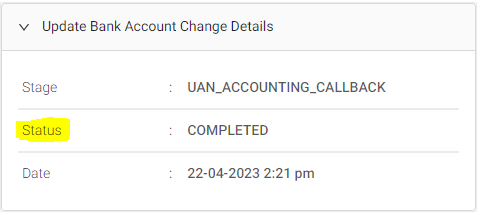
3.2.4.a | If the status is completed | Communicate to Merchant: Inform mx that the bank account change is successfully completed on {date and time}. MHD agents’ action: capture the MID, and merchant type in the ticket properties. Tagging: Group - Merchant Profile Type - Bank Ac Issue - Unable to add/change Sub Issue - Already changed Status: resolved | MHD -L1 | T |
3.2.4.b | If the status is failed | Communicate to Merchant: inform Mx that the bank account is failed due to {refer to the reason based on error code} Reference table. How to do:
MHD agents’ action: capture the MID, merchant type and error code in the ticket properties. Tagging: Group - Merchant Profile Type - Bank Ac Issue - Unable to add/change Sub Issue - based on error code Stage: UAN_accounting_callback Error code: based on the error code Status: based on the error code | MHD -L1 | T |
4.0 | Once P2ML or P2M shares the requested bank details | MHD agents’ action: Check if the details shared are from registered email ID or from the phonepe business app. How to do: Registered email id can be referred from SCP in the merchant profile tab. If the details are shared via phonepe business app can be identified if that documents are shared as a reply to existing ticket. | MHD -L1 | T |
4.1 | If the bank details is shared from non-registered email id or not via phonepe business app | Communicate to Merchant: inform mx to share the details from registered email id (if no email id is registered, as mx to register email id in phonepe business account) or as a reply to the ticket from phonepe business app. MHD agents’ action: capture the MID, merchant type in the ticket properties. Tagging: Group - Merchant Profile Type - Bank Ac Issue - Unable to add/change Sub Issue - Verification failed-routed to app Status: Resolved | MHD -L1 | T |
4.2 | If the bank details is shared from registered email id or via phonepe business app | Communicate to Merchant: inform Mx that the bank account will be changed in T+5 Days. MHD agents’ action: Do not change the tagging. Status: Assigned to L2 L2 Team: Onboarding Resolution due by: T+5 days from time of contact | MHD -L1 | T+5 days |
3.1.3 Failure Error code and actions
Error Code | Communicate to Merchant | Sub-issue | Status |
Account_info_mismatch | Inform mx that the account linking has failed due to incorrect bank account details. Ask mx to enter correct details by referring to a bank statement or passbook or cheque and retry again. | Account details mismatch-to be retried | Resolved |
Account_name_mismatch / Name_mismatch | Inform mx that the account linking has failed as the account holder name in bank details doesn't match with name registered with phonepe or any of the business name {CBS/KYC name}. | Name mismatch-to be retried | Resolved |
Account_not_found / Invalid_older_account | Inform mx that the account linking has failed as the phonepe business app is outdated. Ask mx to update the app to the latest version and retry again. | Account not found-update app version | Resolved |
Address Verification | Inform mx that the account linking has failed as the address on your GSTN certificate does not match your registered address as per our records. Ask mx to try linking the GSTN with an address same as registered with phonepe. | Name mismatch-gstn validation required | Resolved |
Communication error / Internal_error | Inform mx that the account linking has failed due to a technical issue. Inform merchant that we escalate the issue and provide the resolution by 8 pm on {current date +2 days} | Internal error-to be retried | Assign to L2 L2_team: services-oncall Due by: 8pm on T+2 days |
Fraud_account_mapping / Fraud_detected | Inform mx that, due to security reasons, we will be unable to link the bank account you are attempting to link. Please try using a different bank account. Ask mx to try to link with a different account with the same name as {CBS/KYC name}. | Fraud mapping-to be retried | Resolved |
GSTN_Name_Mismatch | Inform mx that the account linking has failed as the name on your GSTN certificate does not match the registered name as per our records. Ask mx to try linking the GSTN with the name ({CBS/KYC name}). | Name mismatch-gstn validation required | Resolved |
Incorrect Business type | Inform mx that the account linking has failed as the business type on your GSTN certificate does not match the business type you shared with us during onboarding. Ask Mx to retry with GSTN that matches the business type as shared with us. | Name mismatch-gstn validation required | Resolved |
Invalid_GSTN | Inform mx that the account linking has failed as we're unable to validate your GSTN details. Ask mx to check the GSTN entered and retry again or to try linking different bank accounts with the same name as {CBS/KYC name}. | Name mismatch-gstn validation required | Resolved |
Invalid_IFSC | Inform mx that the account linking has failed as the entered IFSC is incorrect. Ask mx to enter correct details by referring to a bank statement or passbook or cheque and retry again. | Invalid ifsc-to be retried | Resolved |
Invalid_Request | Inform mx that the account linking has failed due to a technical issue. Ask Mx to retry after {current time+6 hours}. | Invald request-to be retried | Resolved |
Penny_drop_Failed | Inform mx that the account linking has failed as we're unable to validate your bank account details. Ask mx to enter correct details by referring to a bank statement or passbook or cheque and retry again. | Penny drop failed-to be retried | Resolved |
Penny_drop_Failed_NS_E406 | Inform mx that the account linking has failed as the account holder name in bank details doesn't match with name registered with phonepe or any of the business name {CBS/KYC name}. | Penny drop failed-to be retried | Resolved |
Penny_drop_Failed_NPCI_EM1 | Inform mx that the account linking has failed as we're unable to validate your bank account details. Ask Mx to retry again by linking different bank accounts with the same name as {CBS/KYC name}. | Penny drop failed-to be retried | Resolved |
Penny_drop_Failed_NPCI_EM3 | Inform mx that the account linking has failed as the bank account you are trying to link is blocked or frozen. Ask Mx to retry again by linking different bank accounts with the same name as {CBS/KYC name}. | Penny drop failed-to be retried | Resolved |
Penny_drop_Failed_NPCI_EM5 | Inform mx that the account linking has failed as the bank account you are trying to link is closed. Ask Mx to retry again by linking different bank accounts with the same name as {CBS/KYC name}. | Penny drop failed-to be retried | Resolved |
User_blacklisted | Inform mx that the account linking has failed as your PhonePe Business account is disabled due to security reasons. | Account blacklisted | Resolved |
UAN_accounting_failure | If Mx type is P2ML/P2M: Inform mx that the account linking has failed due to some technical issues. Ask Mx to share any one of the below documents for us to change the bank account. The below documents should be shared with us from your registered email ID or from App. Please ensure that the name on the document is {KYC/CBS name}. Also Inform mx that it would take T+5 days to update the bank account once the valid documents are shared with us. - A canceled cheque on which the name and account number are visible - A copy of your bank statement that is self-attested - A copy of your bank passbook with the bank's seal. - A signed and sealed letter from your bank with the bank account details (account holder name, account number, account type, and IFSC). Note: If you're the proprietor, the canceled cheque must have your name or the company's name. If you have partners, the canceled cheque must be issued in the company's registered name
If Mx type is P2P/P2PH: Inform mx that the account linking has failed due to some technical issues. Ask Mx to retry after 24hr or link different bank accounts with the name same as {kyc name}. | If Mx type is P2ML/P2M: Uan account failure-request bank proof If Mx type is P2P/P2PH: Internal error-to be retried | If Mx type is P2ML/P2M: Waiting on merchant If Mx type is P2P/P2PH: Resolved |
3.1.4 Migration Status and action
Status | Communicate to Merchant | Sub-issue | Status | Resolution due by |
PV_ONBOARDING_VERIFICATION_IN_PROGRESS / PV_ONBOARDING_VERIFICATION_SUCCESSFUL / PV_ONBOARDING_VERIFICATION_INITIATED / OM_SUBMITTED / P2M_PENNY_INITIATED / P2M_IN_PROGRESS | Inform Mx that the onboarding is still in progress. Once your onboarding is completed, his/her PhonePe Business account will be active and he/she will be able to change your bank account. | Onboarding-in-progress | Resolved | NA |
VERIFICATION_INITIATED / VERIFICATION_PENNY_INITIATED / VERIFICATION_INPROGRESS / VERIFICATION_UAN_SUBMITTED / ADD_IMPS_INITIATED / ADD_IMPS_PENNY_INITIATED | Inform mx that We're currently updating your PhonePe Business account details. You'll be able to change your bank account once the update is complete. Ask to try again after {current time + 24 hrs}. | Migration not allowed | Pending | T+24hr |
UGSTN_INITIATED / UGSTN_INPROGRESS / UGSTN_SUBMITTED | Inform MX that he/she has updated the GST details recently and that verification is in progress. Inform mx that he/she will be able to change your bank account after {current time +6 hrs} once the GST verification is completed. | Migration not allowed | Pending | T+6hr |
P2PH_ONBOARDING_INITIATED / P2PH_PENNY_INITIATED / P2PH_IN_PROGRESS / P2PH_SUBMITTED | Inform mx that We're currently updating your PhonePe Business account details. You'll be able to change your bank account once the update is complete. Ask to try again after {current time + 12 hrs}. | Migration not allowed | Pending | T+12hr |
MANUAL_KYC_SUBMITTED | Inform mx that verification of your recently updated your KYC details is in progress and he/she will be able to change your bank account after {current time +24hrs} once the KYC verification is completed. | Migration not allowed | Pending | T+24hr |
INITIATED / SUBMITTED/ any other status which is not part of this list | Inform mx that the account linking has failed as the bank account is already linked with another phonepe business account and for security reasons, the same bank account can't be linked toAsk mx to try to link with a different account with the same name as {CBS/KYC name}. | Migration not allowed-update the app | Resolved |
3.1.5 Unable to find my bank name while updating the bank account
Steps | Process step | Action | Owner | TAT |
1.0 | If Mx claim that he/she is unable to find the bank/ bank name in the list while changing the bank account | MHD agents’ action: Ask which bank he/she is trying to link? | MHD -L1 | T |
1.1 | If mx says “Paytm payments bank” (PPBL) | Communicate to Merchant: Inform Mx that the bank he/she is trying to link is currently not not supported on phonepe business app, and ask the merchants to try to link a different bank’s account. | MHD -L1 | T |
1.1.1 | If mx agrees, | Communicate to the Merchant: Thank the merchant and resolve the ticket. MHD agents’ action: capture the MID and merchant type, merchant priority in the ticket properties. Tagging: Group - Merchant Profile Type - Bank Ac Issue - Unable to find the bank name Sub Issue - Not supported-try other bank-agreed Status: resolved | MHD -L1 | T |
1.1.2 | If mx disagrees, ask the reason for not supporting PPBL bank | Communicate to the Merchant: As per communication from RBI, Paytm payments bank will stop receiving credits after 15th March, 2024. Hence, to continue receiving your settlements seamlessly on PhonePe, please update your bank account. MHD agents’ action: capture the MID and merchant type, merchant priority in the ticket properties. Tagging: Group - Merchant Profile Type - Bank Ac Issue - Unable to find the bank name Sub Issue - Not supported-try other bank-disagreed Status: resolved | MHD -L1 | T |
1.1.3 | If mx says he/she doesn’t have different bank account | Communicate to the Merchant: Inform mx that we recommend visiting his/her nearest bank branch and completing the required documentation to open another bank account. Some banks also give you the option to do it online. Once this is done, he/ she can log into your PhonePe Business account and link his/her new bank account. MHD agents’ action: capture the MID and merchant type, merchant priority in the ticket properties. Tagging: Group - Merchant Profile Type - Bank Ac Issue - Unable to find the bank name Sub Issue - Not supported-try other bank-agreed Status: resolved | MHD -L1 | T |
1.2 | If mx says any other bank name expect for “Paytm payments bank” (PPBL) | Communicate to Merchant: Inform Mx that sometimes there could be technical or network issues and ask Mx to update the app to the latest version and retry again with better network connectivity. MHD agents’ action: capture the MID and merchant type, merchant priority in the ticket properties. Tagging: Group - Merchant Profile Type - Bank Ac Issue - Unable to find the bank name Sub Issue - supported-asked to retry Status: resolved | MHD -L1 | T |
3.2 L2 (onboarding) process
Steps | Process step | Action | Owner | TAT |
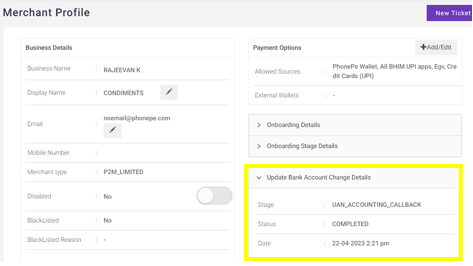
1.0 | Consider tickets of Type: "Bank Ac" Subissue: consider all excluding Account Blocked Status: "Assign to L2", “Reopen” & “Merchant replied”(only if there is existing assign to L2 tag) | MHD agents’ action: Check if there is any bank account change event recorded in SCP in last 15days. under “Update Bank Account Change Details” How to do:
| L2 onboarding | T |
1.1 | For the given MID, if no event captured in SCP in last 15days Reference image:
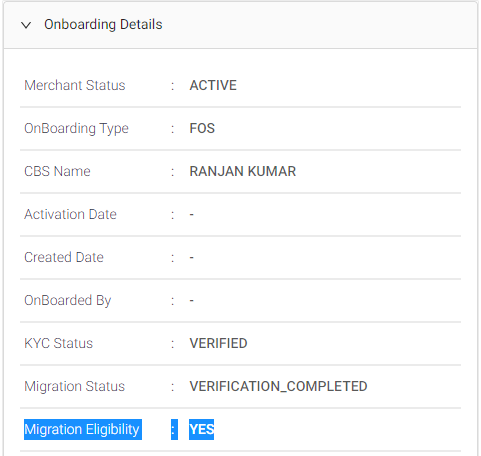
| MHD agents’ action: Check the migration eligibility. How to do:
| L2 onboarding | T |
1.1.1 | If the “migration eligibility” = Yes | Communicate to Merchant: Inform Mx that bank account change is not completed due to technical issue and ask mx to retry after 24 hours. Also inform Mx to clear all cache and update to the latest app version. Share the self-serve steps to Mx based on the mx type (check the merchant type in SCP in “merchant profile” tab). P2P and P2PH merchant:
It will take 24 hrs for the new Bank account to become active if the verification is successful. P2ML and P2M merchant:
It will take 24 hrs for the new Bank account to become active if the verification is successful. MHD agents’ action: no changes in tagging Status: resolved | L2 onboarding | T |
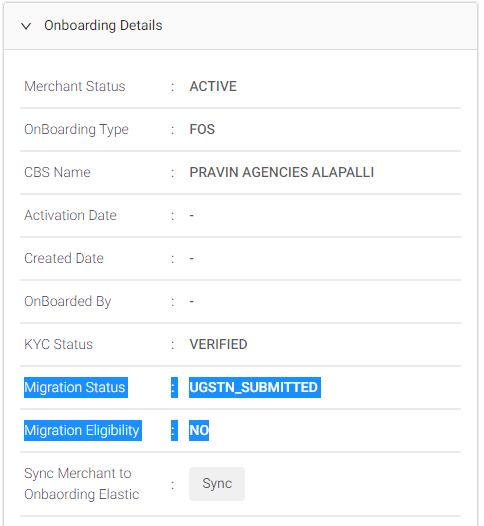
1.1.2 | If the "migration eligibility” = “No” | MHD agents’ action: check the migration status and update mx based on status. How to check:
Communicate to Merchant: inform Mx that he/she is unable to change the bank account due to {refer to the reason based on error code} Reference table. capture the MID, merchant type and error code in the ticket properties. Tagging: Group - Merchant Profile Type - Bank Ac Issue - Unable to add/change Sub Issue - based on migration status Error code: {capture migration status} Status: based on migration status Resolution due by: based on migration status | MHD -L1 | |
1.2 | For the given MID, if there is an event captured in SCP in last 15 days Reference image:
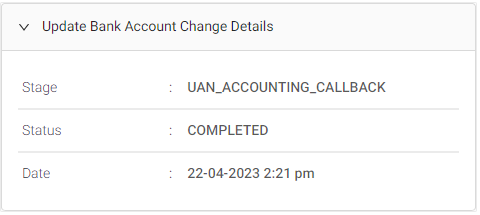
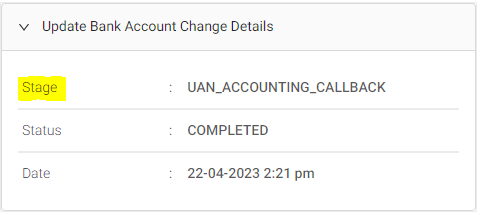
| MHD agents’ action: Check the latest “stage” of the bank account change event. How to do:
| L2 onboarding | T |
1.2.1 | If the stage is “Initiate_UAN” or “UAN_penny_init” | MHD agents’ action: Check the status of the stage. How to do:
| L2 onboarding | T |
1.2.1.a | If the status is completed | MHD agents’ action: Check if Mx has contacted within 26hr from the time of stage creation. How to do:
| L2 onboarding | T |
1.2.1.a.1 | If the difference between current time and event created time is less then 26hr | Communicate to Merchant: inform the Merchant that we're in the process of verifying your bank account details and bank account will be updated by <stage created time+26 hrs>. Ask mx to check manage bank accounts in phonepe business app after <stage created time+26 hrs> for confirmation. MHD agents’ action: No changes in GTIS Status: Pending Resolution due by: 26hr from time of stage | L2 onboarding | stage+26hr |
1.2.1.a.2 | If the difference between current time and event created time is greater then 26hr | Communicate to Merchant: Inform Mx that there was a technical error causing issue while updating bank account. inform Mx to clear all cache and update to the latest app version and retry again after 48 hours. MHD agents’ action: No changes in tagging Status: Resolved | L2 onboarding | T |
1.2.1.b | If the status is failed | Communicate to Merchant: inform Mx that the bank account is failed due to {refer to the reason based on error code} and ask mx to {refer based on error code}. Reference table. How to do:
MHD agents’ action: no changes in tagging Status: based on the error code | L2 onboarding | T |
1.2.2 | If the stage is “UAN_Penny_callback” | MHD agents’ action: Check the status of the stage. How to do:
| L2 onboarding | T |
1.2.2.a | If the status is completed | MHD agents’ action: Check if Mx has contacted within 1hr from the time of stage creation. How to do:
| L2 onboarding | T |
1.2.2.a.1 | If the difference between current time and event created time is less then 4hr | Communicate to Merchant: inform the Merchant that we're in the process of verifying your bank account details and bank account will be updated by <stage date& time+4hr>. Ask mx to check manage bank accounts in phonepe business app after <stage date& time + 4 hr> for confirmation. MHD agents’ action: no changes in tagging Status: Pending Resolution due by: 4hr from time of stage | L2 onboarding | stage+4hr |
1.2.2.a.2 | If the difference between current time and event created time is greater then 4hr | Communicate to Merchant: Inform Mx that there was a technical error causing issue while updating bank account. inform Mx to clear all cache and update to the latest app version and retry again after 48 hours. MHD agents’ action: No changes in tagging Status: Resolved | L2 onboarding | T |
1.2.2.b | If the status is failed | Communicate to Merchant: inform Mx that the bank account is failed due to {refer to the reason based on error code} and ask mx to {refer based on error code}. Reference table. How to do:
MHD agents’ action: no changes in tagging Status: based on the error code | L2 onboarding | T |
1.2.3 | If the stage is UAN_Bene_Reg | MHD agents’ action: Check the status of the stage. How to do:
| L2 onboarding | T |
1.2.3.a | If the status is completed | MHD agents’ action: Check if Mx has contacted within 2hr from the time of the stage. How to do:
| MHD -L1 | T |
1.2.3.a.1 | Mx contacted within 2hr from the time of stage creation | Communicate to Merchant: inform the Merchant that we're in the last step of verifying your bank account details and bank account will be updated by <stage created time+2hr>. Ask mx to check manage bank accounts in phonepe business app after <stage date& time + 2 hr> for confirmation. MHD agents’ action: no changes in tagging Status: Pending Resolution due by: 2hr from time of stage | L2 onboarding | stage+2hr |
1.2.3.a.2 | Mx contacted after 2hr from the time of event creation | Communicate to Merchant: Inform Mx that there was a technical error causing issue while updating bank account. inform Mx to clear all cache and update to the latest app version and retry again after 48 hours. MHD agents’ action: No changes in tagging Status: Resolved | L2 onboarding | T |
1.2.3.b | If the status is failed | Communicate to Merchant: inform Mx that the bank account is failed due to {refer to the reason based on error code} and ask mx to {refer based on error code}. Reference table. How to do:
MHD agents’ action: no changes in tagging Status: based on the error code | L2 onboarding | T |
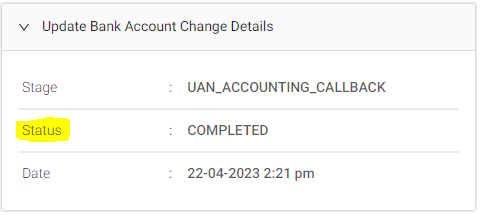
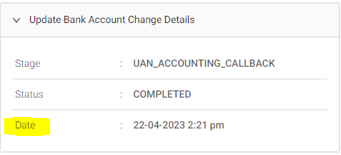
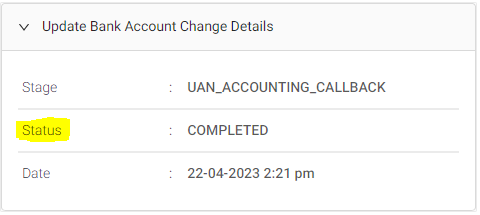
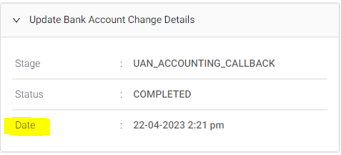
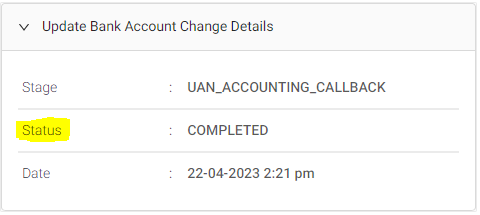
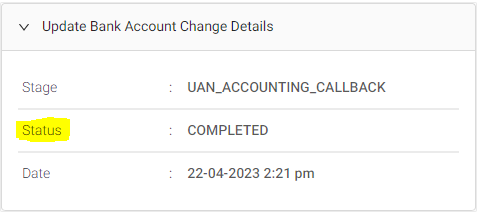
1.2.4 | If the stage is “UAN_completed” / “UAN_Accounting_callback” | MHD agents’ action: Check the status of the stage. How to do:
| L2 onboarding | T |
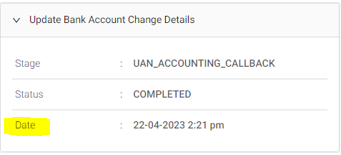
1.2.4.a | If the status is completed | Communicate to Merchant: Inform mx that the bank account change is successfully completed on {date and time}. MHD agents’ action: No changes in tagging Status: resolved | L2 onboarding | T |
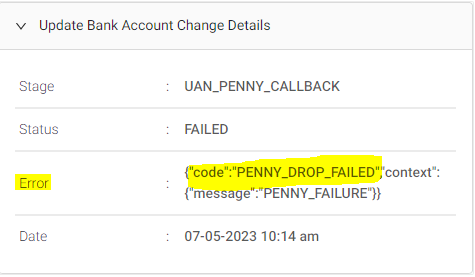
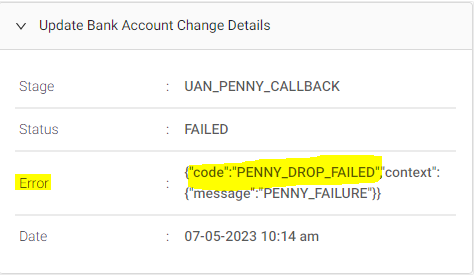
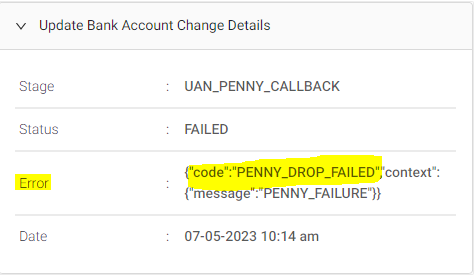
1.2.4.b | If the status is failed | MHD agents’ action: Check if the error is “UAN accounting failure” How to do:
| L2 onboarding | T |
1.2.4.b.1 | Error is different than “UAN_accounting_failure” | Communicate to Merchant: inform Mx that the bank account failed due to {refer to the reason based on error code} and ask mx to {refer based on error code}. Reference table. MHD agents’ action: no changes in tagging Status: based on the error code | L2 onboarding | T |
1.2.4.b.2 | Error is “UAN_accounting_failure” | MHD agents’ action: Check the Mx type. | L2 onboarding | T |
1.2.4.b.2.1 | If it is P2PH merchant | Communicate to Merchant: Inform Mx that the account linking has failed due to some technical issues. Ask Mx to retry after 24hr or link different bank accounts with the name same as {kyc name} and share self-serve steps. MHD agents’ action: no changes in tagging Status: Resolved | L2 onboarding | T |
1.2.4.b.2.2 | If it is P2ML/ P2M | Follow manual bank account update process | L2 onboarding | T |
3.2.1 Manual bank account update
Steps | Process step | Action | Owner | TAT |
1.0 | If it is P2ML/ P2M | MHD agents’ action: Check if the Mx has shared the requested documents | L2 onboarding | T |
1.1 | If the documents are not shared | Communicate to Merchant: Ask Mx to share any one of the below documents for us to change the bank account. The below documents should be shared with us from your registered email ID or from App and the name on the document is {CBS name}. Also Inform mx that it would take T+5 days to update the bank account once the valid documents are shared with us. - A canceled cheque on which the name and account number are visible - A copy of your bank statement that is self-attested and has the bank's seal - A copy of your bank passbook with the bank's seal. - A signed and sealed letterhead from your company with the bank account details (account holder name, account number, account type, and IFSC) (specifically for P2M if the bank request is raised by non registered email iD). Note: If you're the proprietor, the canceled cheque must have your name or the company's name. If you have partners, the canceled cheque must be issued in the company's registered name
MHD agents’ action: no changes in tagging Status: Waiting on Merchant Set the Due by date to T+3 days from the time of contact. | L2 onboarding | T + 3days |
1.2 | If the documents are shared | MHD agents’ action: Check if the details shared are from a registered email ID or from the PhonePe business app. How to do: Registered email ids can be referred from SCP in the merchant profile tab. If the details are shared via the PhonePe business app can be identified if that documents are shared as a reply to existing ticket. | L2 onboarding | T |
1.2.1 | If the bank details is shared from non-registered email id or not via phonepe business app | Communicate to Merchant: inform mx to share the details from the registered email id (if no email id is registered, ask mx to register the email id in phonepe business account) or as a reply to the ticket from phonepe business app. MHD agents’ action: no changes in tagging Status: Resolved | L2 onboarding | T |
1.2.2 | If the bank details is shared from registered email id or via phonepe business app | MHD agents’ action: Check if mx’s KYC is verified (POI/POB). | ||
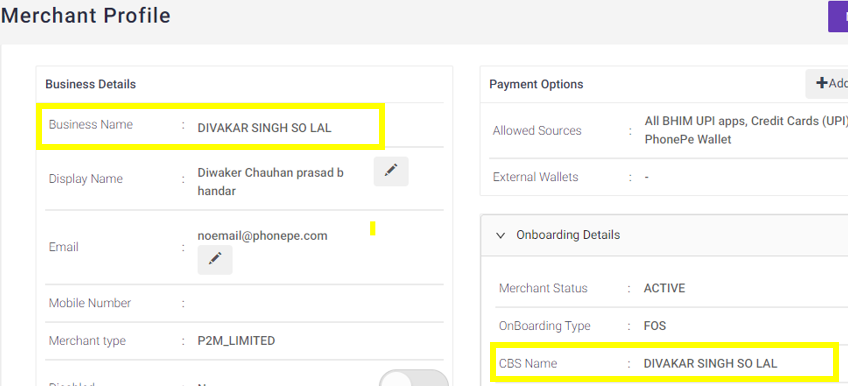
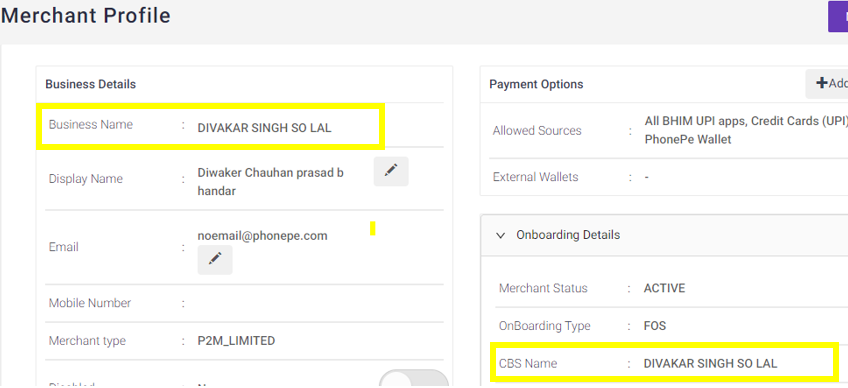
1.2.2.a | If KYC is not verified | MHD agents’ action: Validate if mx has shared the required document and check if the name mentioned in the shared document matches the CBS name in SCP. Note: Shared details are considered only if they justify one of the below points:
Ex: Document name- Ashish Kual CBS name - Kaul Ashish
Ex: Document name- Amrutha Krishan CBS name- Amruta krishan Example of invalid name match CBS name- Raj kumar Varma Document name - Raj Varma or Raj K Varma, or V. Raj kumar or R K Varma How to do: CBS name can be viewed on the merchant profile section.
| ||
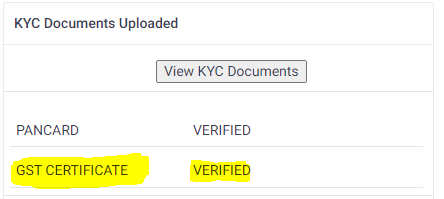
1.2.2.b | If KYC is verified | MHD agents’ action: Validate if mx has shared the required document and check if the name mentioned in the shared document matches the CBS/business name or name as per GST in SCP. Note: Shared details is considered only if it justified one of the below points:
Ex: Document name- Ashish Kual CBS/Business/GST name- Kaul Ashish
Ex: Document name- Amrutha Krishan CBS/Business/GST name-Amruta krishan Example of invalid name match CBS/Business/GST name - Raj kumar Varma Document name - Raj Varma or Raj K Varma, or V. Raj kumar or R K Varma How to do: CBS and business name can be viewed on the merchant profile section.
To check the name as per GST:
| L2 onboarding | T |
1.2.2.b.1 | If the name doesn’t match with CBS/business name/GST | MHD agents’ action: check if GST is verified How to do:
| L2 onboarding | T |
1.2.2.b.1.1 | If GST is not verified | Communicate to Merchant: Inform Mx that the name in the shared document is not matching with the name {CBS name} or inform mx can update GST details in PB and try to change bank account later as the GST is verified. MHD agents’ action: No changes in tagging Status: Resolved | L2 onboarding | T |
1.2.2.b.1.2 | If GST is verified | Communicate to Merchant: Inform Mx that the name in the shared document is not matching with the name registered with us and ask mx to share the document with the name as per {CBS name} MHD agents’ action: No changes in tagging Status: waiting on Merchant Set due by date to T+3 days | L2 onboarding | T+3 days |
1.2.2.b.2 | If the name match with CBS/business name/GST | MHD agents’ action: Check if IFSC shared mx is part of NEFT enabled IFSC list. | L2 onboarding | T |
1.2.2.b.2.1 | If the IFSC is not part of the list | Communicate to Merchant: Inform mx that the shared IFSC details are not matching with the bank’s branch. Ask mx to share the popper IFSC detail by collecting the details from the respective bank MHD agents’ action: no changes in tagging Status: waiting on merchant Set the due date/time to T+3 days from time of contact | L2 onboarding | T+3 days |
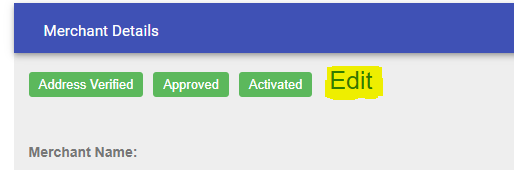
1.2.2.b.2.2 | If the IFSC is part of the list | MHD agents’ action: Update the bank details in Valhalla and create a task in the Salesforce lighting version. How to do:
Note: In case the mx is P2M (“offline unorganized/organized”), Bank account has to be updated in the “Salesforce Classic” version as well. In SF classic, documents have to be updated both in classic and lighting. No changes in Tagging Status: Assign to L2 L2 Team: Finance Communicate to Merchant: Inform Mx that the bank account will be updated with T+3BD. | L2 onboarding | T + 3BD |
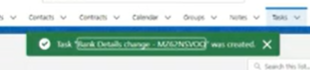
1.2.2.b.2.3 | Once the the task is created, | MHD agents’ action: Once the task is created. Approver has to go to the Salesforce lighting version to open the task where the status is “Bank details updated”. How to do:
| L2 onboarding / Finance | T |
1.2.2.b.2.4 | Once the bank account is activated by | Communicate to Merchant: Inform Mx that the new bank account is updated and activated. MHD agents’ action: No changes in tagging Status: Resolved | L2 onboarding | T |
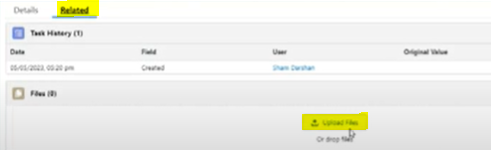


3.2.2 Name mismatch - rebuttal handling
Steps | Process step | Action | Owner | TAT |
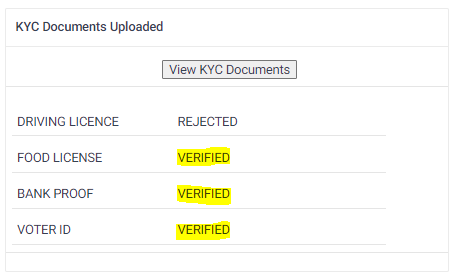
1.0 | If merchant disputes the first resolution given for name mismatch issue, state that there is no issue with the name and give POI/POB and bank details proactively Note: Bank proof has to be shared by merchants only. | MHD agents’ action: Check in SCP if the shared KYC document is verified. How to check:
NOTE: We can verify name in bank proof with POI if the merchant wants to change the bank account which has the individual's name. In case, if merchant wants to change the bank account with business name then POB is required (only POB is enough is the POB is already verified else we will required POB and already verified POI) If the merchant gives only bank account, we can verify against the already verified KYC documents visible is SCP | L2 onboarding | T |
1.1 | If the Shared KYC document is not verified, | Communicate to Merchant: Inform Mx to share the KYC documents that have already been verified with the phonepe business account (mention the KYC document name) to proceed further. MHD agents’ action: No changes in GTIS Reopen reason: Disputing name mismatch resolution Status: Waiting on merchant Set due by date to T+3 days | L2 onboarding | T+3 days |
1.1.a | If merchant deny to share the requested KYC document | Communicate to Merchant: Inform Mx that we can not proceed further if the requested documents are not shared. Ask mx to share KYC documents that have already been verified with the phonepe business account (mention the KYC document name) to proceed further. MHD agents’ action: No changes in GTIS Reopen reason: Disputing name mismatch resolution Status: Waiting on merchant Set due by date to T+3 days | L2 onboarding | T+3 days |
1.1.b | If merchant shares the requested document | Follow Step 1.2 | L2 onboarding | T |
1.2 | If all the shared documents are verified in scp / either POB or POI is verified in SCP | MHD agents’ action: Check if the names are matching between KYC and bank documents shared as per name validation logic. | L2 onboarding | T |
1.2.1 | If the name are matching as per name validation logic | Communicate to Merchant: Inform Mx that issue will escalate to the concerned team and issue will be resolved in T+2 days. Also inform mx that once the issue is resolved, the same will be updated on the ticket. MHD agents’ action: Escalate the issue to merchant-services-request@phonepe.com Mention the current CBS name and the recommended CBS name in the body of the escalation mail (recommended CBS should be as per KYC document) along with KYC and POB documents to change the CBS name. No changes in GTIS Reopen reason: Disputing name mismatch resolution Status: Assign to L2 L2_team: Services-oncall Set due by date to T+2 days | L2 onboarding | T+2 days |
1.2.1.a | After validation if merchant service team confirms that the CBS name is changed, | Communicate to Merchant: Inform Mx that issue is resolved and ask merchant to try changing the bank account in PB app. MHD agents’ action: No changes in GTIS Tag: CBS_name_changed Status: Resolved | L2 onboarding | T |
1.2.1.b | After validation if merchant service team confirms that the CBS name can not be changed, | Communicate to Merchant: Inform Mx that the name mismatch issue is due to their bank sending incorrect name to phonepe for validation at the backend. Ask mx to contact the bank and get the name corrected at the bank's backend data. Tell mx that only by getting the name corrected at the bank’s backend, he/ she will be able to change the bank account into a Phonepe business account. Else inform mx that he/she can try attaching different bank accounts. MHD agents’ action: No changes in GTIS Tag: CBS_name_route to bank Status: Resolved | L2 onboarding | T |
1.2.2 | If the name are not matching as per name validation logic | Communicate to Merchant: Inform merchant that the name in the shared KYC and bank details are not matching as per requirement and ask merchant to retry with different bank account with valid name as per KYC. MHD agents’ action: No changes in GTIS Reopen reason: Disputing name mismatch resolution Status: Resolved | L2 onboarding | T |
3.2.3 Name validation logic
Name in KYC documents | Name in bank document | Valid? |
Shuffled order of names | ||
Anil N | N Anil | Yes |
Anil Nanjunda | Nanjunda Anil | No |
Balram Naidu | Naidu Balram | Yes (surname can be shuffled) |
Raja Ram Mohan | Raja mohan Ram | Yes |
Raja Ram Mohan | Ram Raja Mohan | No (First name shouldn’t be shuffled) |
Raja Ram Mohan Roy | Raja Mohan Ram Roy | Yes |
Raja Ram Mohan Roy | Roy Raja Mohan Ram | No |
Names as initials (First ask for additional ID proof without initials, if mx is not able to give addition ID that proceed with below logic) | ||
Anil N | Anil Nanjunda | Yes |
Anil N | Nanjunda A | No |
Balram Naidu | Balram N | Yes |
Balram Naidu | B Naidu | No (First name can’t be initial) |
Raja Ram Mohan | Raja Ram M | Yes |
Raja Ram Mohan | Raja R M | Yes |
Raja Ram Mohan | Raja R Mohan | Yes |
Raja Ram Mohan | R R Mohan | No |
Raja Ram Mohan | R Ram M | No |
Raja Ram Mohan Roy | Raja R Mohan Roy | Yes |
Raja Ram Mohan Roy | Raja Ram M Roy | Yes |
Raja Ram Mohan Roy | Raja R M R | Yes |
Raja Ram Mohan Roy | R Ram Mohan Roy | No |
Raja Ram Mohan Roy | R R M Roy | No |
Raja Ram Mohan Roy | R Ram M R | No |
Parts of Name missing | ||
Anil N | Anil | No |
Balram Naidu | Balram | No |
Balram Naidu | Naidu | No |
Raja Ram Mohan | Raja Mohan | Yes |
Raja Ram Mohan | Raja Ram | No |
Raja Ram Mohan | Ram Mohan | No |
Raja Ram Mohan Roy | Raja Ram Mohan | yes |
Raja Ram Mohan Roy | Raja Ram Roy | Yes |
Raja Ram Mohan Roy | Raja Mohan Roy | Yes |
Raja Ram Mohan Roy | Raja Mohan | No |
Raja Ram Mohan Roy | Raja Ram | No |
Raja Ram Mohan Roy | Raja Roy | No |
Raja Ram Mohan Roy | Ram Mohan Roy | No |
Space between names | ||
Anil N | Aniln | No |
Balram Naidu | Balramnaidu | Yes |
Raja Ram Mohan | Raja Ramohan | Yes |
Raja Ram Mohan | Rajaram Mohan | Yes |
Raja Ram Mohan | Rajarammohan | Yes |
Raja Ram Mohan | RamRaj Mohan | No (First name shouldn’t be shuffled) |
Titles (S/O SO S O, D/O, W/O, Mr, Mrs, Col, Maj, Brig, Dr, DO) | ||
Anil N | Mr. Anil N | Yes |
Mr. Anil N | Anil N | Yes |
Dr. Raja Ram Mohan Roy | Raja Ram Mohan Roy | Yes |
Raja Ram Mohan Roy | Dr. Raja Ram Mohan Roy | Yes |
Balram Naidu S/O Chandan Naidu | Balram Naidu | Yes |
Balram Naidu | Balram Naidu S/O Chandan Naidu | Yes |
Balram Naidu S/O Chandan Naidu | Dr. Balram Naidu | Yes |
Balram Naidu S/O Chandan Naidu | B Naidu S/O Chandan Naidu | No |
Business name Abbreviations | ||
Happenwell Technologies Private limited | Happenwell Technologies Pvt Ltd | Yes |
Vittal’s Medicare Private Limited | Vittal’s Medicare Pvt | Yes |
Alpha multi speciality Diagno Centre & Clinic Private Limited | Alpha multispeciality Diagno Centre and Clinic Private Limited | Yes |
Vittal’s Medicare Private Limited | Vittal’s Private Limited | No |
Single letter missing or not matching | ||
Mohammad Kudha | Mohammad Qudha | Yes |
Mohammad Kudha | Mohammad Kuda | Yes |
Mohammad kareem | Mohammad Qareem | Yes |
Mohammad kareem | Mohammad Qarem | Yes |
Mohammad Ikram | Mohammad Ekram | Yes |
elayaraj | ilayaraj | Yes |
Vinod Kumar | Binod Kumar | No |
Variation of Mohammad | ||
Mohammad | Mohammad/ Mohd/ mohammed/ Mohamad/ Mohamed | Yes |
3.2 L2 (Service management) Process - Communication error
Steps | Process | Action | Owner | TAT |
1.0 | L2 SM agent should download the actionable tickets dump from FD and add MIDs to tracker | Download the ticket of below ticket properties Follow these steps to download the dump:
Once the data is download, add MIDs to the tracker | SM | T |
2.0 | To resolve the tickets, based on MSR team’s confirmation | Check column “Can Mx retry?” in th tracker to refer to MSR team’s comments for older tickets | SM | T |
2.1 | If “Can Mx retry?” is marked as ‘Yes’ | Communicate to Merchant: Inform mx that technical issue is fixed and ask mx to retry to change the bank account via PB app MHD agents’ action: Send the public response and resolve the ticket Status: Resolved | SM | T |
2.2 | If “Can Mx retry?” is marked as ‘NO’ | Communicate to Merchant: Refer to Comments mentioned by MSR team and inform the same to merchants. MHD agents’ action: Send the public response and resolve the ticket Status: Resolved | SM | T |
3 | For Sub-issue: Penny drop initiated - Asked to T/S UAN accounting initiated- Asked to T/S | Agent Action: Use the shared Bulk solve to solve the pending case, after 24 hours. Bulk solve key: MP_Unable_To_Add_Or_Change Link: For template | SM | T |
3.4 Repeat/Reopen
If the merchant replies to unresolved tickets, they are considered repeats.
If the merchant replies to resolved/closed tickets, they are considered reopen.
Steps | Process | Action | Ownership |
1.0 | Reopen tickets - All scenarios related to the same transaction and issue | All reopened tickets will be assigned to the L2 team, where the team will follow the L1 and L2 process to address merchant issues and update the ticket status accordingly. | MHD L2 (Onboarding) |
3.0 | Repeat tickets - tickets where the “Assign to L2” tags are absent | Repeat tickets will be assigned to L1 team, where the team will follow L1 process to address the issue and update the status accordingly | MHD L1 |
3.0 | Repeat tickets - tickets where the “Assign to L2” tags are present | These tickets will be assigned to the L2 team, where the team will follow the L2 process to address merchant issues and update the ticket status accordingly. | MHD L2 (Onboarding) |
4.0 Escalation Metrics & TAT |
Function | SPOC | Email ID | TAT | Level 2 | Level 3 |
MHD - L1 | Shivprasad | 1 BD | Sreeraj Nambiar | ||
MHD onbording | Ayesha Sultan | 1 BD | Sreeraj Nambiar | ||
MX Design | Revathi | revathi.m@phonepe.com | 1 BD | Baby Pruthvi G T | |
MHD-Training | 1 BD | ||||
MHD-Quality | |||||
BI | Ankit Kumar | ankit.kumar1@phonepe.com | 2 BD | Aniket Baheti | |
Finance | Naveen Dokaina | naveen.dokania@phonepe.com | 2BD | Pavan Kalyan | |
Merchant services | Merchant services request | 2BD | Prateek Mathur |
5.0 Document History |
Ver. No | Author | Changes in the Doc | Date of change | Reviewed by | Review Date |
1.0 | Revathi | Initial Document | 5-5–2023 | Joyeeta Mitra Ismail Awaiz | 5-5–2023 |
1.1 | Revathi | Migration eligibility check is introduced Changes made is GTIS, L2 teams | 17-08-2023 | Ismail Awaiz | 17-08-2023 |
1.2 | Revathi | Fraud deducted error communication changes | 21-03-2024 | Anurag Das | 21-03-2024 |
1.3 | Revathi |
| 22-04-2024 | 23-04-2024 |