
MHD Support Standard Operating Procedure
Process for handling payment transaction - related issues
Contents:
Sl no. | Topic | Page no. |
1 | 2 | |
1.1 | 2 | |
1.2 | 2 | |
1.3 | 2 | |
1.4 | 2 | |
1.5 | 2 | |
1.7 | 3 | |
1.8 | 3 | |
2.0 | 4 | |
3.0 | 4 | |
3.1 | 4 | |
3.2 | 29 | |
3.3 | 37 | |
3.3 | 37 | |
4.0 | 39 | |
5.0 | 39 | |
6.0 | 39 | |
7.0 | 40 | |
8.0 | Annexure | 41 |
|
1.1 Purpose of the document: |
This document serves as an agent's guide for handling questions and problems pertaining to payment transactions. |
1.2 Inscope scenarios: |
This SOP outlines the payment transaction journey for all merchant types, as well as the process flow to address payment-related issues such as “amount not credited," “unable to accept payments," and “SMS notification not received” at various stages of the transaction (complete, deemed, pending, failed). |
1.3 Outscope scenarios: |
Scenarios involving settlements, changing bank accounts, updating KYC information, and any other scenarios not covered by Inscope. |
1.4 Merchant Journey: |
The payment process for a merchant depends on the type of merchant and the payment instrument. For comprehensive details, click the link. |
1.5 Overview of the document: |
This document contains detailed instructions that each stakeholder should adhere to in order to handle events at MHD involving the payment process. |
1.7 Tools/Systems: |
Tools/ System | Teams |
Support Control Panel (SCP) | MHD, MX Design, MX TnQ |
Freshdesk (FD) | MHD, MX Design, MX TnQ, BI, Automation |
MHD - L2 | |
Debugging/ housekeeping | MHD - L2, Mx TnQ |
Stratos (TOA) | MHD - L2, MX Design, MX TnQ |
1.8 Glossary:
|
|
|
|
|
|
|
|
|
|
|
|
2.0 Flowchart |
3.0 Process flow |
2.1 L1 Process
2.1.1 Amount not credited to merchant’s account
Steps | Process step | Action | Owner | TAT |
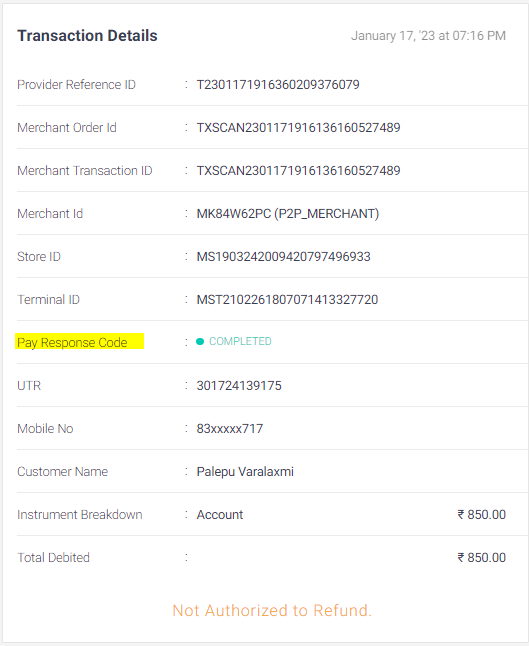
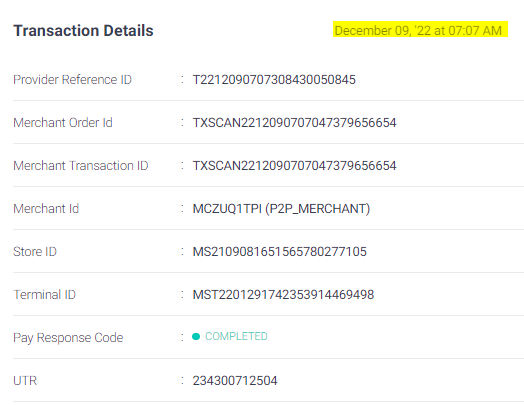
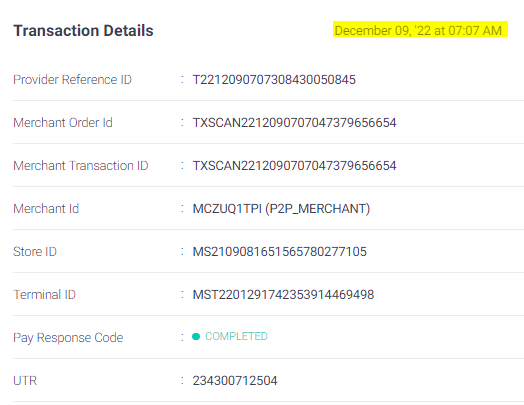
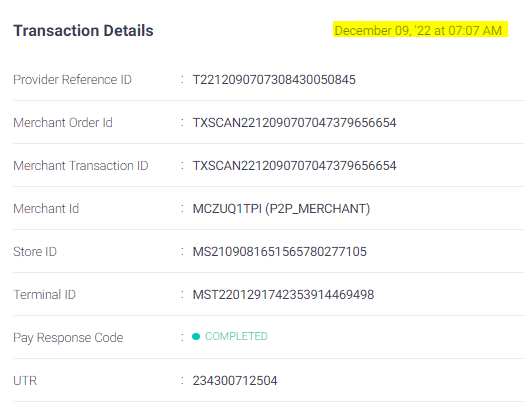
1.0 | If a merchant claims that the amount is not credited to his/her account | Agents action: ask the merchant for the specific transaction date or Transaction ID that has a dispute and Check the status of the transaction How to check: Refer to the “Pay Response code” of the respective transaction for the transaction's status.
| MHD L1 | |
1.a | Based on the status follow the respective step | If “Completed” - follow step 2.0 If “Pending” - follow step 3.0 If “failed” - follow step 4.0 | MHD L1 | |
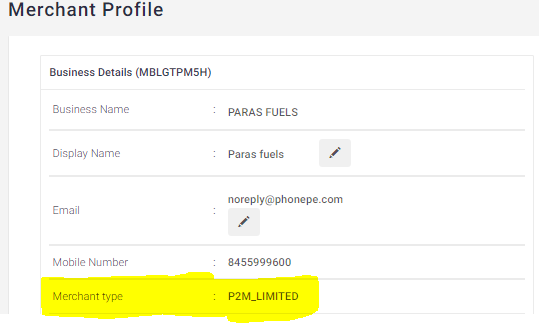
2.0 | If Txn status = Completed | Agents action: Check the merchant type against the transaction (not in profile page)
| MHD L1 | |
2.1 | If the Merchant type is P2ML/ P2M | Follow Settlements flow | MHD L1 | |
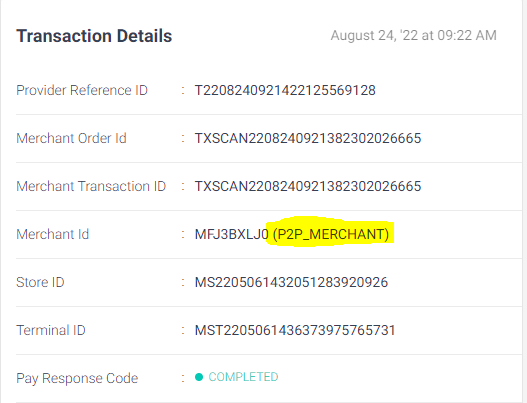
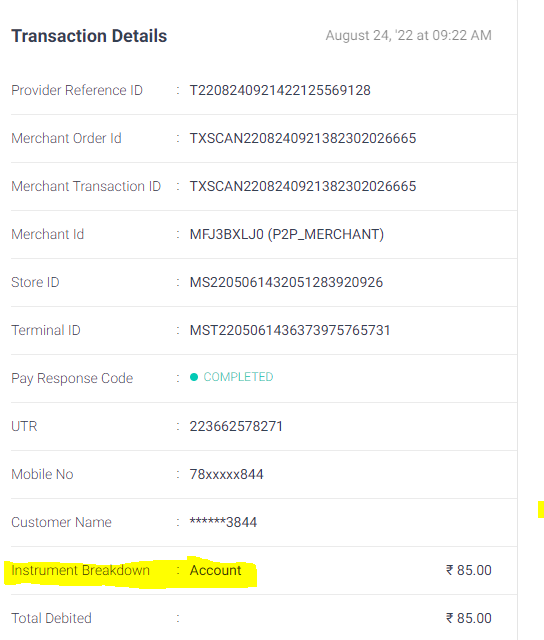
2.2 | If the Merchant type is P2P | Agents action: Check the type of Payments instrument. How to check: Refer to the “Instrument Breakdown” of respective transaction
| MHD L1 | |
2.2.1 | If the payment instrument = Wallet or EGV | Follow Settlements flow | MHD L1 | |
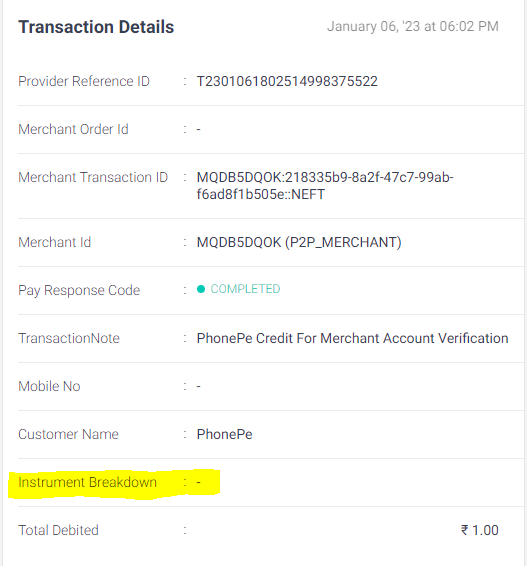
2.2.2 | If the payment instrument = “-” (hyphen) Reference Image:
| Communicate to Merchant: Inform Mx that Payment of 1 rupee was initiated by PhonePe to verify your bank account linked to us. Ask the merchant to check bank account verification status by tapping your profile picture on the app home screen > Manage Bank Accounts. Agent action: Capture the MID, merchant type, transaction date, payment flag, and PID {Provider Reference ID} to be captured in "Merchant Transaction ID" field in FD in the ticket properties. Tagging: Group - Payments Type - Completed Issue - Amount not credited Sub Issue - Account verification transaction Status: resolved | MHD L1 | T |
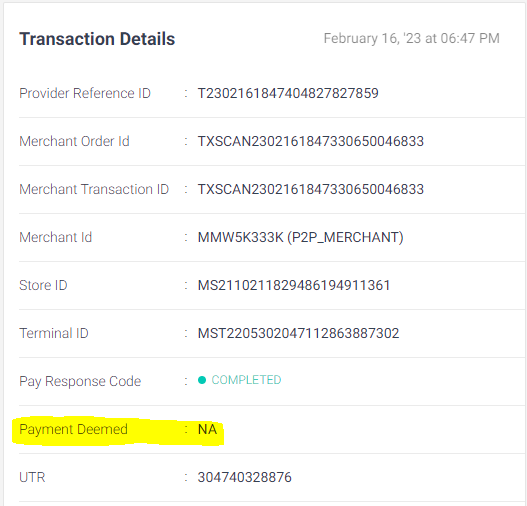
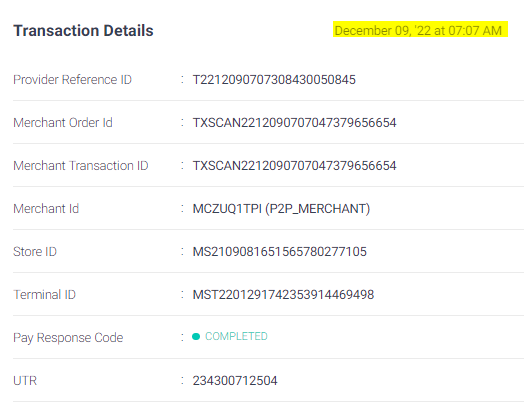
2.2.3 | If the payment instrument = Account (UPI) | Agent action: Check if the transaction is “deemed.” How to check: Check the tab “Payment Deemed” below “Pay Response Code”. If the value is "NA,” then the transaction is not deemed. Any value other than “NA” (i.e., Deemed_failure, Payments_deemed & Deemed_success) means that the respective transaction is deemed. Note: “Payment Deemed” tab is also known as “Payment flag”
| MHD L1 | |
2.2.3.a | Based on the “Payment Deemed” value follow the respective step | If Payment Deemed value is “Deemed_failure” - follow 2.2.4 If Payment Deemed value is “Deemed_ Success” or “NA - Follow 2.2.5 If Payment Deemed value is “Payment _Deemed” - Follow 2.2.6 | MHD L1 | |
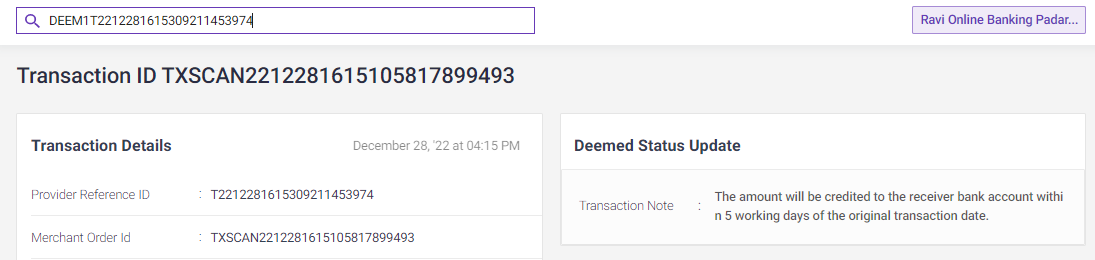
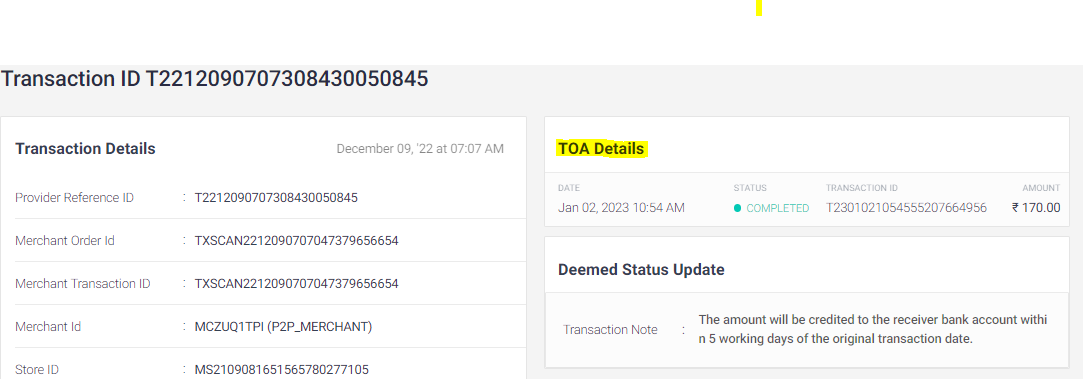
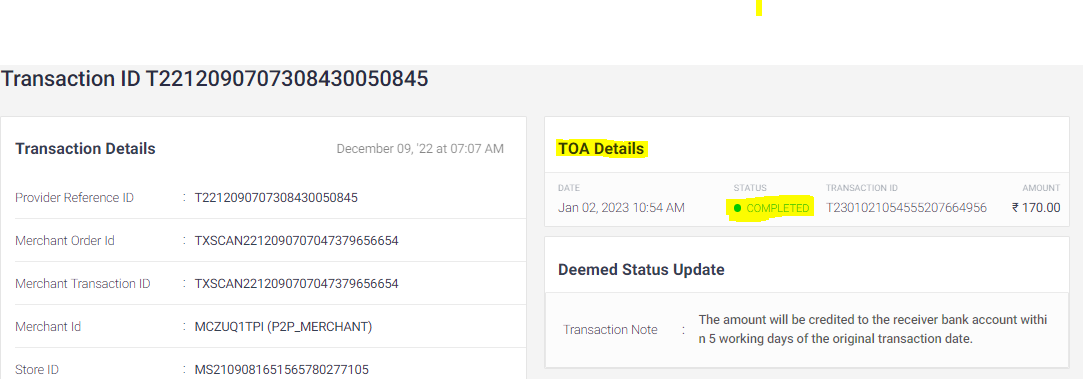
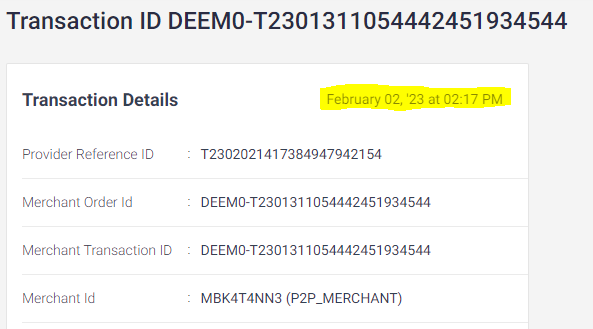
2.2.4 | If Payment Deemed value is “Deemed_failure” | Agent action: Check for TOA transactions. How to check: Method 1: Check TOA transactions in SCP by adding “DEEM0-” or “DEEM1-” prefixes to provide reference ID.
Method 2: Check the TOA details box on the respective transaction page. | MHD L1 | |
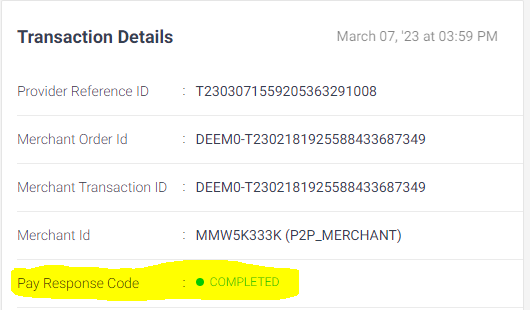
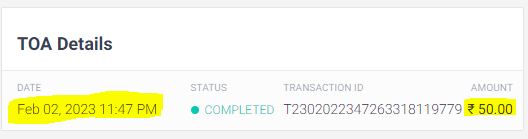
2.2.4.b.1 | If TOA transaction available | Agent action: Check TOA transaction status. How to check: Method 1: Method 2: | MHD L1 | |
2.2.4.b.1.a | TOA Transaction status = Completed | Communicate to Merchant: Inform the merchant that there was an issue with the transaction leading to the delay, but the amount of Rs. xx has been processed to your bank on date xxxx at time XXX (TOA date and time). Ask Mx to check his/her latest bank statement. Reference Image:
Agent action: Capture the MID, merchant type, transaction date, payment flag, and PID {Provider Reference ID} to be captured in "Merchant Transaction ID" field in FD in the ticket properties. Tagging: Group - Payments Type - Completed Issue - Amount not credited Sub Issue - TOA disbursed-asked to check bank statement Status: Pending Set the due date to 24 hrs from time of contact
| MHD L1 | T+24hr |
2.2.4.b.1.b | TOA Transaction status = Pending | Agent action: Check the time of contact from the TOA initiation date How to check: Check TOA transactions in SCP by adding “DEEM0-” or “DEEM1-” prefixes to provide reference ID and check date and time .
| MHD L1 | |
2.2.4.b.1.b.1 | If the Mx contact within 24 hours from the time of TOA initiation | Communicate to Merchant: Inform the merchant that there can be occasional delay due to technical issue and ask Mx to wait till 12pm on (TOA initiation date +1 day) Agent action: Capture the MID, merchant type, transaction date, payment flag and PID {Provider Reference ID} to be captured in "Merchant Transaction ID" field in FD in the ticket properties. Tagging: Group - Payments Type - Completed Issue - Amount not credited Sub Issue - TOA disbursed-asked to wait Status: Pending Set the due date to 1 day from time of TOA initiation | MHD L1 | TOA Txn +1 day |
2.2.4.b.1.b.2 | If the Mx contact after 24 hr from the date of TOA initiation | Communicate to Merchant: Inform the merchant that there can be occasional delay due to technical issue, the issue is escalated to respective team and ask Mx to wait for T + 2 days Agent action: Capture the MID, merchant type, transaction date, payment flag and PID {Provider Reference ID} to be captured in "Merchant Transaction ID" field in FD in the ticket properties. Tagging: Group - Payments Type - Completed Issue - Amount not credited Sub Issue - TOA credit pending-internal action needed Status: Assign to L2 L2 team: MHD L2 Set the due date to 2 days from time of contact | MHD L1 | T+ 2 days |
2.2.4.b.1.c | TOA Transaction status = Failed | Agent action: Inform the merchant that there can be occasional delay due to technical issue, the issue is escalated to respective team and ask Mx to wait for T + 2 days Agent action: Capture the MID, merchant type, transaction date, payment flag and PID {Provider Reference ID} to be captured in "Merchant Transaction ID" field in FD in the ticket properties. Tagging: Group - Payments Type - Completed Issue - Amount not credited Sub Issue - TOA credit failed-internal action needed Status: Assign to L2 Set the due date to 2 days from time of contact | MHD L1 | T+ 2 days |
2.2.4.b.2 | TOA transaction not available | Communicate to Merchant: Inform merchant that there seems to be a technical issue and request merchant to wait for T+2 days as the issue has been escalated to the concerned team. Agent action: Capture the MID, merchant type, transaction date, payment flag and PID {Provider Reference ID} to be captured in "Merchant Transaction ID" field in FD in the ticket properties. Tagging: Group - Payments Type - Completed Issue - Amount not credited Sub Issue - TOA not disbursed-internal action needed Status: Assign to L2 Set due date to 2 days from date of contact | MHD L1 | T+2 days |
2.2.5 | If Payment Deemed value is “Deemed_ Success” or “NA” | Agent action: Check the time of contact from the time and date of transaction.
| MHD L1 | |
2.2.5.a | If the contact received within 24hr from the time of transaction | Communicate to Merchant: Inform the merchant that there seems to be a slight delay in the bank processing the payment and ask the merchant to wait for 24 hours from the time of the transaction and then check the latest bank statement with relation to UTR: XXX XXX XXX XXX. Ask the merchant to contact the bank using the reference given above UTR if the transaction is not reflecting. Agent action: Capture the MID, merchant type, transaction date, payment flag and PID {Provider Reference ID} to be captured in "Merchant Transaction ID" field in FD in the ticket properties. Tagging: Group - Payments Type - Completed Issue - Amount not credited Sub Issue - UTR generated-asked to wait Status: Pending Set the due date to 24 hrs from time of contact | MHD L1 | T+24hr |
2.2.5.b | If the contact received after 24hr from the time of transaction | Communicate to Merchant: Inform the merchant that as per the bank update, the payment of Rs. XX has been credited to the account, and ask the merchant to check the latest bank statement with relation to UTR: XXX XXX XXX XXX. Ask the merchant to contact the bank using the reference given above UTR if the transaction is not reflecting. Agent action: Capture the MID, merchant type, transaction date, payment flag and PID {Provider Reference ID} to be captured in "Merchant Transaction ID" field in FD in the ticket properties. Tagging: Group - Payments Type - Completed Issue - Amount not credited Sub Issue - UTR generated-routed to bank Status: Pending Set the due date to 24 hrs from time of contact | MHD L1 | T+24hr |
2.2.6 | If Payment Deemed value is “Payment _Deemed” | Agent action: Check the time of contact from the time and date of transaction.
| MHD L1 | |
2.2.6.a | If the contact received within 11am on the next day of transaction | Communicate to Merchant: Inform the merchant that there seems to be a slight delay in the bank processing the payment and ask the merchant to wait till 12pm on the next day of transaction and then check the latest bank statement with relation to UTR: XXX XXX XXX XXX. Agent action: Capture the MID, merchant type, transaction date, payment flag and PID {Provider Reference ID} to be captured in "Merchant Transaction ID" field in FD in the ticket properties. Tagging: Group - Payments Type - Completed Issue - Amount not credited Sub Issue - TOA not disbursed-asked to wait Status: Pending Set the due date to 12pm on the next day of transaction. | MHD L1 | 12pm on {Tx date+1 day} |
2.2.6.b | If the Contact received between 11am on the next day and 48 hours of transaction | Communicate to Merchant: Inform the merchant that there seems to be a slight delay in the bank processing the payment and ask the merchant to wait till 48 hours from the time of transaction and then check the latest bank statement with relation to UTR: XXX XXX XXX XXX. Agent action: Capture the MID, merchant type, transaction date, payment flag and PID {Provider Reference ID} to be captured in "Merchant Transaction ID" field in FD in the ticket properties. Tagging: Group - Payments Type - Completed Issue - Amount not credited Sub Issue - TOA not disbursed-asked to wait Status: Pending Set the due date to 48 hrs from time of transaction | MHD L1 | Txn+48hr |
2.2.6.c | If the contact received after 48 hours of transaction | Communicate to Merchant: Inform merchant that there seems to be a technical issue and request merchant to wait for T+2 days as the issue has been escalated to the concerned team. Agent action: Capture the MID, merchant type, transaction date, payment flag and PID {Provider Reference ID} to be captured in "Merchant Transaction ID" field in FD in the ticket properties. Tagging: Group - Payments Type - Completed Issue - Amount not credited Sub Issue - TOA not disbursed-internal action needed Status: Assign to L2 Set due date to 2 days from date of contact | T+2 days | |
3.0 | If Txn status = Pending | Agent action: Check the time of contact from the time and date of transaction.
| MHD L1 | |
3.1 | If the contact received within 24hr from the time of transaction | Communicate to Merchant: Inform the merchant that the transaction is in "pending" status, as occasionally there may be a delay up to 24 hours in the bank’ processing of the payment. Ask Mx to wait 24 hours before checking the status of the transaction in the PhonePe business App. Also caution Mx not to handover the product/service until the transaction status appears in the PhonePe business app as completed. Share the steps to check the transaction status in PhonePe for Business App -
Agent action: Capture the MID, merchant type, transaction date and PID {Provider Reference ID} to be captured in "Merchant Transaction ID" field in FD in the ticket properties. Tagging: Group - Payments Type - Pending Issue - Amount not credited Sub Issue - Asked to wait Status: Pending Set the due date to 24 hrs from time of contact | MHD L1 | T+24hr |
3.2 | If the contact received after 24hr from the time of transaction | Communicate to Merchant: Inform Mx that the transaction status is pending and there seems to be some issue with the bank’s processing of the payments. Also inform Mx that the issue will be escalated concerned team and request merchant to wait for 2 days Caution Mx not to handover the product/service until the transaction status appears in the PhonePe business app as completed. Share the steps to check the transaction status in PhonePe for Business App -
Agent action: Capture the MID, merchant type, transaction date, and PID {Provider Reference ID} to be captured in "Merchant Transaction ID" field in FD in the ticket properties. Tagging: Group - Payments Type - Pending Issue - Amount not credited Sub Issue - Internal action needed Status: Assign to L2 Set the due date to 48 hrs from time of contact | MHD L1 | T+48hr |
4.0 | If Txn status = Failed | Follow 4.1 | MHD L1 | |
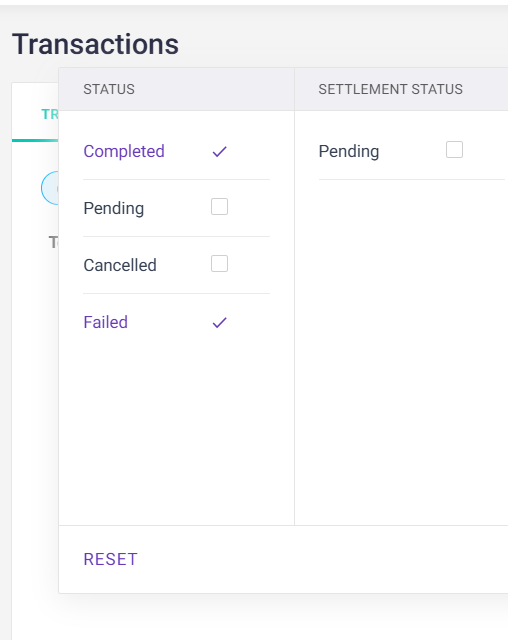
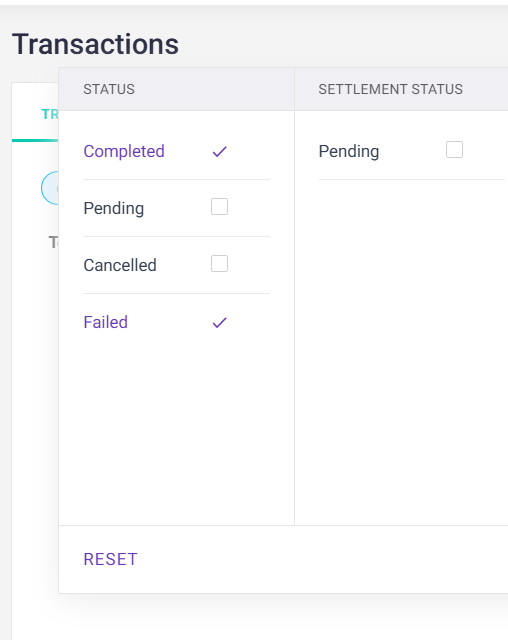
4.1 |
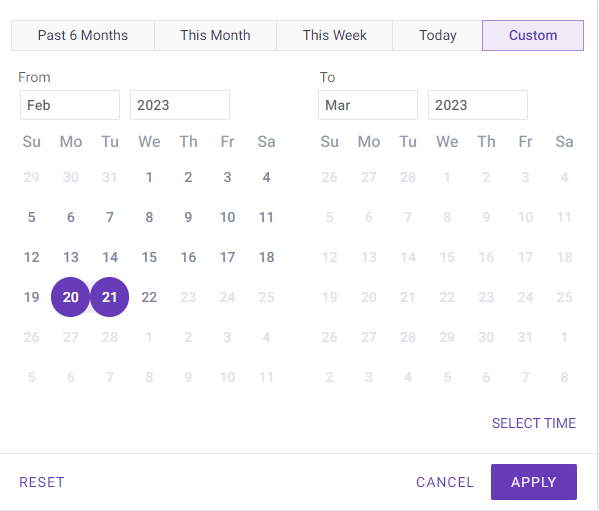
| How to check: In the Transactions page, filter the date and choose the status as Failed and click Apply.
| MHD L1 | T |
4.2 | Agent action: Select the failed transaction and check the error code
| MHD L1 | T | |
4.3 | If the error code = PR_021 | Communicate to Merchant: Inform the merchant that the transaction has been blocked due to security reasons. Agent action: Capture the MID, Error code ,merchant type and transaction in the ticket properties. Tagging: Group - Merchant profile Type - QR-regular Issue - Non functional Sub Issue - Transaction Blocked Error Code: PR_021 Status: Resolved | MHD L1 | T |
4.4 | If the error code is any of the below: B07, U16, U16_NPCI_TXNRISK_01002, CR_015, CR_024, CR_026, CR_019 | Follow QR Non functional SOP | MHD L1 | T |
4.5 | If any other error code | Agent action: Check the error code present in this sheet and inform the Merchant accordingly and capture the MID, merchant type, transaction and error_code in the ticket properties. Also, caution Mx not to handover the product/service until the transaction status appears in the PhonePe business app as completed. Tagging: GTIS to be followed as per the error code here. Error_Code: Based on the Transaction error Status: Resolved | MHD L1 | T |
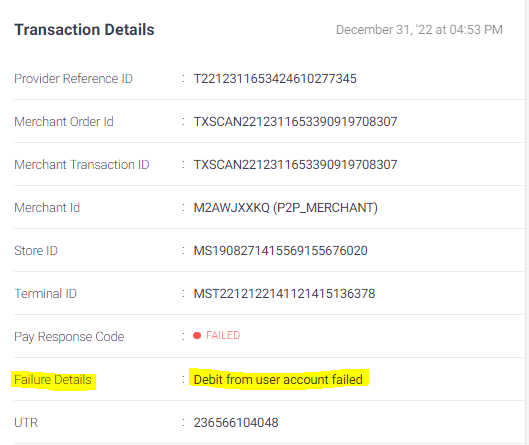
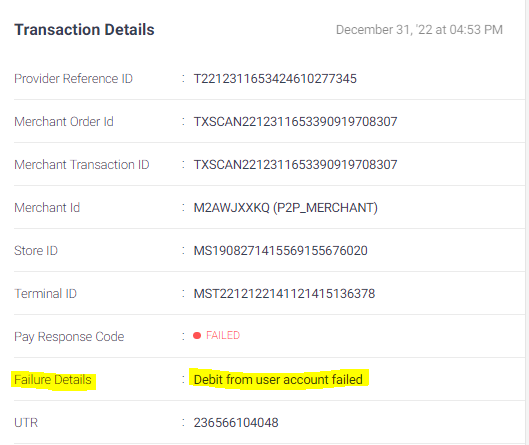
4.6 | If the error code is not present in the sheet, check for failure error message of the transaction | Agent action: Check the failure error message of the transaction. How to check: Refer to “failure details” for the respective transaction in SCP.
| MHD L1 | T |
4.7 | If the failure details=
| Communicate to Merchant: Inform the merchant that the transaction failed due to a technical issue at the sender's bank and to ask the sender to try again later. Caution Mx not to handover the product/service until the transaction status appears in the PhonePe business app as completed. Share the steps to check the transaction status in PhonePe for Business App -
Agent action: Capture the MID, merchant type, transaction date, and PID {Provider Reference ID} to be captured in "Merchant Transaction ID" field in FD in the ticket properties. Tagging: Group - Payments Type - Failed Issue - Amount not credited Sub Issue - Issue with sender's bank-asked to retry Status: Resolved | MHD L1 | T |
4.8 | If the failure details = Invalid MPIN entered | Communicate to Merchant: Inform the merchant that the transaction failed due to a technical issue at the sender's bank and to ask the sender to try again later with the correct details. Caution Mx not to handover the product/service until the transaction status appears in the PhonePe business app as completed. Share the steps to check the transaction status in PhonePe for Business App -
Agent action: Capture the MID, merchant type, transaction date, and PID {Provider Reference ID} to be captured in "Merchant Transaction ID" field in FD in the ticket properties. Tagging: Group - Payments Type - Failed Issue -Amount not credited Sub Issue - Issue with sender's bank-asked to retry Status: Resolved | MHD L1 | T |
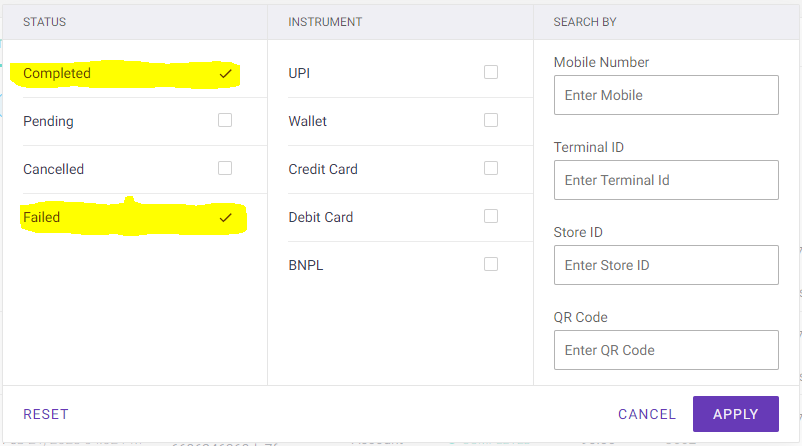
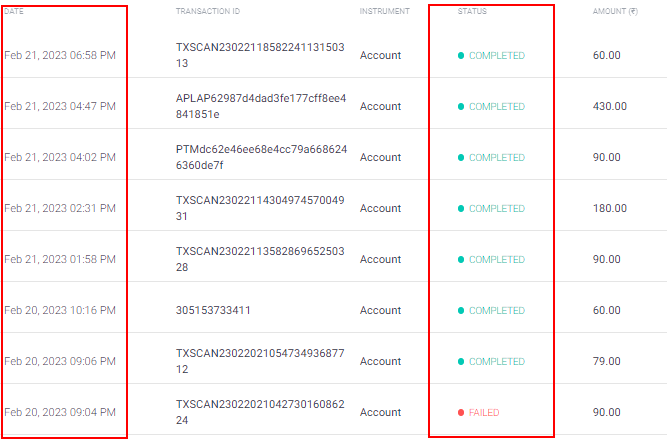
4.9 | If the failure details = Error from receiver bank Or If the failure details are not visible in SCP | Agent action: Check if multiple transactions have failed continuously on and around the transaction date. How to check: 1. Check the date of the transaction.
2. Filter the completed and failed transactions in the transaction page and click apply
| MHD L1 | |
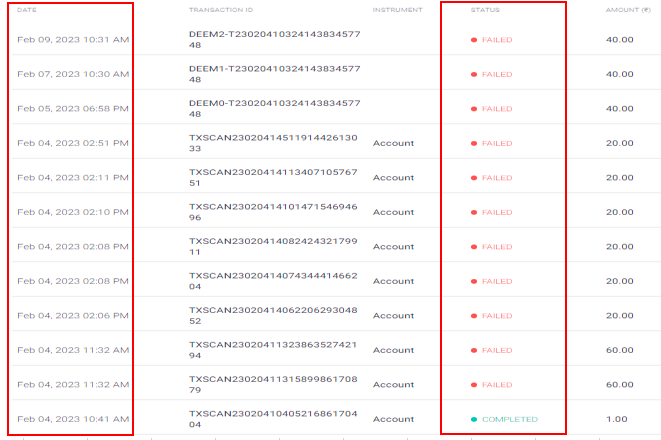
4.10 | If there is only one or failed transaction among other completed transaction on and around the transaction date Reference image:
| Communicate to Merchant: Inform the merchant that the transaction failed due to a technical issue at the receiver's bank and try again later. Caution Mx not to handover the product/service until the transaction status appears in the PhonePe business app as completed. Share the steps to check the transaction status in PhonePe for Business App -
Agent action: Capture the MID, merchant type, transaction date, and PID {Provider Reference ID} to be captured in "Merchant Transaction ID" field in FD in the ticket properties. Tagging: Group - Payments Type - Failed Issue - Amount not credited Sub Issue - Issue with receiver's bank-asked to retry Status: Resolved | MHD L1 | T |
4.11 | If there are multiple failed transactions on and around the transaction date Reference image:
| Communicate to Merchant: Inform the merchant that the transaction failed due to a technical issue and assure that the issue will be escalated to the concerned team. Request Mx to wait for 2 days Caution Mx not to handover the product/service until the transaction status appears in the PhonePe business app as completed. Share the steps to check the transaction status in PhonePe for Business App -
Agent action: Capture the MID, merchant type, transaction date, and PID {Provider Reference ID} to be captured in "Merchant Transaction ID" field in FD in the ticket properties. Tagging: Group - Payments Type - Failed Issue - Amount not credited Sub Issue - Internal action needed Status: Assign to L2 Set the due date to 48 hrs from time of contact | MHD L1 | T+48hr |
4.12 | Mx wants to know customer contact details for failed transaction | Communicate to Merchant: Inform the merchant that PhonePe cannot provide customer details due to security concerns and advise them to only provide any goods or services after the transaction has been confirmed as successful. Tagging: Group - Payments Type - Failed Issue - Amount not credited Sub Issue - Requested Customer details Status: Resolved | MHD L1 | T |

2.1.2 Unable to accept payments
Steps | Process step | Action | Owner | TAT |
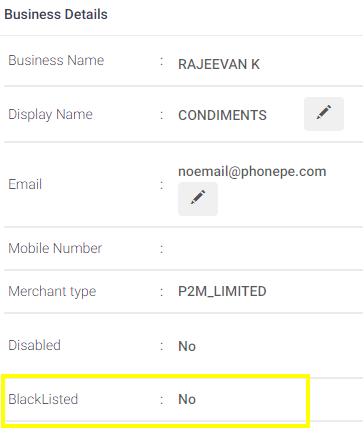
1.0 | If a merchant claims that they are unable to accept payment | MHD agents’ action: Check if the given MID profile is blacklisted. How to check:
| MHD L1 | T |
1.1 | If the MID is blacklisted | MHD Agent’s Action: Check if the blacklisted reason is mentioned in the list | MHD L1 | T |
1.1.a | If the FRA reason is mentioned in the list | Merchant Communication: Inform the merchant that we will check it & get back to them within 2 Business days MHD’s Agent Action: capture the MID, merchant type and FRA reason in error code in the ticket properties. Tagging: For GTIS, please refer this Status: Assign to L3 L2 Team: FRA Set the due date to T+ 2 business days from the time of contact. | MHD L1 | T+2BD |
1.1.b | If the FRA reason is not part of the list | Communicate to Merchant: inform that his/her account is suspended due to security reason, hence Merchant is unable to accept the payments MHD agents’ action: capture the MID, merchant type and error code in the ticket properties. Tagging: Group - Payments Type - Failed Issue - Unable to accept payment Sub Issue -Account blacklisted Error Code - Account Blacklisted Status: resolved | MHD L1 | T |
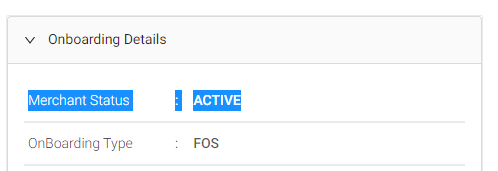
1.2 | If the MID is not blacklisted | MHD agents’ action: check if the merchant status is “ active”. How to check:
| MHD L1 | T |
1.2.1 | If the Merchant status is not “active” | Communicate to Merchant: Inform Mx that the onboarding is still in progress, hence you are unable to accept the payments. Inform mx that he/she will be able to change it once the onboarding is successfully updated. MHD agents’ action: capture the MID and merchant type in the ticket properties. Tagging: Group - Payments Type - Failed Issue - Unable to accept payment Sub Issue - Onboarding-in-progress Status: resolved | ||
1.2.1.a | If Mx asks questions related to onboarding | Follow onboarding process | MHD L1 | T |
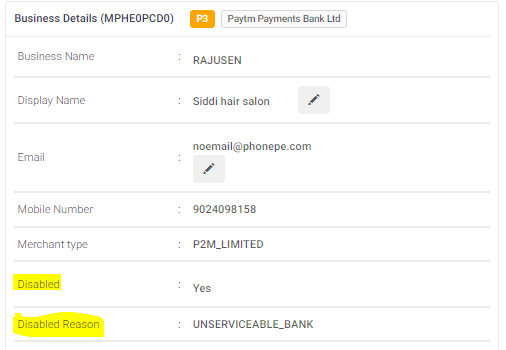
1.2.2 | If the Merchant status is active” | MHD agents’ action: Check if the given MID profile is Disabled. How to check:
| MHD L1 | T |
1.2.2.1 | If the MID is disabled | MHD agents’ action: Check if the Disabled Reason. How to check:
Communicate to Merchant:{refer to the communication based on disabled reason} Reference table. MHD agents’ action: capture the MID and merchant type in the ticket properties. Tagging: Capture taggings based on the disabled reasons. | MHD L1 | T |
1.2.2.1.a | For cases where we have asked merchants to change the bank account and if merchant says that they have already changed the bank account | MHD agents’ action: Check if the bank account is successfully changed in the SCP. How to check: Login to MID in SCP Go to “Merchant profile” tab Click on “Update Bank Account Change Details” section Stage = “Initiate_P2P_UAN”(for P2P mx) / “UAN_completed”/ “UAN_Accounting_callback” (For P2PH / P2ML/ P2M) Status = Successful | MHD -L1 | T |
1.2.2.1.a.1 | If bank account is successfully changed | Communicate to Merchant: Inform merchant that phonepe business account will be enabled within 24 hr from the time of successfully changing the bank account. MHD agents’ action: capture the MID and merchant type in the ticket properties. Tagging: Group - Payments Type - Failed Issue - Unable to accept payment Subissue - Account blacklisted Status: Resolved Error code: {Disabled reason} | MHD -L1 | T |
1.2.2.1.a.1 | If the bank account is not successfully changed | MHD -L1 | T | |
1.2.2.2 | If the MID is not disabled | Follow the process from 1.3 | MHD -L1 | T |
1.3 | Check the Mx type in SCP | Agent action: Check the merchant type in “Merchant profile” tab in SCP
| MHD L1 | T |
1.3.1 | If Merchant type = P2M | Follow “QR non functioning” process | MHD L1 | T |
1.3.2 | If Merchant type = P2P/P2P_H/P2ML | Agent action: Check if there are any recent failed transactions for T and T-1 date. How to check: In the Transactions page, filter the date and choose the status as Failed and click Apply.
| MHD L1 | T |
1.3.2.1 | If there are Failed transactions | Agent Action: Check the error code present How to check: Open the transaction and find the respective Backend Error Code
| MHD L1 | T |
1.3.2.1.a | If the error code = PR_021 | Communicate to Merchant: Inform the merchant that the transaction has been blocked due to security reasons. Agent action: Capture the MID, Error code ,merchant type and transaction in the ticket properties. Tagging: Group - Merchant profile Type - QR-regular Issue - Non functional Sub Issue - Transaction Blocked Error Code: PR_021 Status: Resolved | MHD L1 | T |
If the error code is any of the below: B07, U16, U16_NPCI_TXNRISK_01002, CR_015, CR_024, CR_026 | Follow QR Non functional SOP | MHD L1 | T | |
1.3.2.1.b | If any other error code | Agent action: Check the error code present in this sheet and inform the Merchant accordingly and capture the MID, merchant type, transaction and error_code in the ticket properties. Tagging: GTIS to be followed as per the error code here. Error_Code: Based on the Transaction error Status: Resolved | MHD L1 | T |
1.3.2.1.c | If the error code is not present in the sheet, check for failure error message of the transaction | Agent action: Check the failure error message of the transaction. How to check: Refer to “failure details” for the respective transaction in SCP.
| MHD L1 | T |
1.3.2.1.c.1 | If the failure details=
| Communicate to Merchant: Inform the merchant that the transaction failed due to a technical issue at the sender's bank and to ask the sender to try again later. Caution Mx not to handover the product/service until the transaction status appears in the PhonePe business app as completed. Share the steps to check the transaction status in PhonePe for Business App -
Agent action: Capture the MID, merchant type, transaction date, and PID {Provider Reference ID} to be captured in "Merchant Transaction ID" field in FD in the ticket properties. Tagging: Group - Payments Type - Failed Issue - Unable to accept payment Sub Issue - Issue with sender's bank-asked to retry Status: Resolved | MHD L1 | T |
1.3.2.1.c.2 | If the failure details = Invalid MPIN entered | Communicate to Merchant: Inform the merchant that the transaction failed due to a technical issue at the sender's bank and to ask the sender to try again later with the correct details. Caution Mx not to handover the product/service until the transaction status appears in the PhonePe business app as completed. Share the steps to check the transaction status in PhonePe for Business App -
Agent action: Capture the MID, merchant type, transaction date, and PID {Provider Reference ID} to be captured in "Merchant Transaction ID" field in FD in the ticket properties. Tagging: Group - Payments Type - Failed Issue - Unable to accept payment Sub Issue - Issue with sender's bank-asked to retry Status: Resolved | MHD L1 | T |
1.3.2.2 | If none of the above failure details present in the transactions | Follow 1.3.3 | MHD L1 | T |
1.3.3 | If Merchant type = P2P/P2P_H/P2ML | Agent action: filter dates and check if the month transaction value is around 3L or slightly greater the 3L How to check: In the Transactions page, filter the date and check the value
| MHD L1 | |
1.3.3.a | If the month transaction value is around 3L | Communicate to Merchant: Ask Merchant if GST or any of the business proof is update | MHD L1 | |
1.3.3.a.1 | If Merchant confirms that Business proof is not updated | Communicate to Merchant: Inform the merchant that he/she will be able accept payment only around 3L in a month any payments above that breaches the limit. Assure the merchant that it is temporarily blocked and the amount limit will be reset next month. Alternatively, the merchant can increase the transaction limit by providing the Proof of Business like GST details in PhonePe Business App and also inform the merchant that it would take 2 days for the limit to be revised once the business proof is successfully verified . Agent action: Capture the MID, and merchant type in the ticket properties. Tagging: Group - Payments Type - failed Issue - Unable to accept payment Sub Issue - Monthly limit exceeded Status: Resolved | MHD L1 | T |
1.3.3.a.2 | If Merchant confirms that Business proof is updated yet the limit is not revised | Communicate to Merchant: Inform the Merchant that there seems to be some issue and issue will be escalated to the concerned team. Ask the merchant to wait for T+3 days. Agent action: Capture the MID, and merchant type in the ticket properties. Tagging: Group - Payments Type - failed Issue - Unable to accept payment Sub Issue - Monthly limit exceeded-internal action need Status: Assign to L2 Set the due date to 3 days from time of contact | MHD L1 | T + 3days |
1.3.3.b | If the month transaction value is not around 3L | Communicate to Merchant: Inform the Merchant that there seems to be some issue and issue will be escalated to the concerned team. Ask the merchant to wait for T+3 days. Agent action: Capture the MID, and merchant type in the ticket properties. Tagging: Group - Payments Type - failed Issue - Unable to accept payment Sub Issue - Monthly limit exceeded-internal action need Status: Assign to L2 Set the due date to 3 days from time of contact | MHD L1 | T + 3days |
2.0 | If Merchant want to know to know how to update proof of business | Communicate to Merchant: Ask if Merchant has GST details | MHD L1 | |
2.1 | If Merchant confirm that he/she has GTS details | Communicate to Merchant: Inform the merchant that he/she will receive notification for KYC verification pending and ask the merchant to tap on the link and upload GST by tapping on “Add GST Now” Agent action: Capture the MID, and merchant type in the ticket properties. Tagging: Group - Merchant Profile Type - KYC Issue - KYC status enquiry Sub Issue - Pending-steps shared Status: Resolved | MHD L1 | T |
2.2 | If Merchant doesn’t have GST details | Communicate to Merchant: Inform the merchant our FOS will visit the merchant Store within 3 days & collect the required KYC docs Agent action: Capture the MID, and merchant type in the ticket properties. Tagging: Group - Merchant Profile Type - KYC Issue - KYC status enquiry Sub Issue - Request for FOS visit Status: Assign to L2 L2 Team - BD Team Set the due date to 3 days from time of contact | MHD L1 | T+ 3 days |
3.0 | If Merchant has any problem in updating the POB | Follow KYC update process of POB | MHD L1 |


2.2 L2 Process
Any tickets with the status “assigned to L2” will be handled the same day they are allocated; if they are assigned after business hours, they will be handled the following day.
2.2.1 Amount not credited to merchant’s account
Steps | Process step | Action | Owner | TAT |
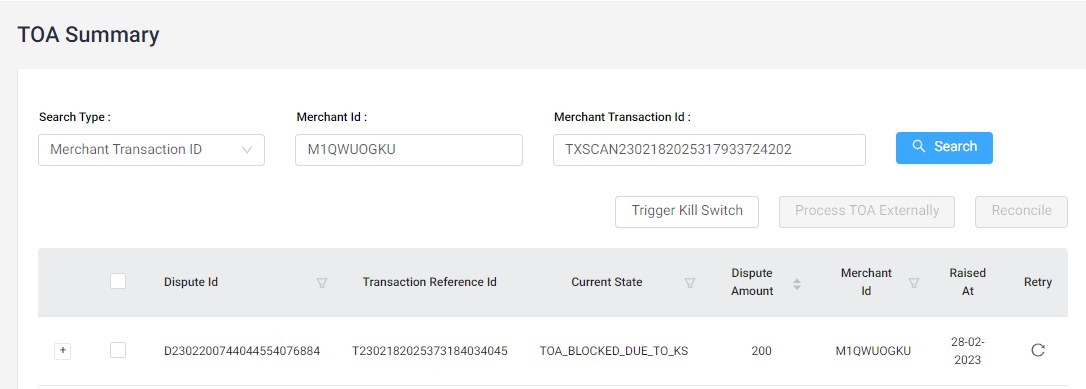
1.0 | Any issue related to TOA transaction Refer to Sub issue:
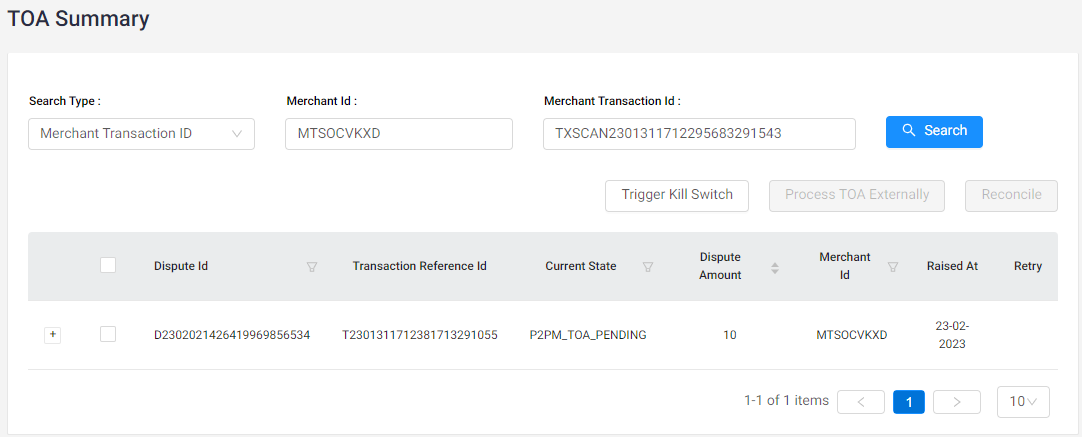
| Agents action: Check if there is any TOA transactions in Stratos console How to check: Search the transaction by filtering merchant id and transaction ID
| MHD L2 | |
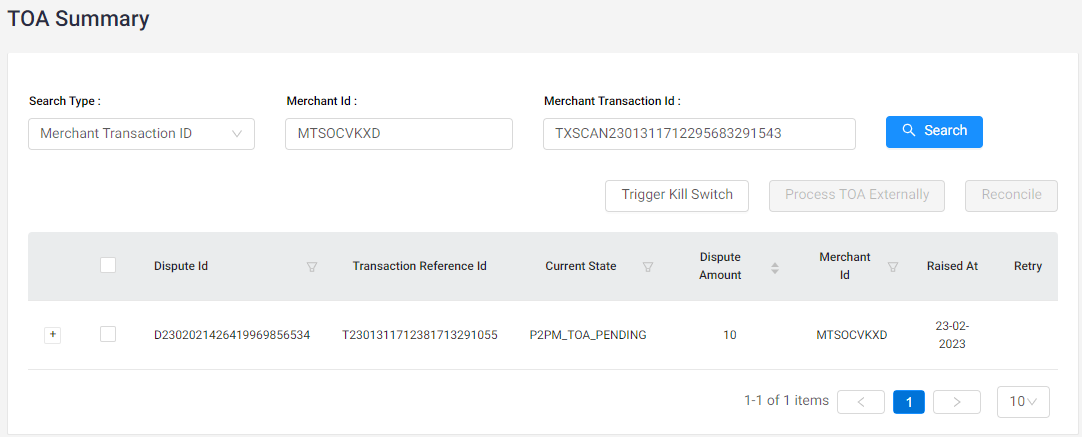
1.1 | If there is a TOA transaction in Stratos console | Agents action: Check the status of the TOA transaction in Stratos console How to check: Search the transaction by filtering merchant id and transaction ID
| ||
1.1.1 | If the status is “P2PM_TOA_COMPLETED” | Communicate to Merchant: Inform the merchant that there was an issue with the transaction leading to the delay, but the amount of Rs. xx has been processed by PhonePe to your bank on date xxxx at time XXX. Ask Mx to check his/her latest bank statement. Tagging remains unchanged. Status: Resolved | MHD L2 | T |
1.1.2 | If the status is “TOA_COMPLETED_EXTERNALLY” | Agent action: Collect transaction details from manual TOA team and update the same information to merchant Communicate to Merchant: Inform the merchant that there was a technical issue in processing the payments, however the payment Rs. xx is now processed on date: dd-mm-yy. Ask the merchant to check the latest bank statement with reference to the UTR: XXX XXX XXX XXX Tagging remains unchanged Status: Resolved | MHD L2 | T |
1.1.3 | If the status is “P2PM_TOA_FAILED_AFTER_MAX_AUTO_RETRY” | Agent action: Retry the respective TOA transaction in Stratos console How to do: 1. Login to Stratos console 2. Select “Merchant Transaction ID” is search type 3. Search using merchant and transactions IDs 4. Click on retry symbol
| MHD L2 | T |
1.1.3.a | If the TOA transaction is completed after retrying | Agent action: follow status is “P2PM_TOA_COMPLETED” flow | MHD L2 | T |
1.13.b | If the TOA transaction is failed after retrying | Agent action: Check the merchant type under Merchant Profile | MHD L2 | T |
1.1.3.a | If the Merchant type is P2P | Communicate to Merchant: Inform the merchant that there was some issue with processing the transaction of Rs. XX due to technical reasons and ask the merchant to share the bank details to initiate money by PhonePe. Tagging remains unchanged Status: Waiting on Merchant Set the due date to 3 days from time of contact | MHD L2 | |
1.1.3.a.1 | Once the Merchant share the document | Agent action: Share the details via Email (MID, Txn Id, Txn value, Txn date, reason for manual TOA process, bank details, screenshot TOA processed in Stratos console) to manualpayment@phonepe.com to process TOA Manually. Seek approvals of ReportingManager(mohammed.madani@phonepe.com), Business POC (arpit.tuteja@phonepe.com) and BizFin POC (yogesh.duggar@phonepe.com). Communicate to Merchant: Inform the merchant that a technical issue is preventing the processing of payments and that a concerned team is looking into it. Ask the merchant to wait for T+2 business days (BD) Tagging remains unchanged Status: Assigned to L2 L2 Team: Manual Payments | MHD L2 | T+2 BD |
1.1.3.b | If the Merchant type is P2ML | Agent action: Share the details via Email (MID, Txn Id, Txn value, Txn date, reason for manual TOA process, screenshot TOA processed in Stratos console) to manualpayment@phonepe.com to process TOA Manually. Seek approvals of Reporting Manager(mohammed.madani@phonepe.com) and Business POC (arpit.tuteja@phonepe.com) and BizFin POC (yogesh.duggar@phonepe.com). Communicate to Merchant: Inform the merchant that a technical issue is preventing the processing of payments and that a concerned team is looking into it. Ask the merchant to wait for T+2 business days(BD) Tagging remains unchanged Status: Assigned to L2 L2 Team: Manual Payments | MHD L2 | T+2 BD |
1.1.4 | If the status is “P2PM_TOA_PENDING” | Agent action: Retry the transaction on Stratos console How to do: 1. Login to Stratos console 2. Select “Merchant Transaction ID” is search type 3. Search using merchant and transactions IDs 4. Click on retry symbol
| MHD L2 | T |
1.1.4.a | After retry if the status changes to “P2PM_TOA_COMPLETED” | Communicate to Merchant: Inform the merchant that there was an issue with the transaction leading to the delay, but the amount of Rs. xx has been processed by PhonePe to your bank on date xxxx at time XXX. Ask Mx to check his/her latest bank statement. Tagging remains unchanged Status: Resolved | MHD L2 | T |
1.1.4.b | After retry if the status is “P2PM_TOA_PENDING” | Communicate to Merchant: Inform the merchant that a technical issue is preventing the processing of payments and that the concerned team is looking into it. Ask the merchant to wait for T+2 business days Agent action: Escalate the issue to Payments-FT team with TOA transaction Id for update on Status. Tagging remains unchanged Status: Assigned to L2 L2 Team: Payments FT | MHD L2 | T+2BD |
1.1.5 | If the status is “P2PM_TOA_INITIATION_FAILED” | Agent action: Check if the merchant has migrated to P2ML during the period of TOA process | MHD L2 | |
1.1.5.a | Yes, merchant migrated from P2P to P2ML | Agent action: Share the details via Email(MID, Txn Id, Txn value, Txn date, reason for manual TOA process, screenshot TOA processed in Stratos console) to manualpayment@phonepe.com to process TOA Manually. Seek approvals of Reporting Manager(mohammed.madani@phonepe.com) , Business POC (arpit.tuteja@phonepe.com )and BizFin POC (yogesh.duggar@phonepe.com). Communicate to Merchant: Inform the merchant that a technical issue is preventing the processing of payments and that a concerned team is looking into it. Ask the merchant to wait for T+2 business days(BD) Tagging remains unchanged Status: Assigned to L2 L2 Team: Manual Payments | MHD L2 | T+2BD |
1.1.5.b | No migration | Communicate to Merchant: Inform the merchant that a technical issue is preventing the processing of payments and that a concerned team is looking into it. Ask the merchant to wait for T+2 business days(BD) Agent action: Escalate the issue to TOA Automation POC-Dispute Management Oncall (dispute-oncall@phonepe.com) via Email to check the reason for initiation failure. Tagging remains unchanged Status: Assigned to L2 L2 Team: TOA Payments Automation | MHD L2 | T+2BD |
1.1.6 | If the status is P2PM_TOA_INITIATED or "Recieved" | Agent action: Retry the transaction on Stratos console and wait for 3 mins How to do: 1. Login to Stratos console 2. Select “Merchant Transaction ID” is search type 3. Search using merchant and transaction IDs 4. Click on retry symbol
| MHD L2 | T |
1.1.6.a | If the status changes after retrying | Agents Action: provide resolution based on the updated status | MHD L2 | T |
1.1.6.b | If the status has not changed after retrying | Communicate to Merchant: Inform the merchant that a technical issue is preventing the processing of payments and that a concerned team is looking into it. Ask the merchant to wait for T+2 business days(BD) Agent action: Escalate the issue to TOA Automation POC - Dispute Management Oncall (dispute-oncall@phonepe.com) via Email to check the reason for initiation failure. Tagging remains unchanged Status: Assigned to L2 L2 Team: TOA Payments Automation | MHD L2 | T+2BD |
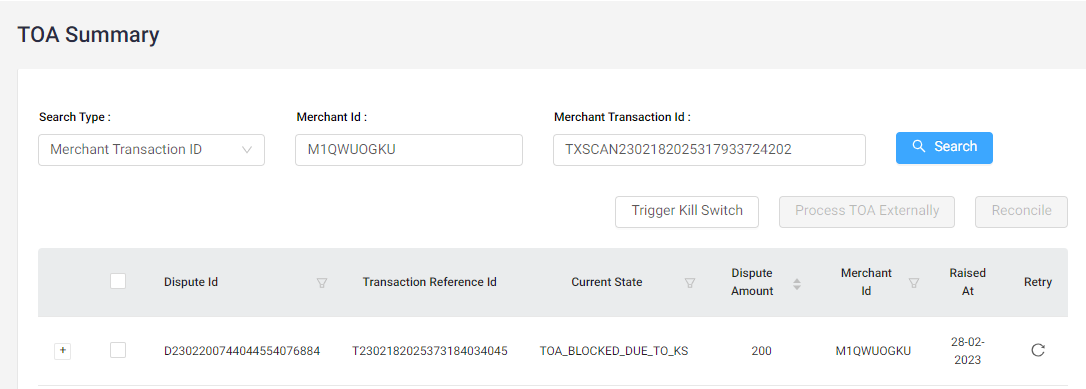
1.1.7 | If the status is “TOA_BLOCKED_DUE_TO_KS” | Agent action: Retry the transaction on Stratos console How to do: 1. Login to Stratos console 2. Select “Merchant Transaction ID” is search type 3. Search using merchant and transactions IDs 4. Click on retry symbol Communicate to the Merchant: Provide an update to the merchant based on the status of the TOA transaction after retrying. Tagging remains unchanged Status: Based on TOA status after retry | MHD L2 | Depends on the TOA Txn status after retry |
1.2 | If there is no TOA transaction in Stratos console | Agent action: check the transaction details in RGCS portal | MHD L2 | |
1.2.1 | If the payment transaction is marked as TCC (Transaction credit confirmation) | Communicate to Merchant: Inform the merchant that there was an issue with the transaction leading to the delay, but the amount of Rs. xx has been processed to your bank on date xxxx at time XXX. Ask Mx to check his/her latest bank statement with reference to UTR xxx xxx xxx xxx. Tagging remains unchanged Status: Resolved | MHD L2 | T |
1.2.2 | If the payment transaction is marked as RET (Return) | Agent action: Check the merchant type under Merchant Profile | ||
1.2.2.a | If the Merchant type is P2P | Communicate to Merchant: Inform the merchant that there was some issue with processing the transaction of Rs. XX due to technical reasons and ask the merchant to share the bank details to initiate money by PhonePe. Tagging remains unchanged Status: Waiting on Merchant Set the due date to 3 days from time of contact | MHD L2 | |
1.2.2.a.1 | Once the Merchant share the document | Agent action: Share the details via Email (MID, Txn Id, Txn value, Txn date, reason for manual TOA process, bank details, screenshot TOA processed in Stratos console) to manualpayment@phonepe.com to process TOA Manually. Seek approvals of Reporting Manager(mohammed.madani@phonepe.com), Business POC (arpit.tuteja@phonepe.com ) and BizFin POC (yogesh.duggar@phonepe.com). Communicate to Merchant: Inform the merchant that a technical issue is preventing the processing of payments and that a concerned team is looking into it. Ask the merchant to wait for T+2 business days (BD) Tagging remains unchanged Status: Assigned to L2 L2 Team: Manual Payments | MHD L2 | T+2 BD |
1.2.2.b | If the Merchant type is P2ML | Agent action: Share the details via Email (MID, Txn Id, Txn value, Txn date, reason for manual TOA process, screenshot TOA processed in Stratos console) to manualpayment@phonepe.com to process TOA Manually. Seek approvals of Reporting Manager(mohammed.madani@phonepe.com), Business POC(arpit.tuteja@phonepe.com ) and BizFin POC (yogesh.duggar@phonepe.com). Communicate to Merchant: Inform the merchant that a technical issue is preventing the processing of payments and that a concerned team is looking into it. Ask the merchant to wait for T+2 business days(BD) Tagging remains unchanged Status: Assigned to L2 L2 Team: Manual Payments | MHD L2 | T+2 BD |
2.0 | If payment transaction is pending for greater than 48 hr from transaction initiation Refer to type : Pending Issue: Amount not credited | Communicate to Merchant: Inform the merchant that the transaction has been in a pending state for longer than usual and assure the merchant that the issue has been escalated to the concerned team. Ask the merchant to wait for T+2days Agent action: Escalate the issue to payments FT team or enterprise on-call team depending on the merchant type. Tagging remains unchanged Status: Assigned to L2 L2 Team: Payments FT (for all P2P and P2ML) L2 Team: Enterprise-oncall (For P2M merchants- Key desk has to escalate to Enterprise on-call) | MHD L2/ Key desk | T+2 days |
3.0 | If the payment transaction has failed and doesn’t have “failure details” Refer to type: Failed Issue: Amount not credited | Agent action: Check the transaction in debugging tool and cross confirm the error code in the list (refer to old format sheet)for the reason of failure Communicate to Merchant: Inform merchant that the transactions are failing due to { provide the reason as per failure error code in debugging tool} Tagging remains unchanged Status: Resolved | MHD L2 | T |
3.1 | If the payment transaction has failed and mx has already provided the product/services to customer If it is P2M merchants | Communicate to Merchant: Inform the merchant that the issue has been escalated to the concerned team. Ask the merchant to wait for T+2days Agent action: Escalate the issue to enterprise on-call team Tagging remains unchanged Status: Assigned to L2 L2 Team: Enterprise-oncall (For P2M merchants- Key desk has to escalate to Enterprise on-call) | MHD - Key desk | T+2days |
2.2.2 Unable to accept payments due to monthly limit issue(MID is not part of errant IFSC)
Steps | Process step | Action | Owner | TAT |
1.0 | If Mx limit is not revised after the POB is updated Refer to Subissue:
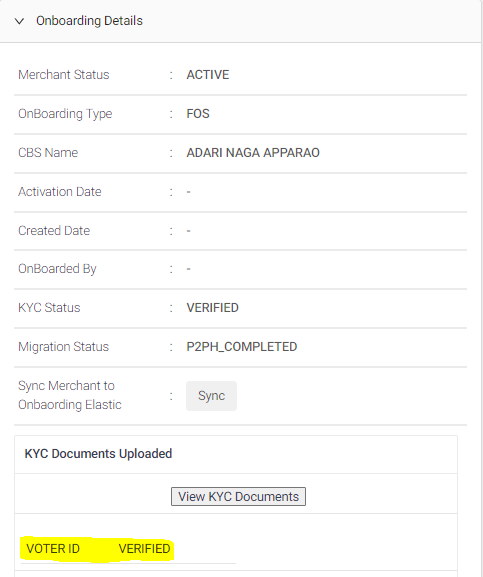
| Agent action: Check if the merchant has provided a proper POB. How to check: In merchant profile section, check the type of KYC document that is verified under “Onboarding Details” tab
| MHD L2 | |
1.1 | If no Proper POB is provided by merchant | Communicate to Merchant: Inform the merchant that he/she will be able accept payment only around 3L in a month any payments above that breaches the limit. Assure the merchant that it is temporarily blocked and the amount limit will be reset next month. Alternatively, the merchant can increase the transaction limit by providing the Proof of Business like GST details in PhonePe Business App and also inform the merchant that it would take 2 days for the limit to be revised once the business proof is successfully verified . Tagging remains unchanged Status: Resolved | MHD L2 | T |
1.2 | If proper POB is provided | Agent action: Check if the POB is verified. How to check: In merchant profile section, check the verification status of KYC document that is verified under “Onboarding Details” tab
| ||
1.2.1 | If the document is not verified | Communicate to Merchant: Inform the merchant that the provided document verification is failed; Ask merchant to try to update documents. Tagging remains unchanged Status: Resolved | MHD L2 | T |
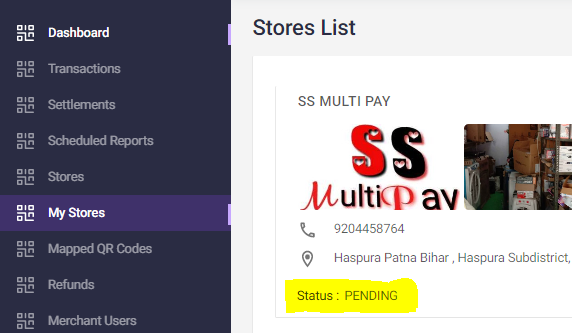
1.2.2 | If the documents is verified | Agent action: Check if the store images are verified How to check: In SCP under the “My store” section, check the status.
| MHD L2 | |
1.2.2.a | If the store image status is pending | Communicate to Merchant: Inform the merchant that there is an issue with verification and the concern team is looking into it. Also inform mx that our FOS will visit the store to complete the verification. Once verification is complete, the transaction limit will be revised. Ask the merchant to wait for T+ 5 business days Agent action: Escalate the ticket to the Field team to react to a FOS visit task to verify the store. Status: Assign to L2 L2 Team - BD Team | MHD L2 | T+5BD |
2.2.3 Unable to accept payments due to Errant IFSC issue
Steps | Process step | Action | Owner | TAT |
1.0 | Consider tickets of subissue: "Bene registration failure" Status: "Assign to L2", & “Reopen” | Agent action: Check if IFSC is captured in ticket properties by L1 | L2 MHD - Onboarding | T |
1.1 | If the IFSC is captured in ticket properties, | Agent action: check if the IFSC captured is present in the NEFT IFSC list. | L2 MHD - Onboarding | T |
1.1.1 | If IFSC captured is not present in the NEFT enabled IFSC list | Communicate to the Merchant: Inform the merchant that the IFSC shared doesn't have NEFT enabled and ask Mx to share the details and documents of another bank account with a NEFT enabled IFSC. Tagging remains unchanged. Status: Waiting on merchant
| L2 MHD - Onboarding | T+3 days |
1.1.2 | If IFSC captured is present in the NEFT enabled IFSC list | Communicate to the Merchant: Inform the merchant that the IFSC will be updated and the transactions will be unblocked within 3 Business days. Agent action: The L2 team will update the bank details and IFSC code in salesforce & Valhalla and coordinate with the Finance team for approval (create a task and mention “IFSC update request for MID where beneficiary registration failed due to errant IFSC” in the description) . Tagging remains unchanged. Status: Assign to L2 L2 Team: Onboarding | L2 MHD - Onboarding and Finance Team | 1 BD |
1.1.2.a | Once the Finance team approves the IFSC | Agent action: share the MID approved by the Finance team to Services on Call team to enable transactions and QR code. Tagging remains unchanged Status: Assign to L2 L2 Team: Services on Call | L2 MHD - Onboarding and Service on call | T+2 BD |
1.1.2.a.1 | Once the Service on call team enables the transaction and QR code for the MID | Communicate to Merchant: Inform the merchant that the IFSC is updated and the transaction is enabled. Also inform merchants that they can continue the transactions. Tagging remains unchanged Status: Resolved | L2 MHD - Onboarding | T+1 BD |
1.2 | If the IFSC is not captured in ticket properties | Agent action: Check if the bank account updated on or after April 16, 2023, is successful. | L2 MHD - Onboarding | T |
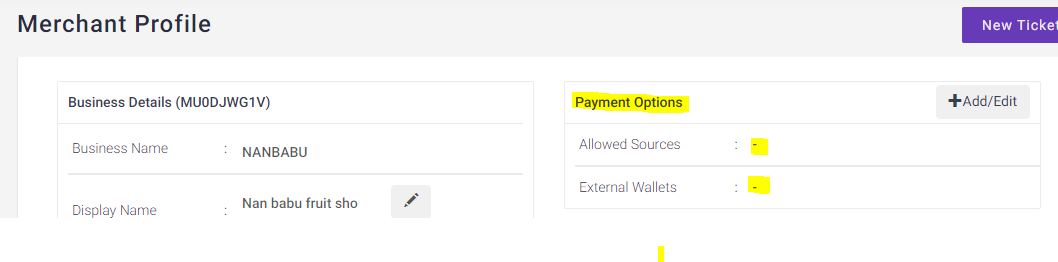
1.2.1 | if the bank account updated on or after April 16, 2023, is successful | Agent action: Check if the payment instruments are unblocked in SCP. How to check: refer to payment options in the merchant profile section.
| L2 MHD - Onboarding | T |
1.2.1.a | If payment instruments are enabled, | Communicate to the Merchant: Inform the merchant that the IFSC is updated and the transaction is enabled. Also inform merchants that they can continue the transactions. Tagging remains unchanged. Status: Resolved | L2 MHD - Onboarding | T |
1.2.1.b | If payment instruments are still disabled, | Agent action: Share the MID with the Services on Call team to enable payment instruments and transactions. Tagging remains unchanged. Status: Assign to L2 L2 Team: Services on Call Set the due date to T+2 business days from the time of contact. | L2 MHD - Onboarding | T+ 2 BD |
1.2.2 | If the bank account updated on or after April 16, 2023 is failed | Agent action: Check if MX has shared the bank details along with the IFSC. | L2 MHD - Onboarding | T |
1.2.2.a | If the MX hasn’t shared the details | Communicate to the Merchant: ask the merchant to share any of the mentioned documents on the same ticket from the help section or via email to merchant-desk@phonepe.com Documents list: 1) A cancelled cheque copy with the account holder's name, IFSC, and account number printed. 2) A bank statement signed and sealed by the bank with IFSC being visible. 3) The bank passbook is attested and sealed by the bank with the IFSC visible. 4) A bank letter with the account details (beneficiary name, account number, account type, and IFSC code) signed and sealed by the bank. Tagging remains unchanged. Status: Waiting on merchant Set the due date to T+3 days from the time of contact. | L2 MHD - Onboarding | T+ 3days |
1.2.2.b | If the bank details are shared, | Agent action: verify the documents shared by the merchants. | L2 MHD - Onboarding | T |
1.2.2.b.1 | If the verification is failed | Communicate to the Merchant: Inform the merchant that the document verification failed and ask the merchant to share the right bank account details and documents. Tagging remains unchanged. Status: Waiting on merchant
| L2 MHD - Onboarding | T+3 days |
1.2.2.b.2 | If the document verification is successful, | Communicate to the Merchant: Inform the merchant that the IFSC will be updated and the transactions will be unblocked within 3 Business days. Agent action: The L2 team will update the bank details and IFSC code in Valhalla and coordinate with the Finance team for approval. Tagging remains unchanged. Status: Assign to L2 L2 Team: Onboarding | L2 MHD - Onboarding and Finance Team | 1 BD |
1.2.2.b.2.1 | Once the Finance team approves the IFSC | Agent action: share the MID approved by the Finance team to Services on Call team to enable transactions and QR code. Tagging remains unchanged Status: Assign to L2 L2 Team: Services on Call | L2 MHD - Onboarding and Service on call | T+2 BD |
1.2.2.b.2.1.a | Once the Service on call team enables the transaction and QR code for the MID | Communicate to Merchant: Inform the merchant that the IFSC is updated and the transaction is enabled. Also inform merchants that they can continue the transactions. Tagging remains unchanged Status: Resolved | L2 MHD - Onboarding | T+1 BD |
Note: The same procedure should be followed if BD shares the IFSC over call/ Email
2.3 Disabled error code and communications
Disabled reason | Communication | Tagging details |
UNSERVICEABLE_BANK | Inform mx that his/her is unable to accept as per regulatory guidelines, payments and settlements to the Paytm Payments Bank account have stopped. Ask merchant to change the bank account linked to Phonepe business to continue receiving your money. Give the redirection link. https://phon.pe/business_manage_bank | Group - Payments Type - Failed Issue - Unable to accept payment Subissue - Account disabled Status: Resolved Error code: {Disabled reason} |
DUPLICATE_PHONE_NUMBER / DUPLICATE_ONBOARDING_VIA_SALESFORCE / DUPLICATE_BANK_ACCOUNT | inform mx that his/her is unable to accept payments as their account is disabled as there are more than on phonepe business account linked to the same number. You can continue to the payments from your active account. Please login to your phonepe business app using your registered phone number to accept payments via account business account. | Group - Payments Type - Failed Issue - Unable to accept payment Subissue - Account disabled Status: Resolved Error code: {Disabled reason} |
DUPLICATE_KYC / REGULATORY_ISSUE_WITH_DISPLAY_NAME / LEGAL_ENTITY_MERCHANT_WITHOUT_ASD / NON_COMPLIANT_ONBOARDING / ENTITY_NAME_CHANGED / PROFILE_REASSIGNED / GST_STATE_MISMATCH_WITH_PROFILE_ADDRESS / ONBOARDED_WITH_INVALID_AADHAAR | inform mx that his/her is unable to accept payments as phonepe account is suspended due to security reason. | Group - Payments Type - Failed Issue - Unable to accept payment Subissue - Account disabled Status: Resolved Error code: {Disabled reason} |
LEGAL_ENTITY_MERCHANT_WITHOUT_POB / FULL_KYC_MERCHANT_WITHOUT_POB / MCC_UNDER_RESTRICTED_CATEGORY / MCC_UNDER_RESTRICTED_CATEGORY | Inform merchants that he/she is unable to accept payments due to security reasons and inform them that issue will be assigned to the concerned team. We will get back to you shortly. | G- Merchant profile T- Merchant AC I- Activation request S-Internal Action Needed Status: Assign to L2 L2_Team: Service Management Resolution due by: T+2 days Error code: {Disabled reason} |
NO_KYC_MERCHANT / FULL_KYC_MERCHANT_WITHOUT_PAN / MIN_KYC_PLUS_MERCHANT_WITHOUT_PAN_OR_FORM_60 | Inform merchants that he/she is unable to accept payments as the KYC details are incomplete and ask merchant to complete the KYC details Share the steps if necessary: Go to Account at the bottom of homepage Tap on KYC Tap on Complete now. | Group - Payments Type - Failed Issue - Unable to accept payment Subissue - Account disabled Status: Resolved Error code: {Disabled reason} |
BANK_BENE_REG_FAILURE / CBS_NAME_WITH_GARBAGE_VALUE | Inform merchants that he/she is unable to accept payments as the bank account linked to phonepe has failed, ask mx to retry updating their bank details and provide them with the redirection link for bank account updation. https://phon.pe/business_manage_bank | Group - Payments Type - Failed Issue - Unable to accept payment Subissue - Account disabled Status: Resolved Error code: {Disabled reason} |
SETTLEMENT_PENDING | Inform merchants that he/she is unable to accept payments as the bank account linked to phonepe is unable to accept any settlements and ask merchant to change the bank account linked to phonepe to received money and give the redirection link. https://phon.pe/business_manage_bank | Group - Payments Type - Failed Issue - Unable to accept payment Subissue - Account disabled Status: Resolved Error code: {Disabled reason} |
KYC_NAME_MISMATCH_WITH_CBS | Inform merchants that he/she is unable to accept payments as account is disabled because the name in the KYC document does not match with the bank account holder name. I request that you update the bank account, ensure that the account holder name matches with the name in KYC document. Give the redirection link. https://phon.pe/business_manage_bank | Group - Payments Type - Failed Issue - Unable to accept payment Subissue - Account disabled Status: Resolved Error code: {Disabled reason} |
2.4 L2 Process-External teams
The L2 team must manually follow up for updates on all tickets allocated to or escalated to different L2 teams according to TAT and mark the ticket as “resolved” immediately once the information is provided to the merchant.
No tickets should be kept on “Waiting on Merchant” unless the merchant is expected to provide some documents or information related to the ticket.
2.5 Repeat/Reopen
If the merchant replies to unresolved tickets, they are considered repeats.
If the merchant replies to resolved/closed tickets, they are considered reopen.
Steps | Process | Action | Team | TAT |
1.0 | For any reopened/repeat tickets for the below GTIS: Group - Merchant profile Type - QR-regular Issue - Non functional Sub Issue - Transaction Blocked Error Code - PR_021 | Agent action: Communicate the following information to the Mx and ask them to share the requested documents on the ticket Tagging: G- Merchant profile T- QR-regular I-Non functional S-Transaction Blocked Satus: Waiting on Merchant Set due date to T+3 days | MHD L1 | T+3Days |
2.0 | Once the Merchant replies and provides the document | Merchant Communication: Inform the merchant that we will check it & get back to them within 2 Business days Tagging: Group - FRA Merchant Escalations Type - FRA-Request Issue Type - Account enquiry Sub Issue - Account Blocked Status: Assign to L3 L2 Team: FRA Set the due date to T+ 2 business days from the time of contact. | MHD L1 | T+2BD |
For any other GTIS follow the below process:
Note:
In the case of a repeat and reopen ticket, the transaction and the issue have to be the same as the primary issue of the ticket. If the merchant replies or reopens the ticket for either a different transaction or issue, the respective L1 or L2 team should create a new ticket with relevant GTIS and provide a solution to the merchant (resolve the old ticket with relevant reasons in a private note).
Re-promise TAT for cases where the initial TAT is breached should be based on the status of the transaction. If the transaction status has changed, revised TAT should be as per the updated status. If the transaction status hasn’t changed, revised TAT will be the same duration as in the previous (i.e T+x days).
Steps | Process | Action | Ownership |
1.0 | Reopen tickets - All scenarios related to the same transaction and issue | All reopened tickets will be assigned to the L2 team, where the team will follow the L1 and L2 process to address merchant issues and update the ticket status accordingly. | MHD L2 |
3.0 | Repeat tickets - tickets where the “Assigned to L2” or “Assigned to L3” tags are absent | There repeat tickets will be assigned to L1 team, where the team will follow L1 process to address the issue and update the status accordingly | MHD L1 |
3.0 | Repeat tickets - tickets where the “Assigned to L2” or “Assigned to L3” tags are present | These tickets will be assigned to the L2 team, where the team will follow the L2 process to address merchant issues and update the ticket status accordingly. | MHD L2 |
4.0 Escalation Metrics & TAT |
Function | SPOC | Email ID | TAT | Level 2 | Level 3 |
MHD L1 | MP Bharath Kumar | 2 BD | Renjith Mohandas | ||
MHD L2 | Ruchi tripathi | ruchi.tripathi@phonepe.com | 1 BD | ||
Payments on-call | payments-oncall@phonepe.com | 1 BD | Lavanya Boyapti | Yashasvini KS | |
Services on call | merchant-services-request@phonepe.com | 2 BD | Prateek Mathur | Tirthankar Chowdary | |
Manual Payments (for TOA) | manualpayment@phonepe.com | 2 BD | Subhasish Maity | ||
TOA Automation | Dispute Management Oncall | dispute-oncall@phonepe.com | 2 BD | ||
BizFin | Arpit Tuteja | arpit.tuteja@phonepe.com | 2 BD | Nakul Agarwal | |
MX Design | Mayank Jha | 1 BD | |||
Automation | Mx-Automation | 2 BD | |||
Content | Ammu | 2 BD | |||
Training | Dishari | 1 BD | |||
Quality | Riti Singh | 2 BD | |||
BI | Karthi | 2 BD | |||
FRA | Allan Deepak H | allan.deepak@phonepe.com | Kavya Shree L P |
5.0 Reference Documents |
Document Name | Links |
BOT flows | |
Error Messages | |
GTIS Data sanity |
6.0 Frequently Asked Questions |
Question | Response |
How do I check the status of a customer payment? | To check the status of the customer payment in the PhonePe Business app, 1. Tap History at the bottom right of your app home screen. 2. Tap the payment for which you want to check the status. To Check the status of the customer payment in the PhonePe Business dashboard 1.Tap Transactions at the left bar of the dashboard 2. Tap the payment for which you want to check the status. Note: Merchant will receive a notification on your PhonePe Business app (or voice notification, if you have opted for it) for all completed payments. |
How to enable Voice notifications? | To can enable Voice Notification by following the below steps: 1.Login to PhonePe for Business App 2.Tap on Profile 3.Tap on Setting 4.Toggle on Voice Notification to Enable the Voice Alert. |
Why did the transaction fail when the amount was debited from the customer account? | The transaction fails due to technical issues at either customer or merchant bank end. Even if the amount is debited from the customer account, it will be returned to the customer's account in two days. If the amount is not returned to the customer, he/she has to reach out to respective customer support for help. Note: Product or service should be handed over only on successful completion of transaction. |
Why I’m unable to accept payments for amount more than Rs. 2,000 | Only payments for upto Rs. 2,000 can be made when customers scan QR code images from your gallery. For higher transaction value, customers have to Scan QR code directly at the outlet. |
Benre registration failure - Errant IFSC issue related | |
What happens if I don't update my IFSC code? | If you don't update your IFSC code, you will not be able to accept payments from your customers, which may impact your business transactions, and your settlements will not be processed. |
Why do I need to update my IFSC code? | We’ve identified that the IFSC code you’ve added for your linked bank account is not on the RBI’s list of valid IFSC codes. To continue receiving your settlements successfully, please update the correct IFSC. |
Can I update the IFSC by myself? | You can update the IFSC on PB app in profile section under Manage bank account. |
How do I find my bank's IFSC? | You can find the IFSC (Indian Financial System Code) on any of these listed documents/website: On your Bank Website Your bank account statement Cheque Book Passbook If you are not able to find the IFSC using the above methods, you can contact your bank's customer support for assistance. |
7.0 Document History |
Ver. No | Authors | Changes in the Doc | Date of change | Reviewed by | Review Date |
1.0 | Revathi M | Initial document | 28-02-2023 | Ismail Awaiz Anikit Baheti Baby Pruthvi Aishani Agarwal Sam Jose | 14-03-2023 |
1.1 | Revathi M | Modified steps of unable accept payments at L1 and L2 to accommodate and proceed with collection IFSC overall without documents for P2ML & P2M and captured updated GTIS and status | 2-05-2023 | Ismail Awaiz | 5-05-2023 |
2 | Mayank Jha | Modified steps for L1 in Txn status=Failed and Unable to accept payment | 05-02-2025 | Revathi M | 05-02-2025 |
3 | Updated process for payments failed due to CR_019 issue | 11-03-2025 | Revathi M | 11-03-2025 | |
4 | Updated the POC for Manual Payments team and Stratos Automation team | 01-07-2025 | Amar Narayana Chari K | 01-07-2025 |
8.0 Annexure |
Please refer to the ideal flow that is created assuming that all product and API requirements were made available.
Product/ API requirement | API for BOT | SCP |
Flag to identify if completed txn is deemed at the time of txn | Available | Required |
TOA Txn details (Status, UTR, date and time, failure error code/reason) | Partially available | Partially available |
If TOA failed, then retry details | Required | Required |
Date and time of txn status update | Required | Required |
Txn UTR (last 4 digits) | Required | Available |
Mx registered bank name | Required | Required |
Mx registered bank a/c (last 4 digits) | Required | Required |
Error code details | Required | Required |
KYC verified Status | Required | Available |
Migration status | Required | Available |
Types of documents verified | Required | Required |
Store verification status | Required | Available |
Impact:
Type | Interventions | Product/ API requirement | Portal Automation (89%) | MSAT (48%) | ART (75:35:41) |
Completed + Deemed | Product | Flag to identify if completed txn is deemed at the time of txn | +3% | +7% | -28:00:00 |
TOA Txn details (Status, UTR, date and time, failure error code/reason) | |||||
If TOA failed, then retry details | |||||
Date and time of txn status update | |||||
Txn UTR (last 4 digits) | |||||
Mx registered bank name | |||||
Mx registered bank a/c (last 4 digits) | |||||
Process/ Design changes | Bot revamp(Improve comms, user input,check ins), Proactive & reactive response | +2% | +5% | -6:00:00 | |
Failed | Product | Error code details | +2% | +2% | -3:00:00 |
KYC verified Status | |||||
Migration status | |||||
Types of documents verified | |||||
Process/ Design changes | Bot revamp(Improve comms, user input,check ins), Proactive & reactive response | +1.30% | +1% | -1:00:00 | |
Ideal Flow | +8% | +15% | -38:00:00 | ||
97% | 63% | 38:00:00 |